
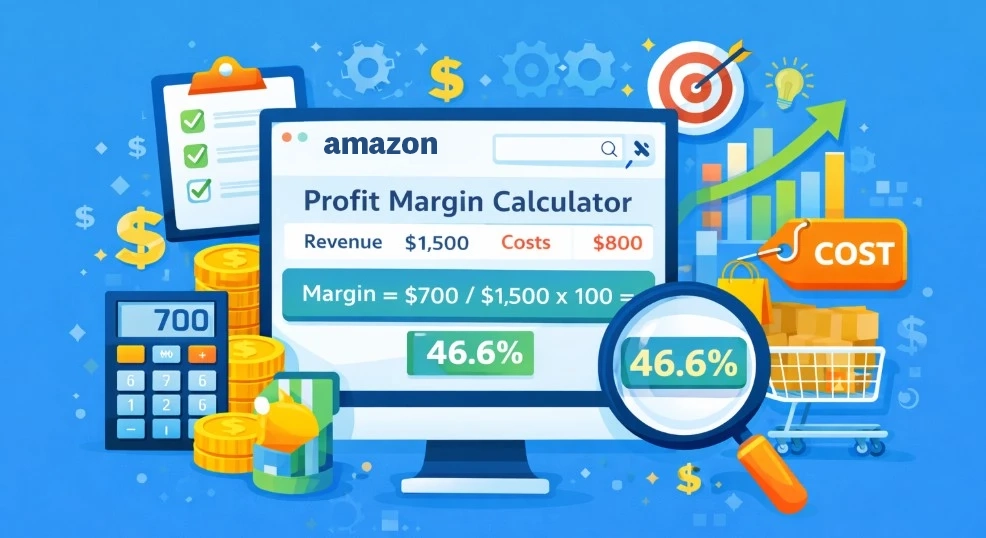
Calculating Amazon profit margin is simple: subtract all Amazon-related costs from your selling price, divide the result by your selling price, and multiply by 100. The formula is: Profit Margin (%) = [(Selling Price − Total Costs) ÷ Selling Price] × 100. For example, if you sell a product for $50 and your total costs—including product cost, Amazon fees, shipping, storage, advertising, and packaging—equal $35, your profit is $15. Your Amazon profit margin would be 30%.
Understanding your Amazon profit margin is essential because revenue alone does not reveal how much money your business actually keeps. Many sellers focus heavily on sales volume while overlooking hidden expenses such as referral fees, FBA fulfillment charges, PPC advertising costs, returns, and long-term storage fees. These costs can significantly reduce profitability, even for products generating strong sales numbers. By regularly calculating profit margin, sellers can identify which products contribute the most to their bottom line and which may be hurting overall business performance.
Whether you are a new Amazon seller or managing a large catalog, tracking profit margin helps you make smarter pricing, sourcing, and advertising decisions. A healthy profit margin allows you to absorb marketplace fluctuations, invest in growth, and maintain sustainable operations. Learning how to calculate Amazon profit margin accurately is one of the most important financial skills for building a successful and profitable Amazon business.
What Profit Margin Means on Amazon (In One Line)
Profit margin on Amazon is simple: how much money you keep from a sale after Amazon and the business take their cut. The reason this gets messy fast is that “cost” on Amazon isn’t just your product cost. It’s fees, fulfillment, ads, returns, and sometimes storage – and not all tools count those the same way.
Profit is the actual dollars left over per unit. Profit margin is the profit shown as a percentage, so you can compare products. If you sell for $30 and keep $6 after everything, that’s $6 profit and 20% margin.
Quick detour, because people mix this up: Amazon ROI is about your money back on what you put in. Margin is about what you keep from the sale. A product can have an okay margin but a great ROI (or the opposite). This depends on your costs and ad spend – especially when your Amazon PPC is doing the heavy lifting.
The easiest way to keep all of this clean is to start with profit per unit. Percentages are where beginners get lost, because Amazon doesn’t charge you in one neat way:
- Some costs are fixed per unit (they hit every sale no matter what)
- Some costs are percentage-based (they scale with your price)
- Some show up later (and this is why payouts don’t match estimates)
Once your per-unit profit is honest, margin % becomes the easy part. And your ROI stops feeling like a mystery, because you’re finally measuring against real costs.
The Complete Amazon Profit Margin Formula (Use This Checklist Every Time)
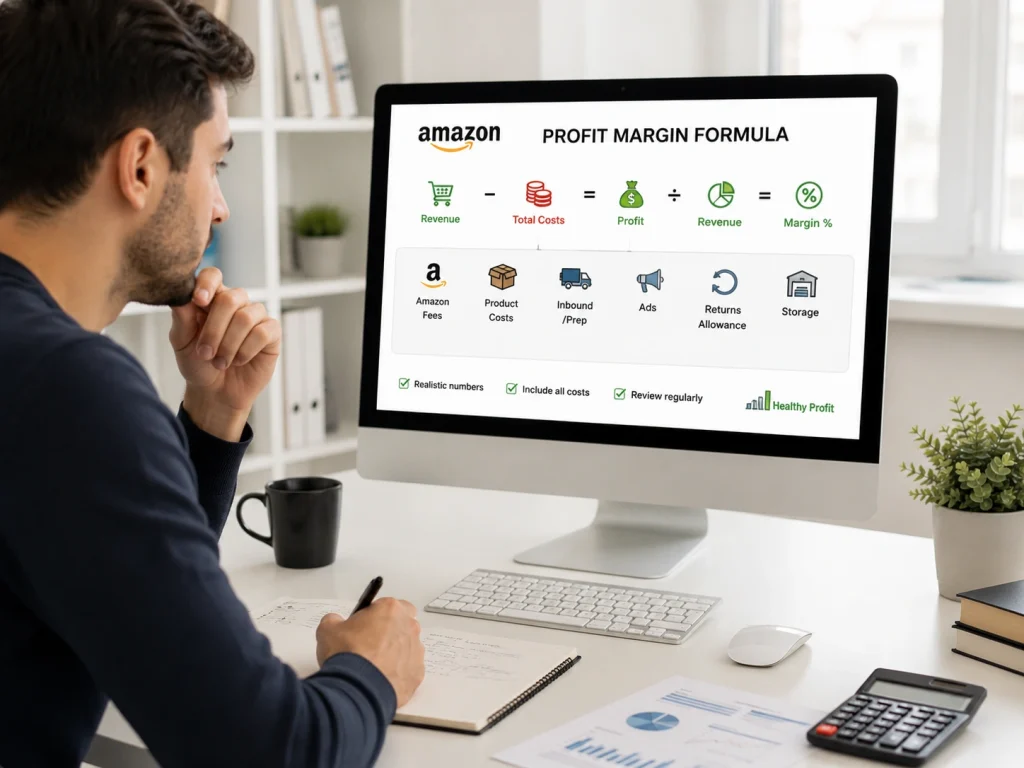
Most “profit margin” mistakes happen because people calculate a clean sale that doesn’t exist. They do price – COGS, maybe subtract “some fees,” and call it done. Then ads ramp, returns hit, storage shows up, and the payout looks… weird.
This checklist fixes that. It’s not fancy, it’s just complete.
The formula (per unit)
Profit per unit = Revenue per unit − (Amazon fees + product costs + inbound/prep + ads + returns/storage allowance)
Profit margin % = Profit per unit ÷ Revenue per unit
That’s it. Now here’s what each bucket actually means in seller terms.
- Revenue per unit: The money you actually received from one sale. Use the price after coupons or discounts, not the list price. If the customer paid shipping separately, add that too. Don’t count sales tax/VAT as revenue, because it usually isn’t yours to keep
- Amazon fees: Amazon takes money in two main ways. The referral fee is a percentage of the sale, kind of like a commission. The FBA fee is what you pay Amazon to handle picking, packing, shipping, and support. It’s usually a fixed-ish per-unit cost. That’s why small discounts can hurt more than you expect: the referral fee drops a little, but the FBA fee often doesn’t.
- Storage and aging: If you use FBA, your products sit in Amazon’s warehouse, and that space costs money. You pay storage while your units wait to sell. If items sit too long, Amazon can charge extra aging/long-term fees. This mostly hurts slow-moving products, not fast sellers.
- COGS and packaging: This is what it costs you to have one unit ready to sell. Start with what you pay your supplier, then add packaging that ships with the product (box, polybag, label, insert). People skip packaging because it feels small, but it adds up fast. And bulky packaging can push your item into higher Amazon FBA fee tiers.
- Inbound/prep/labels: This is the cost of getting inventory into FBA and making it Amazon-acceptable. It includes shipping/freight to Amazon (or a prep center), plus labeling, polybagging, and other prep work. Beginners often forget this because it doesn’t appear on every order. A simple way to handle it is to spread the shipment cost across the units in that shipment.
- Ads (blended): If you use Amazon ads, they are part of your cost to sell. The simple method is to take your ad spend for a given time period and spread it across the units you sold during that same period. That gives you an “ad cost per unit” that’s close to real life. If you ignore ads, your margin will look better than your bank account feels.
Returns allowance: Some orders come back, and that costs money. You might lose money from refunds, damaged units, and extra handling. You don’t need perfect math – just set aside a small average cost per sale. That way, a return-heavy week doesn’t wreck your “profit” number.
BrandsBro helped a client improve their Amazon profit margin calculation content with clearer structure, stronger presentation, and better engagement.
We refined the page experience to build trust and improve performance. Facing similar issues? Book a free meeting with BrandsBro.
How To Calculate Profit Margin Amazon (Step by Step)

Calculating profit margin on Amazon tells you if you’re actually making money, or just moving inventory. Here’s a simple step-by-step process you can use to calculate profit margin for Amazon.
Step 1: Pick One SKU and Time Window
Start with one SKU, not your whole account. Then pick a recent window, such as the last 7-30 days. One “good day” lies – it can hide coupons, ad spikes, or a random return. A week or a month smooths that out, so your margin looks like the business you’re actually running, not a lucky screenshot.
Step 2: Find Your Real Selling Price
Don’t use your list price. Use the price customers actually paid after coupons, deals, and promo codes. If you charge shipping separately, add the shipping the customer paid for too. This one step fixes a ton of “my margin looked fine but payouts feel low” confusion.
Step 3: Pull the Actual Amazon Fees
This is the “what Amazon took” number, per order. You’re looking for the real hit from referral fee + FBA fee (and any other per-order fees that apply to that SKU). Don’t rely on tool estimates here. Amazon charges what it charges, and that gap is usually why your margin doesn’t match payouts.
Step 4: Add Your Product and Inbound Costs
Add your true product cost per unit. COGS = what you pay for the item + the packaging that ships with it. Inbound/prep = what it costs to get that unit into FBA (shipping to Amazon, labels, prep). If those costs are for a whole shipment, just split the total across the units in that shipment.
Step 5: Calculate Ad Cost Per Unit
If you’re running ads, don’t treat them like “extra.” Treat them like a selling cost. The simple method is: total ad spend for this SKU (same time window) ÷ units sold. That gives you an ad cost per unit that matches real life, even if attribution is messy.
Step 6: Estimate Returns and Storage
Returns are the surprise bill that shows up later. So add a small average return cost per sale, even if it’s rough. If you’re FBA, do the same with storage: take the storage cost for the month and spread it across the units you sold. It keeps your margin number honest instead of “best case.”
Step 7: Compute Profit Per Unit and Margin %
Now you’re just plugging numbers into one clean template. Add up every cost line, subtract it from revenue, and that’s your profit per unit. Then divide profit by revenue to get your margin %.
Use this fill-in template:
- Revenue per unit = $__
- Amazon fees per unit = $__
- COGS + packaging = $__
- Inbound/prep per unit = $__
- Ads per unit = $__
- Returns + storage allowance = $__
A Real Example With Real Numbers
Let’s use one simple SKU and numbers that look like real FBA life.
You list the product at $30, but you’re running a 10% coupon, so the customer usually pays $27. Over the last 30 days, you sold 100 units.
Here’s the per-unit math:
Revenue per unit: $27.00
Amazon fees per unit (referral + FBA): $9.25
COGS + packaging: $7.50
Inbound/prep per unit: $1.05
Ads per unit: $2.00 (you spent $200 on ads / 100 units sold)
Returns + storage allowance: $1.00 (ex: $0.80 returns + $0.20 storage)
Now add the costs:
$9.25 + $7.50 = $16.75
$16.75 + $1.05 = $17.80
$17.80 + $2.00 = $19.80
$19.80 + $1.00 = $20.80
Profit per unit = $27.00 − $20.80 = $6.20
Profit margin % = $6.20 ÷ $27.00 ≈ 23%
Here’s the part that usually surprises beginners: if you ignore ads + returns + storage, this same SKU looks like:
$27.00 − ($9.25 + $7.50 + $1.05) = $27.00 − $17.80 = $9.20 profit → ~34% margin.
That’s the gap people feel in payouts. The “missing” 11-ish points are usually ads, returns, storage, or all three.
Top Extensions for Amazon Profit Margin Calculators

If you want “fast math” while you’re browsing listings, extensions are the easiest move. They sit on the product page and act like a quick Amazon profit margin calculator. You just plug in your costs, and they spit out profit, margin, ROI, and fee estimates.
1. RevSeller
RevSeller is basically a profitability panel that lives on Amazon product pages. It estimates Amazon FBA fees, margin, and ROI. This is specifically built for quick decision-making while you’re researching products.
You can open any listing and enter your COGS and shipping/prep numbers. Otherwise, it will look better than real life. RevSeller itself even recommends double-checking with Amazon’s calculator when you need higher confidence.
2. Helium 10
Helium 10’s extension includes profit analysis and a profitability calculator. This makes it handy when you’re already using Helium 10 for research.
The clean way to use it is: open the listing, run the profitability view, and overwrite defaults with your real landed cost. It’s great for quick checks, not for pretending you’ve “finalized” margin.
3. Jungle Scout
Jungle Scout’s extension is mainly a research tool. But it also supports profit projections and an FBA profit calculator flow.
The practical use is to pull up the extension on a product you’re evaluating. Then, you can use its profit/net revenue calculator to sanity-check. Whether there’s room after fees – again, only after you’ve filled in your own costs.
4. Seller Assistant
Seller Assistant bundles an FBM & FBA calculator inside the extension. So, it’s nice to have one place to run the numbers and account for different fulfillment methods.
You can open a listing, choose FBA vs FBM, then enter your costs (COGS, logistics, etc.). It’s especially useful if you sell in marketplaces where tax/VAT details matter and you want that visible while you calculate.
5. AMZScout Amazon FBA Calculator Free
This one is straightforward and beginner-friendly: it’s literally an FBA calculator extension. You open a listing, pop the extension, and enter the product cost, shipping, and CPC/ad cost, and it estimates fees and profit margin. It’s a good “quick filter” tool when you don’t want a full suite – just fast math.
Should You Include Tax/Vat It in the Profit Margin?

The short answer: don’t treat tax as profit. Whether it’s US sales tax or VAT, that money usually gets collected and passed through. So, it shouldn’t inflate your “revenue per unit” when you’re calculating margin.
Amazon even has “Marketplace Tax Collection” setups where Amazon calculates/ collects/ remits certain taxes as the marketplace facilitator. So, it’s not money you’re really keeping.
Where sellers get tripped up is mixing two different things:
- Tax on the customer’s order (sales tax/VAT on the sale): treat it as a pass-through. Don’t count it as revenue.
- VAT on Amazon’s fees (UK/EU type situation): that is part of your cost base.
Since August 1, 2024, Amazon started charging UK VAT on Amazon fees for UK-based sellers (so your fees can look ~20% higher). If you’re VAT-registered, you may be able to reclaim it; if you’re not VAT-registered, it’s just an extra cost you eat.
Practical way to model it so you don’t get confused: keep two separate lines in your sheet. One for product revenue (what you keep) and the second for tax collected (not yours). Then, on the cost side, make sure your “Amazon fees” line matches what Amazon actually charged you.
The Two Ad Math Mistakes That Kill Margins
Ads are where most “my margin looked fine” stories go to die. Not because ads are evil – but because beginners usually calculate them in the most flattering way possible. Then they wonder why the payout doesn’t match the spreadsheet.
Mistake 1: Profit Before Ads Math
If ads are helping the SKU sell, they’re not optional. They’re a selling cost. “Profit before ads” is like saying “profit before rent.” It’s a nice number. It’s not the number you can run a business on.
Mistake 2: Trusting Attributed-Only Ad Numbers
Amazon will show you ad-attributed sales and ACoS, which is useful. But attribution isn’t the whole story. Some sales get “missed,” some get credited weirdly, and branded traffic can make things look cleaner than they are. If you only use attributed numbers, you’ll often undercount what you really spent to move units.
The simple method that keeps you honest is blended ad cost per unit:
- Pick a window (7-30 days)
- Take the total ad spend for that SKU in that window
- Divide by total units sold for that SKU in the same window
That gives you the ad cost per unit. It’s not perfect, but it lines up with reality way better than “ads don’t count” or “attributed-only” math. And once you have an ad cost per unit, you can drop it straight into your profit-per-unit calculation.
Returns and Storage: The Profit Killers Nobody Budgets For

Returns and storage don’t feel like “per order” costs, so beginners leave them out. Then a few returns hit, storage fees post, and suddenly the margin you thought you had just… isn’t there. These are the costs that show up later and make your profit math look fake.
For returns, you don’t need perfect math. You just need a realistic allowance. Take a rough return rate (even a guess is fine at the start), estimate what one return usually costs you (refund + damaged/not-resellable + any processing), and spread that across all sales as a small returns cost per unit.
Storage is the same story. If you’re FBA, you’re paying “rent” while units sit. The quick, beginner-proof way is: take what you paid in storage for the month and spread it across the units you sold that month. That gives you a rough storage cost per unit, so your margin doesn’t magically disappear later.
Simple rule: add small buffers now, so you don’t get surprised later. This is what turns “tool margin” into a number you can actually trust.
How To Track Profit Margin Weekly Without Getting Buried
You don’t need a dashboard. You need one simple check-in that uses the same math every week, so you spot problems before they turn into “why is my payout low?”
Here’s the routine:
- Pick the last 7 days for one SKU (or your top 5 SKUs).
- Update only the inputs that actually move: average selling price, Amazon fees per unit, COGS + inbound/prep, ad cost per unit, and a small returns/storage allowance.
- Recalculate profit per unit and margin %. That’s your truth.
Then track just these four things:
- Profit per unit (blended): the number you can make decisions with.
- Margin %: useful for comparing SKUs, not obsessing daily.
- TACoS (optional): ad spend ÷ total sales. If this climbs while sales don’t, ads are eating you.
- Return rate trend: watch the direction, not a perfect number. If it’s climbing, your margin is usually the next to take a hit.
Improve Your Margin by Fixing These 5 Levers
When the margin is ugly, most beginners panic and start changing everything at once. Don’t. Fix the inputs that move the needle fastest in a clean, ordered list so you can see what worked.
- Raise price (test, don’t guess): Most sellers underprice because they’re scared of losing sales. Try a small increase, watch the conversion rate and ad efficiency, and keep the price if profit per unit improves. One good price bump can do more than weeks of “optimization.”
- Reduce COGS and packaging: Negotiate wholesale supplier cost, tighten specs, and look hard at packaging. A small change in size or weight can push you into a higher fee tier, which is basically free margin on every sale.
- Improve conversion (so ads get cheaper automatically): Better images, clearer title, tighter bullets improve the overall amaozn conversation rates. Same traffic, more orders. That usually lowers your ad cost per order without touching bids.
- Tighten PPC waste: Cut the obvious leaks first: bad search terms, broad matches that don’t convert, expensive placements that don’t pay back. Don’t “optimize” Amazon PPC ads for pretty ACoS if total profit drops – profit per unit is the scoreboard.
- Avoid storage/aging traps: Slow inventory turns into rent. Keep reorder quantities sane, move dead stock before it becomes a long-term fee problem. Don’t keep feeding a SKU that only sells when you overpay on ads.
If you pull these levers in the right order, your margin usually improves without needing a complicated spreadsheet or a full account rebuild.
FBA vs FBM Profit Margin: What Changes in the Calculation?
Amazon profit margin changes depending on whether you use FBA or FBM because the cost structure is different. With FBA, Amazon handles storage, picking, packing, shipping, customer service, and many returns. With FBM, the seller handles fulfillment directly or through a third-party warehouse. The selling price may look the same, but the profit calculation is not the same.
For FBA sellers, the main costs include Amazon referral fees, FBA fulfillment fees, monthly storage fees, long-term storage fees, removal fees, inbound shipping, prep costs, and return-related costs. The basic FBA profit formula is: selling price minus referral fee, FBA fee, product cost, shipping to Amazon, storage cost, ad cost, and return allowance. This gives a more accurate net profit per unit.
For FBM sellers, the calculation focuses more on seller-controlled expenses. These include referral fees, product cost, packaging cost, shipping label cost, warehouse labor, customer service time, return handling, and third-party logistics fees if used. FBM may look cheaper at first, but if shipping, labor, and return handling are not counted properly, the profit margin will be overstated.
The key difference is simple: FBA has more Amazon-managed fees, while FBM has more seller-managed costs. To compare FBA vs FBM profit margin correctly, calculate profit per unit for both models using the same selling price. Then compare the final net margin, not just the fulfillment fee. A lower fee does not always mean higher profit if delivery speed, conversion rate, and operational costs are worse.
Amazon Profit Margin Calculator Spreadsheet: What to Include
An Amazon profit margin calculator spreadsheet should include every cost that affects profit per unit. Many sellers only subtract product cost and Amazon fees, which gives an incomplete number. A good spreadsheet should show the real net profit after fulfillment, advertising, shipping, storage, discounts, and returns.
The core columns should include selling price, coupon or discount, net revenue, Amazon referral fee, FBA fee or FBM shipping cost, product cost, inbound shipping cost, prep and packaging cost, storage cost, PPC cost per unit, refund allowance, and final profit per unit. After that, add a profit margin percentage column using this formula: profit margin = net profit ÷ selling price × 100.
For FBA products, the spreadsheet should include FBA fulfillment fees, monthly storage fees, aged inventory charges, removal fees, and inbound shipping to Amazon. For FBM products, it should include postage, packaging, labor, warehouse costs, and customer support expenses. This separation matters because using one generic calculator for both models can create inaccurate profit estimates.
A useful Amazon profit margin spreadsheet should also include break-even price, target profit margin, ROI, ACoS, and TACoS. These metrics help sellers make better pricing and advertising decisions. The goal is not just to know if a product is profitable today. The goal is to understand how price changes, ad spend, coupons, and fulfillment method affect long-term Amazon profitability.
What Is a Good Amazon Profit Margin in 2026?
A good Amazon net profit margin in 2026 is generally 15%–20%. A margin above 20% is strong, while anything below 10% provides little protection against rising advertising costs, returns, storage charges, and price competition.
However, the right target depends on your product category, size, selling price, fulfilment method, and advertising strategy. Amazon referral fees vary by category, while FBA fulfilment costs depend on product dimensions and shipping weight.
Gross Margin vs. Contribution Margin vs. Net Profit Margin on Amazon
Gross margin is the percentage of revenue remaining after subtracting the product’s manufacturing or sourcing cost. If a product sells for $40 and costs $12, its gross profit is $28, producing a 70% gross margin.
Contribution margin subtracts variable Amazon selling costs, including referral fees, FBA fees, inbound shipping, advertising, discounts, and returns. It shows how much each sale contributes toward fixed expenses and profit.
Net profit margin is the final percentage remaining after deducting all variable and fixed expenses, such as software, salaries, storage, refunds, and administrative costs.
How to Calculate Your Break-Even Price on Amazon
Your Amazon break-even price is the minimum selling price needed to cover every expense without generating a profit or loss.
Use this formula:
Break-even price = Fixed per-unit costs ÷ (1 − percentage-based costs)
For example, suppose your product, shipping, and fulfilment costs total $18, while Amazon fees and advertising equal 30% of revenue. Your break-even price is:
$18 ÷ 0.70 = $25.71
Recalculate your break-even price whenever Amazon fees, advertising costs, storage charges, or return rates change.
Frequently Asked Questions (FAQs)
People usually get stuck on the same few questions when calculating profit margin on Amazon. Here are the quick, no-drama answers so you can move on and actually use the numbers.
Use the sale price (after discounts) as revenue, then subtract costs. “Net proceeds” is useful as a shortcut, but it can hide what changed (ads, refunds, storage, adjustments).
Yes, if you want a real margin. Easiest way: spread it across your monthly units (plan fee ÷ units sold) and treat it like a small cost per unit.
Because payouts are delayed and messy. Refunds, storage fees, reimbursements, and adjustments often post days later, so the numbers “catch up” over time.
Treat the bundle as its own SKU. Use bundle selling price, then add the combined COGS (all items + bundle packaging). Make sure your FBA fee reflects the bundle’s size/weight.
Yes. Use the discounted selling price as revenue. Coupons are real margin cuts, even if the listing still shows the higher price.
Update your COGS from the date it changed and calculate the margin in two chunks (before and after). Don’t average it unless the change is small and you’re just doing a quick weekly check.
Struggling With Your Amazon PPC Results?
Brand’s Bro has a team of Amazon PPC specialists who can clean up wasted spend, tighten targeting, and push your margin in the right direction.
You’ll get a clear plan on what to pause, what to scale, and where your budget is leaking right now. Book a quick call before our calendar fills up for the week.


