

A slow Shopify store does not just annoy visitors. It kills conversions, weakens SEO, increases bounce rate, and makes your paid ads more expensive. But here is the problem: many store owners try to improve speed by removing sections, compressing everything blindly, or deleting apps without understanding what actually affects performance. That can make the store faster, but also damage the design, branding, and shopping experience.
At Brand’s Bro, we have spent over 11 years helping Shopify and ecommerce brands improve store speed, user experience, technical SEO, and revenue performance. Our team has worked with 350+ Shopify businesses across the USA, Canada, the UK, and Australia, including brands in fashion, beauty, home goods, electronics, lifestyle, and health-focused ecommerce.
We have seen many Shopify stores lose sales because of poor mobile speed, heavy theme code, oversized images, unused apps, slow scripts, and messy tracking setups. In one Shopify lifestyle project, we optimized the store’s speed without changing the visual design. After improving image loading, removing unused code, cleaning app scripts, and fixing theme performance issues, mobile speed improved by 47% within 60 days, while conversion rate increased by 36%.
For a home essentials brand, we reduced page load friction, optimized product media, cleaned unnecessary scripts, and improved Core Web Vitals. As a result, bounce rate dropped by 28%, product-page engagement increased by 51%, and monthly revenue grew by 112% without redesigning the storefront.
Improving Shopify speed is not about stripping the store down until it looks empty. It is about keeping the design intact while making the backend cleaner, lighter, and faster.
In this guide, we’ll explain how to improve Shopify store speed without breaking the design, including image optimization, lazy loading, app cleanup, theme code improvement, font optimization, script control, and Core Web Vitals fixes.
If your Shopify store looks good but loads slowly, Brand’s Bro can help you improve speed without damaging your design, brand identity, or conversion flow. You can book a meeting with us today.
How to Improve Shopify Store Speed?
When we say “speed” on Shopify, we’re not talking about one magic number.
Shopify focuses on web performance, which really means: how good your store feels for real people using it.
Web performance = Core Web Vitals (3 things you optimize for)
Shopify points to three main areas, the same ones in Core Web Vitals:
- Loading speed (LCP): how fast the biggest thing on the screen shows up.
- Layout stability (CLS): how much the page jumps around while loading.
- Responsiveness (INP): how fast the page reacts when someone taps, clicks, or types.
If you improve these, shoppers are more likely to stay and buy.
Field data vs lab data (why PageSpeed can disagree with Shopify)
Here’s the simple way to think about it:
Shopify Web Performance reports = real people. It uses Core Web Vitals to show how actual visitors experience your store, and it groups results into rankings like Good / Moderate / Poor.
PageSpeed Insights / Lighthouse = test runs. You run them when you want. They’re great for clues, but they can’t perfectly match every real shopper’s phone, network, or location.
So if Shopify says “Moderate” but PageSpeed looks “fine,” don’t panic. Use both:
- Shopify report = what’s happening
- PSI/Lighthouse = why it’s happening

What Shopify already optimizes for you (so you don’t waste time)
Friend-to-friend: a lot of “speed advice” online is meant for sites where you control servers.
On Shopify, you don’t control most server-level stuff-and that’s actually good. Shopify already handles many of the big, boring performance basics for you.
Platform baseline optimizations (mostly not your lever)
Before you spend hours tweaking tiny things, I want you to know something important: Shopify already takes care of a lot of the “server stuff” behind the scenes. That means many common speed tips you see online won’t really help on Shopify.
Once you know this, you’ll stop wasting time – and you’ll focus only on the things that actually make your store faster.
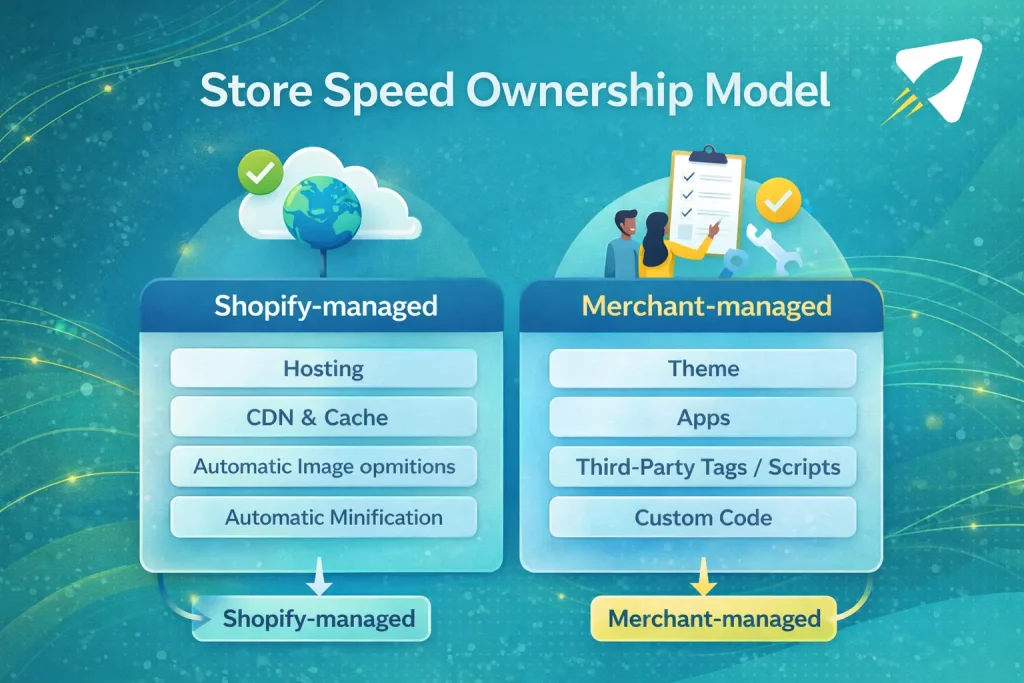
1) Global hosting + no bandwidth limit (Shopify handles it): Your online store is hosted on fast global servers, and Shopify doesn’t cap your bandwidth. So you usually don’t need to “upgrade hosting” the way you would on WordPress.
2) CDN (content delivery network) is built-in (Shopify handles it): Shopify uses a CDN run by Cloudflare to help your store load quickly around the world. That means your images, CSS, and JS are served from locations closer to customers.
3) Automatic image optimization (Shopify handles a big chunk of it): Shopify uses an image CDN that automatically optimizes images. With your theme code, it can serve a better format, resized and compressed, to keep file sizes smaller.
This is why “add an image CDN” is usually pointless advice on Shopify-you already have one.
4) Automatic minification (Shopify handles it, with some limits): Shopify automatically minifies CSS, and it can minify eligible JavaScript when it’s requested by your storefront. (There are caveats, so you still want to keep your theme and apps clean.)
“Third-party scanner recommendations” that often don’t apply on Shopify
This is where people waste time.
Tools sometimes say things like:
- “Add a CDN”
- “Enable gzip compression”
- “Set cache headers”
- “Tune your server response headers”
On Shopify, those are often already implemented by Shopify’s platform. So chasing them usually won’t move the needle.
What will move the needle (and Shopify says this clearly) is what you do control:
- your theme
- your apps
- any third-party code you manually add (especially tag managers and tags)
And that’s perfect-because it means we can focus your energy where it actually helps.
Next, we’ll go straight into the biggest levers Shopify says matter most: theme, apps, and third-party code, and how to choose what to fix first.
BrandsBro worked on a Shopify store speed improvement project where the client struggled with slow loading, weak presentation, and low engagement.
We optimized the store structure, improved user experience, and made the storefront faster and more trustworthy. Book a free meeting to discuss similar issues.
The 3 biggest speed levers Shopify says do matter
Okay bestie-here’s the truth: if your Shopify store feels slow, it’s almost never “hosting.”
Shopify says the biggest things that impact your web performance are:
- your theme
- your apps
- any third-party code you manually added (like tag managers and tags)
Let’s break these down in the simplest, most useful way.
Theme (your store’s “body”)
Your theme decides what loads on every page and how heavy it is.
Use an up-to-date, optimized theme. Shopify recommends using a modern, optimized theme (like Online Store 2.0 themes), and they also provide theme performance data so you can compare.
Don’t stack too many sections on one template.
Every extra section can add more HTML, CSS, images, and scripts. Shopify warns that having a lot of sections on a page can lower performance.
Be careful with animations and page transitions. They look cool, but they can slow pages down. Shopify’s advice is simple: turn them on, then compare your web performance before and after.
Apps (your store’s “extra gadgets”)
Apps can be super helpful. But every app can also bring extra scripts.
Check if each app is truly worth its cost in speed. Shopify tells you to evaluate apps and third-party code to make sure the value is worth any performance loss.
Important gotcha: uninstalling an app might not remove its code. This one surprises people. Shopify says removing an app doesn’t always remove the code it added to your theme. Sometimes you need the app developer’s removal steps to fully clean it up.
So if you removed an app and your site still feels slow, you’re not imagining it.
Manual third-party code (tag managers + tags)
This is the sneaky one. If you added Google Tag Manager, pixels, tracking tags, heatmaps-those are often loaded on every page.
Shopify’s advice: audit your tag manager and remove unused or low-value tags.
Even “small” tags can pile up. And when they pile up, they can slow loading and make clicks feel laggy.
Diagnose first: find the bottleneck page + metric + culprit
Before you change anything, let’s find the exact problem. Otherwise, you’ll “fix” stuff that wasn’t even hurting speed.
Think of it like a tummy ache: you don’t take random medicine-you find what caused it.
Use Shopify Web Performance reports as your baseline
Go to Shopify Admin > Online Store > Web performance.
This is your “truth screen” because it’s based on how real visitors experience your store.
What to look at inside:
- Core Web Vitals status (Good / Moderate / Poor)
- Device split (mobile vs desktop)
- Page type (home, product, collection, etc.)
- Trends over time (so you can see if a change helped or hurt)
- Big changes often show up after theme edits or app installs
One important thing: don’t panic right after you change something. Shopify’s report can take time to update, so improvements might not show instantly.
Use PageSpeed Insights / Lighthouse to pinpoint why
Now we use PSI/Lighthouse like a flashlight.
Open PageSpeed Insights for your slow page and check:
- LCP element: what is the “big thing” that loads late? (Often a hero image/banner.)
- Render-blocking resources: what is stopping the page from showing quickly?
- Long tasks: what JavaScript is keeping the browser busy and slow? (This is often related to INP.)
Then, if you can, open Chrome DevTools:
- Network tab: reload the page and see which scripts take long to load
Performance tab: record a quick session and spot heavy scripts
Focus extra hard on third-party scripts (apps, tags, widgets). They’re common troublemakers.
Triage decision tree (fix the right thing first)
Now we choose the playbook based on the failing metric:
If LCP is failing > fix what loads above the fold
- Heavy hero image/video, carousels, too many sections, slow render path: Where you’ll fix: theme + above-the-fold assets
If INP is failing > fix too much JavaScript work
- Theme JS, app scripts, tag manager tags, third-party widgets: Where you’ll fix: apps + third-party code + theme JS
If CLS is failing > fix page jumping
- Images/embeds without space, late-loading widgets, font swaps: Where you’ll fix: layout rules + media/embed spacing + widget behavior
Playbook A - Fix LCP on Shopify (loading speed)

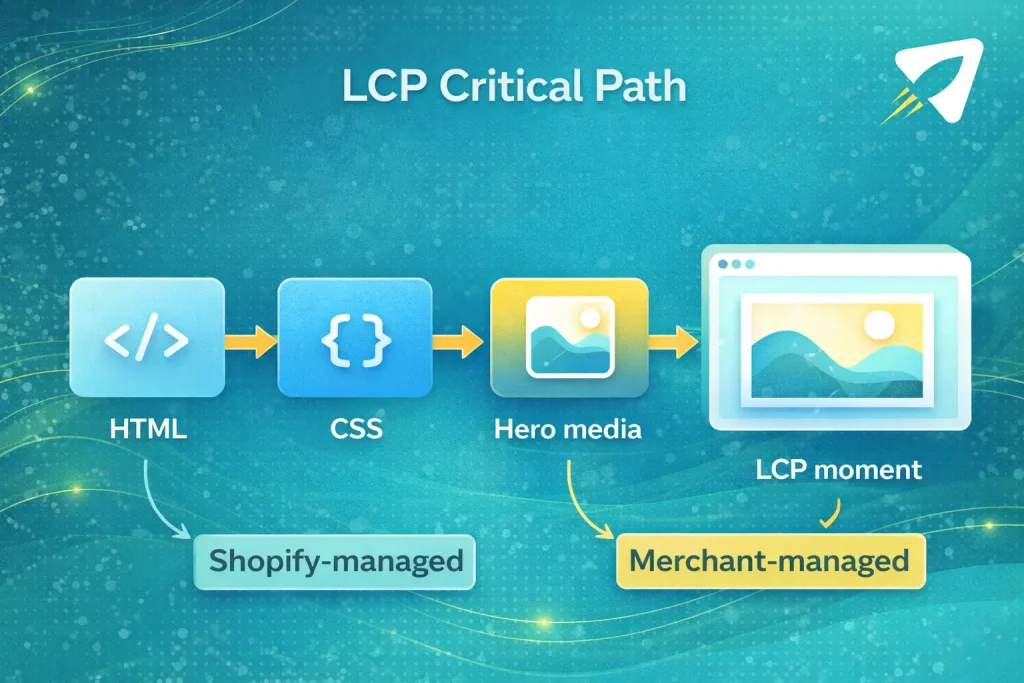
LCP is usually your big hero thing. A large banner, a big product image, or a slideshow.
Our goal is simple: make that one big thing show up fast.
Don’t lazy-load above-the-fold content
Lazy-loading is great… but only below the fold.
Shopify’s rule is clear: anything above the fold should not be lazy-loaded. Above-the-fold content is “critical,” so it must load normally.
If you (or an app) is lazy-loading your hero image, that can hurt LCP.
What to do (easy):
- Lazy-load only the images people see after scrolling.
- Keep the hero image (top banner) not lazy.
If you edit theme code, Shopify suggests using image_tag with loading: ‘lazy’ for below-the-fold images (no extra library needed).
Use responsive images the Shopify way (theme-level best practice)
Big images are often the #1 LCP problem.
Shopify recommends responsive images, so smaller screens don’t download giant files.
This reduces file size from the CDN and avoids heavy browser resizing.
If your theme uses Shopify’s image_tag, it can generate a helpful srcset automatically.
What to do (owner mindset):
- Don’t upload a massive image “just in case.”
- Use clean, sharp images-but not oversized.
If you (or your dev) edits Liquid, Shopify’s pattern looks like this:
{{ product.featured_image | image_url: width: 2000 | image_tag }}
That’s Shopify’s “do it the right way” baseline.
Preload sparingly (only the true critical resources)
Preloading can help, but only if you’re disciplined.
Shopify says you can add up to two preload resource hints per template, using:
- preload_tag, or
- the preload option on stylesheet_tag / image_tag.
Also: Shopify says to use preload sparingly-mainly for what’s needed to render above-the-fold content.
What to preload (usually):
- The hero image (if it’s truly your LCP element)
- The main stylesheet (only if it blocks the first view)
What NOT to preload:
- Every image on the page
- Whole font libraries
- Random app scripts
Over-preloading can backfire by competing for bandwidth.
Host assets on Shopify CDN when possible
Every extra domain your page calls is an extra “hello” the browser must do.
Shopify recommends: deliver as much as you can from Shopify’s CDN.
Using the same host avoids unnecessary HTTP connections and helps delivery priority.
In Shopify terms, that means:
- Put theme assets in the theme’s /assets folder (images, CSS, JS you control).
- Link them using Shopify’s URL filters (so they’re served correctly via Shopify CDN).
Bonus: Shopify’s CDN-delivered files are automatically compressed (Brotli/gzip) and use modern request tech like HTTP/3 and TLS 1.3.
Quick “LCP win” checklist (do this in order)
- In PageSpeed Insights, find the LCP element (the big thing).
- Make it lighter (image size + responsive delivery).
- Make sure it’s not lazy-loaded.
- Preload only if it’s truly critical (max 2 hints per template).
- Keep as many assets as possible on Shopify CDN.
Playbook B - Fix INP on Shopify (responsiveness)
INP is the “feels fast” metric.
If INP is bad, your store might look loaded, but when someone taps “Add to cart” or opens a menu, it feels slow. Shopify says poor INP is usually caused by too much JavaScript coming from your theme, apps, or third-party/tag manager code.
So our job is simple: make the browser do less work.
“HTML/CSS first; JS as progressive enhancement”
Here’s Shopify’s own guidance in plain words:
Build mostly with HTML and CSS. Basic shopping (finding products, buying products) shouldn’t need JavaScript. Use JavaScript only as a “nice extra” when there’s no HTML/CSS option.
What this means for you as a store owner:
- If a feature breaks when JavaScript is off (like basic navigation or buying), it’s probably too JS-heavy.
- Fancy effects are okay, but don’t let them control core shopping.

Avoid parser-blocking scripts
Parser-blocking scripts force the browser to stop building the page until the script loads and runs. Shopify warns this delays rendering and hurts metrics like FCP and LCP.
The fix is usually adding defer or async to scripts.
If you (or your dev) touches theme code, this is the idea:
<!– bad (blocks) –>
<script src=”app.js”></script>
<!– better –>
<script src=”app.js” defer></script>
Shopify’s simple rule:
- use defer when script order matters
- use async when it doesn’t
Reduce dependency on heavy libraries
Shopify straight-up says: try not to add big frameworks/libraries if you can avoid it.
Prefer native browser features and modern DOM APIs. Libraries and frameworks can create large bundles, slower load times, and a worse experience. Shopify even calls out big ones like React/Angular/Vue and utility libraries like jQuery as having real performance costs.
Simple store-owner takeaway:
- Every “cool feature” app or script can bring a whole pile of JS.
- Fewer libraries = fewer long tasks = better INP.
Load non-critical resources on interaction
This is one of the cleanest wins for INP.
If a component is not always used (like a chat widget, size guide, or popup), Shopify recommends loading it only when a customer actually interacts. That way, people who never click it don’t pay the cost.
Shopify calls this an “import on interaction” pattern.
In normal language:
- Don’t load the whole “extra feature” at page start.
- Load it when the user clicks the button for it.
Guardrail: script safety and collisions
When many scripts run together (theme + apps + tags), they can fight.
Shopify warns about global namespace collisions-basically, different scripts accidentally using the same variable names and breaking each other.
Shopify’s fix: wrap theme scripts in a function scope, like an IIFE, so variables don’t leak into the global space.
Example pattern:
(function () {
// your code lives safely in here
})();
This helps keep scripts from colliding-especially when code is bundled and minified.
Playbook C - Fix CLS on Shopify (layout stability)
CLS is the “page jumping around” problem.
You know when you try to tap a button… and the page shifts… and you tap the wrong thing? That’s CLS. Shopify defines CLS as visual stability: how much content moves unexpectedly while loading.
Our goal is simple: make the page stay still.

Reserve space for media + embeds
Most CLS issues happen because the browser doesn’t know how much space something will need.
So it guesses. Then the real content loads. And everything shifts.
Do these three things:
1) Give images and videos a fixed size.
Set width/height (or an aspect ratio) so the browser can reserve space before the file finishes loading.
2) Use aspect-ratio wrappers for anything that loads later.
This is perfect for:
- product images
- banners
- video embeds
- app widgets that appear after loading
3) Leave space for injected content.
Shopify’s CLS guidance says poor CLS often comes from images and injected content-so save space for both.
Tiny reminder: Shopify also calls out “don’t lazy load your CSS” as part of fixing CLS, because late CSS can cause layout changes.
Fonts: minimize payload and surprises
Fonts can cause layout shifts too.
Shopify’s theme performance best practices say: consider using a system font.
Why? Because system fonts don’t need an extra download before text can render.
Simple store-owner rule:
- If you don’t need custom fonts, system fonts are the safest for speed and stability.
- If you do use custom fonts, keep them minimal and test CLS after changes (especially on mobile).
Watch late-injected app widgets
Apps can insert stuff after the page starts loading:
- reviews
- trust badges
- popups
- social feeds
If those appear and push content down, CLS gets worse.
Shopify’s own CLS guidance points to “injected content” as a common cause-so the fix is to make sure these widgets have reserved space or load in a way that doesn’t shove the layout around.
Here’s the best workflow:
- Check Shopify Web Performance reports for CLS (mobile is usually the trouble spot).
- Open the worst page type (often product pages).
- Temporarily disable one widget/app embed at a time and retest-so you can identify the real culprit.
Shopify CDN & cache correctness (the asset_url details most guides miss)
This part saves you from a super annoying problem:
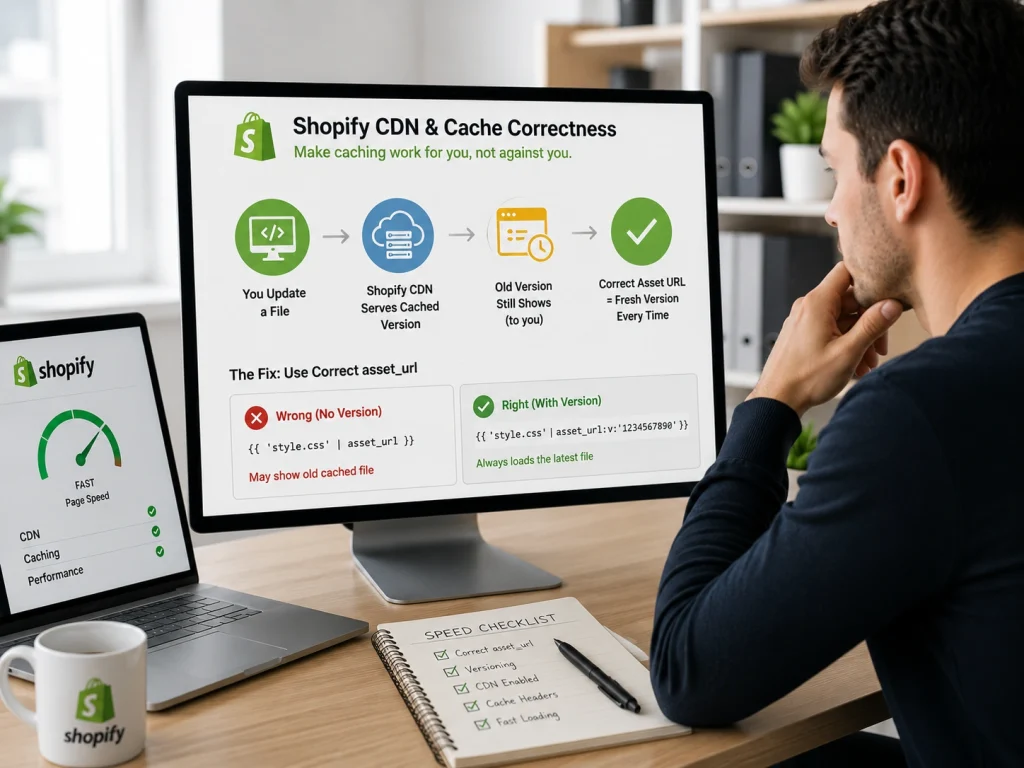
You change a file… you refresh… and it still looks like the old one.
Most of the time, it’s not you. It’s catching doing its job a little too well.
So we’ll make caching work for you, not against you.
Use asset_url for versioning (especially in CSS)
Shopify has a simple trick: when you use asset_url, Shopify adds a little version number to the file URL (it looks like ?v=…).
That version tells browsers and the CDN:
“Hey, this is a new file. Don’t use the old cached one.”
If you link to assets without asset_url, your updates can take longer to show, because the URL looks the same.
What you should do (easy win)
When you include theme assets (CSS/JS/images), use Shopify’s filters.
Example for a stylesheet:
{{ ‘theme.css’ | asset_url | stylesheet_tag }}
Example for a script:
{{ ‘theme.js’ | asset_url | script_tag }}
Now your store gets the correct, versioned URL automatically.
The CSS gotcha (this one bites hard)
If you reference an image directly inside CSS using a plain static URL, that URL won’t get the version parameter.
So after you update the image, some visitors might still see the old one.
Better approach: use asset_url for images used in CSS.
Example (inside a file that supports Liquid, like *.css.liquid, or inside a <style> tag in a Liquid template):
.hero {
background-image: url({{ ‘hero-bg.jpg’ | asset_url }});
}
Tiny reminder: Liquid won’t run inside a normal .css file. It needs a Liquid-aware place (like theme.liquid inside <style>, or a css.liquid asset). If you’re not sure, tell your dev to handle this part.
Storefront-domain asset loading (connection reuse)
Sometimes you’ll notice assets loading from a URL like:
{your-store}.myshopify.com/cdn/…
This is done to reuse the same connection the browser already opened to your storefront domain.
In simple words: fewer “new connections” = less overhead = smoother loading.
So if you see that domain in your waterfall, don’t panic. It can be part of Shopify’s setup to keep things efficient.
Quick “why didn’t my change update?” checklist
- Did I reference the asset using asset_url?
- If the asset is used in CSS, is that CSS coming from a Liquid-aware place?
- Did I hardcode a URL somewhere (theme file, app snippet, custom code)?
- After fixing the URL, do a hard refresh and check again.
Collection pages that feel “heavy”: pagination + platform limits
Collection pages can get slow fast, because they can try to load a lot of products at once.
So instead of fighting the whole page, we make it load in small, easy bites.
Use pagination to limit products loaded per view
Shopify says it plainly: if your collections have large amounts of products, you should activate pagination so fewer products load at one time.
Why this helps (simple):
- Fewer products on the first view = less HTML, less images, less JS work.
- The page shows up faster, especially on mobile.
What to do:
- Pick your “products per page” number and paginate.
- Start modestly. If the page still feels heavy, lower it.
Know the platform limits (so you design around them)
Here are the important Shopify limits to keep in your head:
- Liquid paginate can go up to the 25,000th item in an array. Not beyond.
- Shopify also explains why: deep pagination is resource-heavy and can slow requests, so they cap it at 25,000 objects.
- Shopify increased the maximum Liquid page size from 50 to 250 (to match Storefront GraphQL limits).
Two super practical takeaways:
- If you need to reach items beyond 25,000, Shopify says you must filter the array more before paginating.
- Even if 250 per page is possible, loading “too many” per page can still hurt speed-so choose a number that keeps the page light.
Keep collection templates lean (because “more sections” = more weight)
Shopify warns that high numbers of sections on pages can lower web performance.
Collection pages are a common place where this happens:
- too many promo blocks
- too many carousels
- too many filters/widgets stacked together
A good rule:
- Put the most important stuff near the top.
- Remove anything that doesn’t help shoppers decide and buy.
Speculation Rules (Shopify’s platform-level “fast navigation” boost)
This is a quiet Shopify superpower that can make your store feel faster when people click to the next page.
Shopify can “prepare” the next page before the customer fully goes there. That can make navigation feel snappy.
Shopify injects speculation rules automatically (supported browsers)
You don’t need to install anything for this.
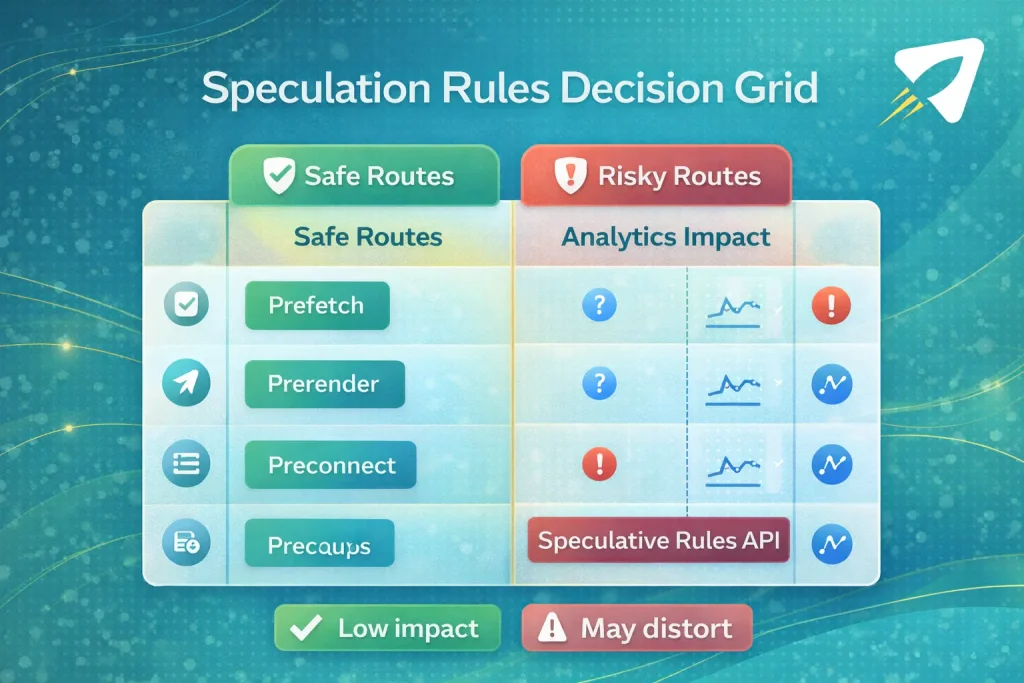
Shopify can inject speculation rules automatically (in browsers that support it). And your theme can add extra rules if needed.
So think of it like:
- Shopify gives you a helpful default.
- Your theme may extend it.
Prefetch vs prerender (super simple meaning)
These two words sound scary, but the idea is easy:
- Prefetch = “download some stuff early”
- Prerender = “load the next page early (almost like opening it in the background)”
Both can make the next click feel faster, but prerender is the bigger move-and it has bigger risks.
Trade-offs Shopify warns about (data, analytics, stale pages)
Shopify’s performance team explains why aggressive prerendering can cause problems, like:
- Extra data usage (loading pages people never visit)
- Analytics overcounting (it can look like more pageviews than reality)
- Stale content (the “preloaded” page might not match the latest state)
Because of these risks, Shopify discusses using more conservative strategies and adding safeguards-so speed boosts don’t break measurement or freshness.
When you might customize it (only if you know why)
Most store owners should treat this as: “Nice, Shopify already handles it.”
If you do customize (usually via theme work), do it carefully and test:
- Is navigation actually faster for real users?
- Did analytics change in a weird way?
- Did any pages show outdated content?
If anything looks off, pull back. Fast is good, but wrong data and stale pages are not worth it.
A performance workflow you can repeat monthly
Think of speed like cleaning your room.
If you clean a little often, it never becomes a mess.
Here’s a simple monthly routine that keeps your store fast:
- Pick a “performance budget” (your limits).
- Max number of apps that can affect the storefront.
- Max number of scripts/tags that load on every page.
- Max number of sections on your most important templates (home, product, collection).
- Do a quick “what changed?” review.
- Did you install a new app?
- Did you update the theme?
- Did you add tracking, pixels, or a tag manager tag?
- Check Shopify’s Web Performance report trend line.
- Look at mobile first.
- See if you moved toward Good or away from it.
- If something got worse right after a change, you likely found the cause.
Small habit. Big results.
Troubleshooting slow pages (Shopify’s 3-step process)
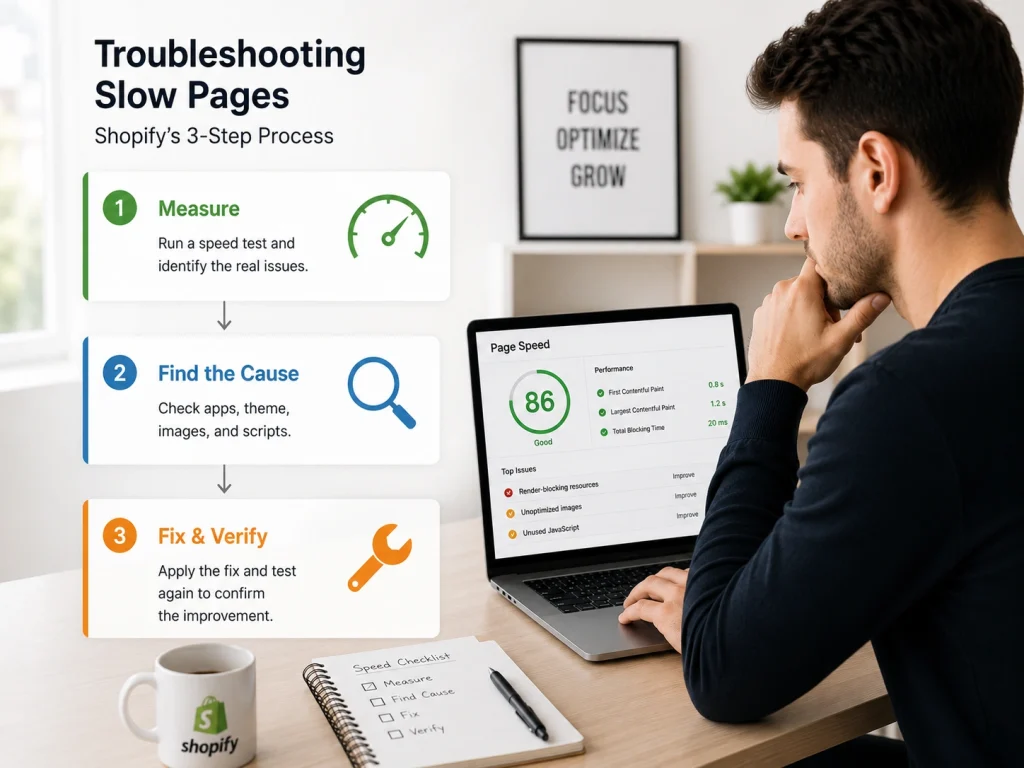
When your store feels slow, don’t guess. Follow this exact order.
Step 1: Verify the issue
- Test your store on different devices (phone + laptop).
- Test on different internet connections (Wi-Fi + mobile data).
- Ask a friend to test too, so you know it’s not only your device.
Step 2: Identify the cause
Look for the usual suspects Shopify calls out:
- Too many apps loading stuff on the storefront.
- Large images or too many high-quality images on one page.
- Slow scripts, especially if the page stays blank and then loads all at once.
If it feels like “blank… blank… BOOM everything appears,” that’s often scripts slowing down the page.
Step 3: Take action (the part most people miss)
- Remove unnecessary apps (keep only what earns its keep).
- Optimize images (right format + right size for where they show).
- Fix slow scripts (often means contacting the app or theme developer).
Very important reality check Shopify mentions:
- Uninstalling an app doesn’t always remove its code from your theme.
- Sometimes you need the app developer’s removal steps to fully clean it up.
That one thing alone can explain why speed doesn’t improve after uninstalling.
Support & escalation map (who fixes what)
Here’s who to talk to, so you don’t waste days in the wrong place:
- If you use a free Shopify theme
- Shopify Support may help with basic performance improvements.
- If you use a third-party theme
- Contact the theme developer, or
- Hire a Shopify Partner / web performance expert for theme-level work.
- If the problem is coming from an app
- Contact the app developer (they own that code).
- If you have a dev team or agency
- Loop them in when it’s code-heavy (theme, scripts, weird conflicts).
How to Audit Your Shopify Store Speed Before Making Changes
Before you start fixing your Shopify store speed, audit the current performance first. A speed audit helps you understand what is actually slowing down your store instead of guessing. Many store owners install speed apps or delete sections randomly, but that can create new problems. A proper audit shows whether the issue comes from images, apps, theme code, third-party scripts, fonts, or server-side delays.
Start by testing your store with tools like Google PageSpeed Insights, GTmetrix, Lighthouse, and Shopify’s built-in speed report. Check both mobile and desktop results because mobile performance is usually weaker. Focus on Core Web Vitals such as Largest Contentful Paint, Interaction to Next Paint, and Cumulative Layout Shift. These metrics help you see how fast your store loads, how quickly users can interact, and whether the layout moves while loading.
Next, audit your most important pages separately. Do not only test the homepage. Check product pages, collection pages, cart pages, and high-traffic landing pages. A homepage may load fast, but a product page with heavy images, review widgets, variant apps, and upsell tools may be much slower. Speed problems often appear on revenue pages, not just the front page.
After collecting the data, create a simple priority list. Fix the issues that affect users and sales first, such as oversized images, unnecessary apps, slow collection filters, large banners, and unused tracking scripts. The goal of a Shopify speed audit is not to chase a perfect score. The real goal is to make the store load faster, feel smoother, and convert better.
How to Optimize Shopify Collection Pages for Faster Loading
Shopify collection pages often load slower because they contain many product images, filters, sorting tools, badges, reviews, and tracking scripts. These pages are important because customers use them to browse products before making a buying decision. If a collection page takes too long to load, users may leave before they even see your products. Faster collection pages improve user experience, SEO, and conversion rate.
The first step is to optimize product images. Use compressed images, modern formats like WebP, and consistent image dimensions. Avoid uploading oversized images when smaller versions are enough for product thumbnails. Also, enable lazy loading so images below the fold load only when users scroll. This reduces the initial page weight and helps the collection page appear faster.
Next, review your filters, apps, and product display settings. Advanced filter apps, review badges, wishlist buttons, quick-view popups, and countdown timers can add extra scripts to every product card. If these features are not improving sales, remove or simplify them. Also, avoid showing too many products on one page. Displaying 24 or 36 products per page is usually better than loading a huge product grid at once.
Finally, keep the collection page design clean and focused. Remove unnecessary banners, autoplay videos, heavy sliders, and large promotional sections above the product grid. Customers visiting a collection page usually want to compare products quickly. A fast collection page should show products, prices, images, filters, and key product details without delay. The simpler and lighter the page, the faster it loads and the easier it becomes for customers to shop.
How to Improve Shopify Mobile Speed
To improve Shopify mobile speed, start by compressing product images, using WebP or AVIF formats, and enabling lazy loading for below-the-fold media. Mobile users often leave slow pages quickly, so your homepage, collection pages, and product pages should load in under three seconds.
Use a lightweight Shopify theme and remove unnecessary sliders, animations, pop-ups, and large sections. Test performance with Google PageSpeed Insights and Shopify’s Web Performance dashboard. Focus on improving Core Web Vitals, especially Largest Contentful Paint, Interaction to Next Paint, and Cumulative Layout Shift.
How to Remove Unused Shopify App Code Safely
Uninstalling a Shopify app does not always remove the code it added to your theme. Leftover scripts, snippets, CSS files, and app blocks can continue loading and slow down the store.
Before removing unused app code, duplicate your current theme as a backup. Review theme files for app names, script tags, snippets, and unused assets. Remove only code linked to apps that are no longer active.
After making changes, test product pages, cart functions, checkout buttons, tracking, and mobile layouts. When unsure, ask the app developer or a Shopify developer to confirm which files can be deleted safely.
How to Optimize Shopify Videos, GIFs, and Third-Party Embeds
Replace large GIFs with compressed MP4 or WebM videos because video files are usually smaller and load faster. Avoid autoplaying multiple videos, especially on mobile devices.
Use video thumbnails and click-to-play functionality instead of loading YouTube, Vimeo, or social media embeds immediately. This reduces third-party scripts and improves initial page speed.
Compress videos, remove unnecessary audio, reduce resolution, and lazy-load media below the fold. Limit chat widgets, review tools, tracking scripts, and social feeds to only those that directly support conversions.
Frequently Asked Questions (FAQs)
Quick note, friend: these answers are written to match how Shopify measures real speed (Core Web Vitals), not just a “pretty score.” If you fix what real visitors feel, your reports (and sales) usually follow.
Because they’re measuring in two different worlds. Shopify Web Performance reports use real-user data from the last ~30 days and grade the 75th percentile (top 75% of experiences) as Good/Moderate/Poor.
PageSpeed Insights/Lighthouse is a lab test you run on-demand, so results can swing based on test device, network, and what loaded in that one run.
Fix the one that’s actually failing in Shopify’s Web Performance report first, because that’s what real shoppers are experiencing.
If you’re unsure: LCP = “first view feels slow,” INP = “site feels laggy when I click,” CLS = “page jumps and I misclick.” Shopify says poor INP is often too much JavaScript from theme/apps/tags.
Almost never. Shopify already includes a CDN (Cloudflare) and platform optimizations like browser caching, compression, image optimization, and minification – so most “add a CDN / enable compression” scanner advice is not your lever.
Your real levers are usually theme, apps, and third-party code.
This is usually caching + versioning. Shopify’s asset_url generates a CDN link that includes a version parameter (like ?v=…), so browsers know it’s a new file.
If you hardcode an old URL (especially inside CSS), your visitors might keep seeing the cached file longer than you expect – so lean on asset_url for theme assets.
Enough to feel fast on mobile – then paginate. Shopify explicitly recommends pagination for large collections so you don’t load too many products at once.
On the platform side, Shopify also has pagination limits (Liquid and Storefront API cap deep pagination at 25,000 items), so designing around pagination is the safe long-term move.
They can, depending on how aggressive you are. Shopify explains that prerender can execute scripts (including analytics), which can cause overreporting, while prefetch is safer but more limited.
That’s why Shopify’s platform approach is conservative and focused on “safe routes,” and they warn about trade-offs like wasted data or stale content if you fetch too early.
Shopify’s old “speed score” is a weighted average of Lighthouse scores from key pages (home + top product + top collection) across multiple days.
It’s useful as a rough signal, but Shopify’s newer guidance pushes you to focus on Core Web Vitals in the Web Performance reports because those reflect real shoppers.
Mobile users have weaker CPUs and slower networks, so heavy pages hurt more. Shopify’s reports let you see performance by device so you can spot that gap.
Most of the time it’s too many apps/scripts, big images, or heavy theme sections-the exact stuff Shopify tells merchants to review.
They can – because uninstalling an app doesn’t always remove the code it injected into your theme. Shopify explicitly warns that you may need the app developer’s removal steps for a clean uninstall.
So if speed got worse “after trying apps,” leftover code is a real suspect.
Usually, no – that’s not the first fix. Shopify says the biggest performance factors for most stores are theme, apps, and third-party code, not a switch you flip in hosting.
Some agencies mention plan upgrades as a possibility, but treat it like a last step-fix the controllable stuff first.
Check after every meaningful change (new app, new script, theme update), because those are common regression points. Shopify’s docs push testing and troubleshooting around exactly those kinds of changes.
Many Shopify-focused guides suggest doing a monthly speed review so you catch slow creep early.
Sometimes, but be picky. Apps can help with things like images, yet Shopify also warns that too many apps loading assets can slow performance, so every app has to earn its place.
A simple rule: if an app adds scripts site-wide, make sure the revenue/value you get is bigger than the speed cost.
Shopify’s basics are very practical: remove unnecessary apps, optimize images (right format + resize to display size), and switch to a performance-optimized theme if your current one is heavy.
They also call out things like too many sections and animations/page transitions as potential slowdowns.
Shopify notes that during high-traffic events, third-party monitoring tools can show your site as slow/down even when real shoppers are doing okay. That’s because Shopify may prioritize real customer traffic over bots during peaks.
Conclusion
Speed on Shopify isn’t about chasing random “scores.” It’s about making your store feel fast for real people – especially on mobile – by improving LCP (load), INP (click/feel), and CLS (stability), and by focusing on what you actually control: theme, apps, and third-party code.
So, how to improve shopify store speed? Start in Web Performance reports, find the failing metric and page type, then fix the biggest levers first: keep templates lean, remove or limit heavy apps/tags, and optimize above-the-fold images and scripts.
