
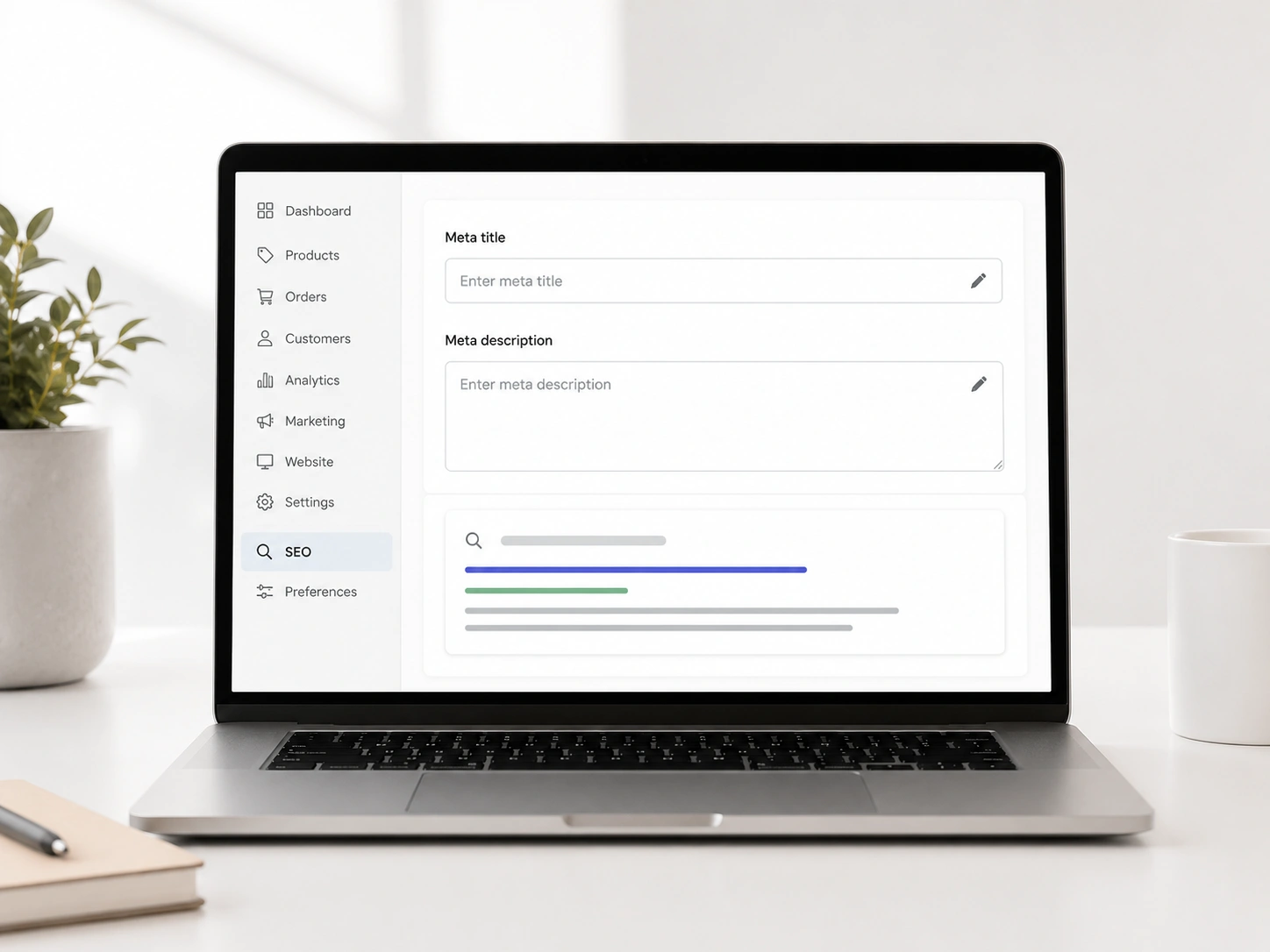
Have you ever wondered how to rank your online store on Google? A big part of this process involves your page titles and summaries. Therefore, learning how to add meta title and description in Shopify is a great first step.
Search engines need special clues to understand your website. These clues are simple text boxes. We call them metadata.
Many beginners find website optimization very confusing. However, it is actually quite simple to learn. We will guide you through the whole process today.
By the end of this guide, your site will look great on Google. Your customers will click on your links more often. Let us start with the basic definitions.
Understanding these basics is your first big task. Next, we will discuss exactly what these tags are.
What Are Meta Tags in an Online Store?
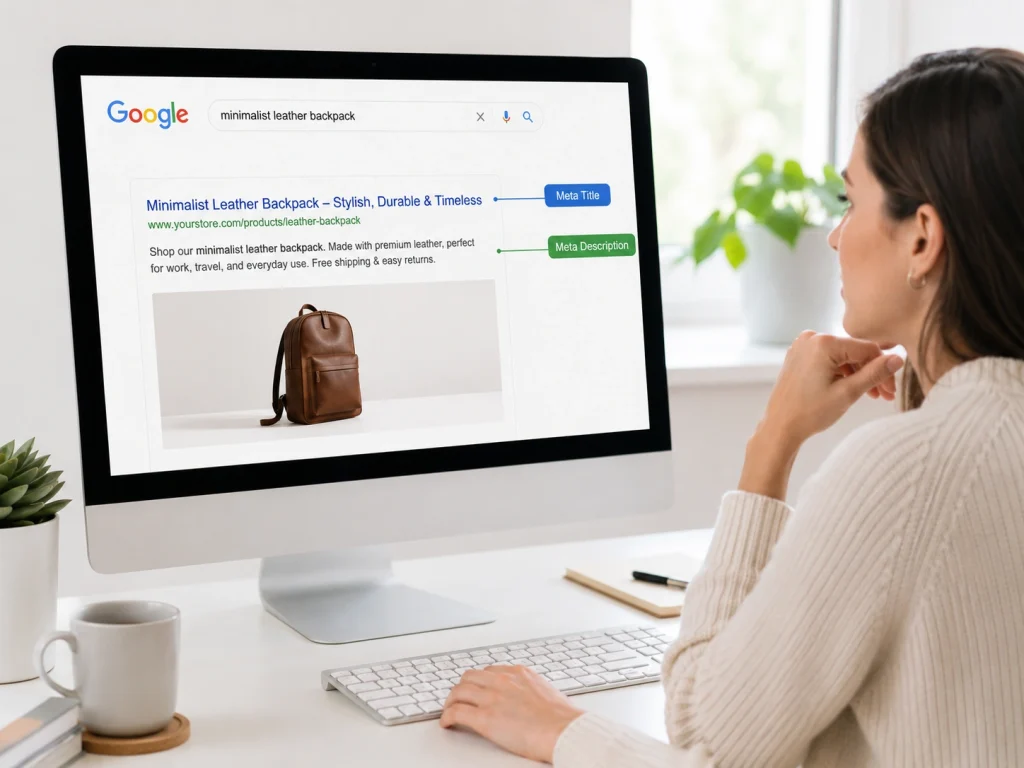
A meta title is a short name for your web page. It is one of the most important HTML elements on your site. This tag tells Google the main topic of your page.
Your meta description is a short summary of that page. It sits right below the title on Google. This summary gives buyers a reason to visit your store.
These two items work together to build your digital presence. They act like a store sign on a busy street. Therefore, you must write them very clearly.
Every page on your website needs these tags. This includes your homepage and your individual product pages. Furthermore, your blog articles need them too.
Now you know what these HTML tags are. Next, we will explain the specific rules for writing them.
The Important Character Limit Rules
Search engines only show a limited amount of text. Therefore, you must obey a strict character limit. Your words will get cut off if they are too long.
The perfect title tag is under 60 characters long. This ensures the whole title shows up on mobile phones. Also, it keeps your message sharp and clear.
Your store summary has a different rule. You can use up to 155 characters for this section. This gives you more room to describe your great products.
Some experts talk about pixel limits instead of just characters. This is because wide letters take up more screen space. For example, a wide letter like “W” uses more room than an “I”.
Following these simple limits makes your store look professional. Let us explore how these limits affect your actual search results.
Understanding the Search Engine Results Page
The SERP is the main page where Google shows its answers. Everyone wants their website to appear at the very top. Good metadata helps you climb higher on this list.
When a user types a search query, Google reads your tags. It tries to match the user with the best answer. Therefore, clear tags make this matching process much faster.
You will see your title in blue letters on the SERP. The summary appears in smaller black letters underneath. This combined view is called your search engine listing.
A clean listing makes buyers trust your business. It shows that you care about your online shop. Also, it separates you from messy competitor websites.
A beautiful listing on Google leads to more clicks. We will discuss the power of these clicks in the next section.
BrandsBro helped a Shopify client fix weak meta titles, poor descriptions, and unclear structure. We improved product presentation professional.
Facing similar Shopify SEO issues? Book a free meeting and let’s discuss.
Increasing Your Organic Traffic and CTR

Getting free visitors from Google is called organic traffic. You do not have to pay for these clicks. They arrive naturally because your tags are optimized well.
Your CTR is your click-through rate. It measures how many people click your link after seeing it. A high CTR means your titles are very attractive.
Writing an exciting summary boosts your CTR instantly. Shoppers will choose your link instead of the competition. Consequently, you will get more free traffic over time.
Google notices when people love to click your links. The system rewards popular links with better ranking spots. Thus, good tags create a very positive cycle for your shop.
Now you understand the main benefits of these tags. Next, we will log into the admin panel to start editing.
Editing Your Shopify Homepage Meta Tags
Your homepage is the most important part of your online store. It represents your entire brand to the world. Therefore, you must write a very strong title for it.
First, log into your Shopify dashboard safely. Look at the left side of your screen. Click on the section named Online Store.
A small drop-down menu will appear on the screen. Go ahead and click on the Preferences button. This page holds your main homepage settings.
You will see two blank text boxes at the top. One is for the Homepage title. The other is for the Homepage description.
Type your target keywords into these boxes carefully. Remember to keep the sentences short and friendly. Finally, click the save button at the top right corner.
Your main storefront is now perfectly optimized. Let us move on to the actual items you sell.
Adding Metadata to Your Product Page
Individual products are the lifeblood of your business. Each item needs its own unique title and summary. Otherwise, buyers will not find your specific items online.
Go back to your main Shopify menu. Click on the Products tab on the left side. Then, click on any item in your inventory list.
Scroll all the way down to the bottom of the page. You will see a box called the search engine listing preview. This box shows exactly how Google sees your product.
In the bottom corner, there is a blue button. It clearly says edit website SEO for you to click. You must click this link to open the hidden typing areas.
Now, type a descriptive name and a nice summary. Include important details like size or color. This helps shoppers find exactly what they want.
Optimizing a single product is very easy. However, many owners ask how to add meta title and description in Shopify for groups of items. We will cover categories in the next section.
Grouping Items in Shopify Collections
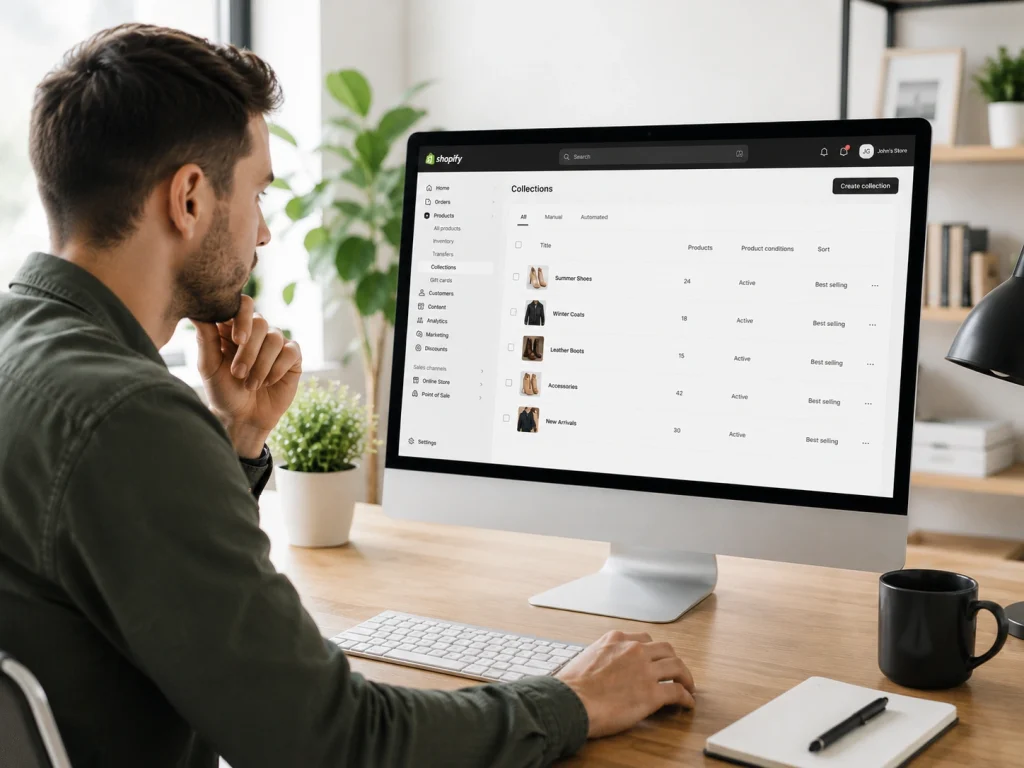
Collections are digital folders for your store products. You might have a collection for summer shoes or winter coats. These category pages are extremely powerful for Shopify SEO.
People often search for broad categories on Google. They search for things like “leather boots” instead of one specific shoe. Therefore, your collection pages need great tags too.
The steps are very similar to the product pages. Click on Products in your menu first. Next, select Collections from the list below it.
Choose the specific category you want to fix. Scroll to the very bottom of the page again. Click that same edit website SEO link to begin.
Write a title that describes the whole group of products. Explain why this specific collection is special in the summary. Finally, hit save to update the live website.
Category pages bring a lot of broad traffic. Next, we will optimize your informational pages.
Updating SEO for Pages and Blog Posts
Your website has more than just things to buy. You likely have an About Us page or a Contact page. These standard pages also need proper search optimization.
Blog articles are also amazing tools for getting visitors. They answer common questions that your buyers might have. Therefore, every single post needs a good HTML tag.
Click on the Online Store menu again. Choose Pages or Blog Posts from the drop-down list. Select the specific article you want to update.
Scroll down to the listing preview at the bottom. Open the editing section just like you did before. Type in an interesting headline and a helpful summary.
Informational pages build massive trust with your audience. Shoppers like to buy from helpful and friendly brands.
Using the simple typing boxes is great for beginners. However, there is a more advanced method to learn. We will discuss the system architecture next.
Exploring Shopify Liquid Architecture
Shopify uses a special coding language in the background. This smart system is called Liquid. It builds the structure of your beautiful storefront.
You do not need to be a programmer to sell things. The platform does the hard work for you automatically. However, understanding the basic code is still very helpful.
Sometimes, you might forget to type a custom title. The Liquid system will step in to help you. It automatically grabs your product name and uses it as the tag.
This automatic feature saves a lot of time for busy merchants. It ensures no page is left completely blank.
Automatic tags are nice to have. Let us look deeper into the main code file next.
How the Theme.liquid File Works

Every store has a main blueprint file behind the scenes. This specific file is called the theme.liquid file. It controls the top section of every single webpage.
This file holds all your global HTML elements safely. When Google visits your site, it reads this file first. The code tells Google exactly where to find your tags.
Most store owners never need to touch this blueprint. It comes perfectly optimized from the theme developers. However, technical users can open it to make custom changes.
You can edit this file to add special tracking codes. You can also change how titles appear automatically. Always be careful when changing the main code structure.
Code optimization is powerful for global sales. But what if you have a physical store too? We will talk about local search next.
Local Search Visibility for Physical Stores
Many digital brands also have physical shops on real streets. These hybrid businesses need a slightly different approach. They must attract buyers from their specific hometowns.
You should add your city name into your homepage title. For example, write “Best Coffee Beans in London” instead of just “Best Coffee”. This helps local shoppers find you much faster.
Managing local search rules can become difficult over time. Some owners want expert help to manage multiple locations. Hiring a professional service is a very smart move.
A specialized team can set up your maps and location data. Exploring local SEO services is a great idea for physical shops. They ensure your nearby customers never miss your storefront.
Local keywords create very strong community connections. Next, we will discuss how to choose standard words for your tags.
Boosting Clicks with Target Keywords
Target keywords are the exact words people type into Google. You must discover what your customers are searching for. Then, you place those exact words in your tags.
Do not stuff too many keywords into one single sentence. This practice looks spammy and confuses your buyers. Furthermore, search engines might penalize your site for keyword stuffing.
Write your primary keyword near the front of the title tag. This strategy grabs the reader’s attention instantly. They will see that your page matches their search query perfectly.
Use related words naturally throughout your summary section. This creates a helpful flow for the human reader.
Using the right words makes a huge difference. Sometimes, a big store needs extra help with keyword research. We will discuss professional support in the next section.
Using Professional Help for Enterprise SEO
Some store owners have thousands of products to manage. Editing every single page by hand takes hundreds of hours. This process can become extremely overwhelming for small teams.
Large websites require custom scripts and advanced bulk tools. A professional expert knows exactly how to add meta title and description in Shopify quickly. They use smart software to update hundreds of pages at once.
If you want fast results, consider hiring dedicated experts. They will audit your website and fix technical errors. Working with a top Shopify SEO agency gives you peace of mind.
These professionals ensure your flow chain remains constant across all categories. They maintain your topical authority on the internet.
Getting help is always a good strategy. Even if you do it yourself, you must avoid silly errors. We will cover the worst mistakes next.
Avoiding Common Meta Tag Mistakes
One major mistake is copying the exact same title everywhere. Every page must have a unique identity online. Duplicate tags confuse the Google algorithms greatly.
Another bad mistake is writing summary tags that are too short. You have 155 characters to advertise your page. Therefore, you should use that entire space wisely.
Many beginners forget to fill out the image tags too. Your product photos also need tiny text labels for accessibility. These labels help blind users understand the image content.
Finally, do not make promises you cannot keep in your summary. Always be honest about what the user will find.
Avoiding these errors keeps your store healthy. Let us move to the final step of tracking your success.
Monitoring Your Search Query Results
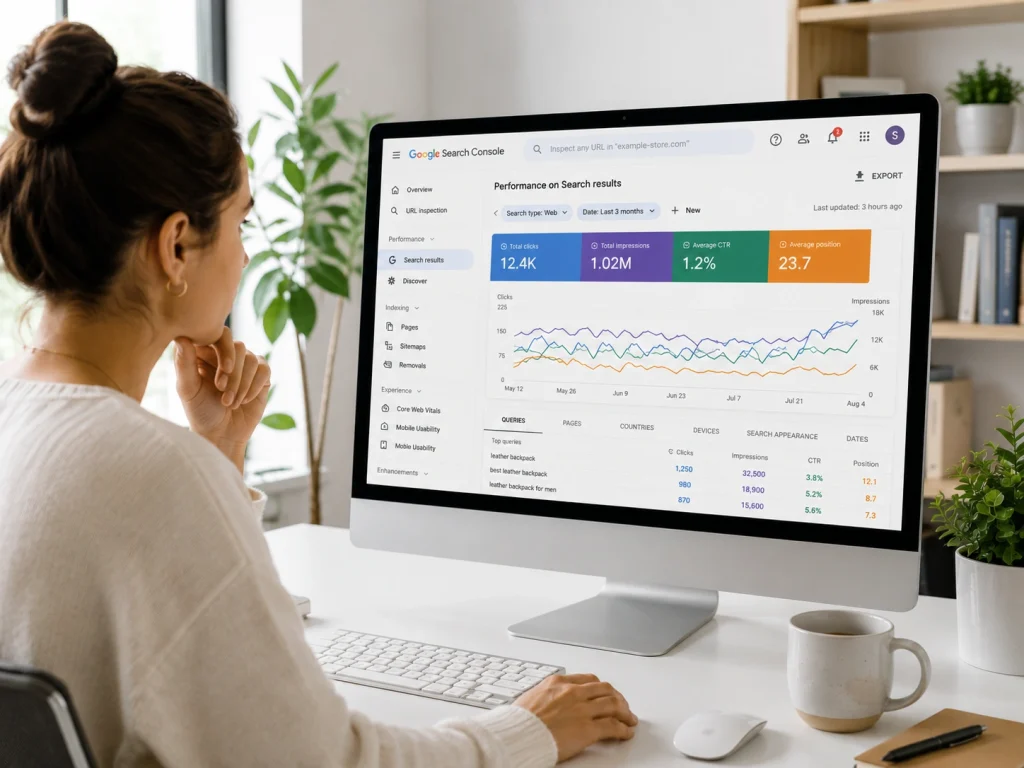
Optimization is not a one-time job for your store. You must constantly watch how your website performs online. The internet changes every single day.
You can use free tools to track your store traffic. Google offers a great tool for checking your search queries. It shows you exactly which titles are getting clicked.
If a product gets zero clicks, try changing the title tag. Add a more exciting descriptive word to it. Check the data again after two or three weeks.
Testing new summaries is a fun way to learn. You will slowly discover what your customers like to read.
Tracking your data leads to massive growth over time. It guarantees your online store stays profitable and active.
Meta Title vs H1 Title in Shopify: What’s the Difference?
A meta title is the title that appears on Google search results. It helps search engines and users understand what your Shopify page is about before they click.
An H1 title is the main visible heading on your Shopify page. It tells visitors what the page covers after they land on it.
The main difference is visibility. Meta titles appear in search results, while H1 titles appear on the page itself.
For best SEO, your Shopify meta title and H1 should be related but not always identical. The meta title should include keywords and click-worthy wording, while the H1 should be clear and natural for readers.
Best Shopify Meta Description Formula with Examples
A Shopify meta description is the short text shown under your title in Google search results. It does not directly rank pages, but it can improve click-through rate.
The best formula is: primary keyword + benefit + product/category detail + call to action.
Example: “Shop premium leather wallets for men. Discover slim, durable, and stylish designs made for everyday use. Order online today.”
A strong meta description should stay under 155–160 characters, include the main keyword, and clearly explain why someone should visit your page.
How to Add Meta Title and Description for Shopify Collections
To add a meta title and description for Shopify collections, go to your Shopify admin and click Products > Collections.
Choose the collection you want to edit. Scroll down to the Search engine listing section and click Edit.
Add your SEO page title, meta description, and URL handle. Keep the title keyword-focused and the description helpful for buyers.
After saving, Google may take time to update the search result. For better results, use unique meta titles and descriptions for every Shopify collection page.
How to Write Shopify Meta Titles and Descriptions for Every Page Type
Write a unique meta title and description for every important Shopify page, including the homepage, product pages, collection pages, blog posts, and standard pages. Each tag should accurately explain the page’s main topic and search intent.
Keep meta titles around 50–60 characters and place the primary keyword near the beginning. Product titles should include the product name, key feature, and brand, while collection titles should clearly describe the product category.
Meta descriptions should be approximately 150–160 characters. Highlight benefits, relevant features, pricing advantages, shipping information, or a clear call to action without repeating the same description across multiple pages.
Why Your Shopify Meta Title or Description Is Not Showing on Google
Google may rewrite your Shopify meta title or description when it believes other page content better matches the user’s search query. This does not always mean your metadata is technically incorrect.
Titles are more likely to be replaced when they are too long, keyword-stuffed, generic, duplicated, or inconsistent with the visible page heading. Descriptions may also change depending on the exact search term.
To reduce rewriting, make each title specific, readable, and closely aligned with the page content. However, Shopify store owners cannot force Google to display their preferred metadata for every search.
How to Verify Shopify Meta Tags and Request Reindexing
Open the Shopify page, view its source code, and search for <title> and <meta name="description">. Confirm that the correct text appears only once and matches the metadata entered in Shopify.
You can also inspect the page using browser developer tools or use Google Search Console’s URL Inspection tool to check the indexed version, canonical URL, and crawl status.
After updating metadata, enter the page URL in Google Search Console and select Request Indexing. This asks Google to recrawl the page, but it does not guarantee immediate updates or preferred snippet display.
Frequently Asked Questions (FAQs)
You might still have some questions about fixing your store tags. We looked at the most common questions people ask online. Here are some simple answers to help you fix your website fast.
You can find the SEO settings at the bottom of your product pages. Scroll down until you see the search engine listing preview. Click the edit website SEO link to change your tags easily.
Your store summary should stay under 155 characters. Google will cut off longer text on the search results page. A short summary keeps your message clear and helps shoppers understand your products quickly.
Yes, the platform automatically creates a title tag using your product name. However, writing a custom title is always better for search optimization. A custom tag helps you rank higher for specific search queries.
Click on the Online Store menu on your dashboard first. Then select the Preferences tab from the list. You will find dedicated text boxes there to enter your homepage title and descriptive summary.
Search engines need time to visit your website again. It can take a few days or weeks for Google to update its database. You just have to be patient after saving your new tags.
You cannot edit them all at once using the basic dashboard. You must use a special app from the app store. Many owners use bulk editing tools to update hundreds of product tags quickly.
Start Optimizing Your Shopify Store Today
You now know the exact steps to improve your website. Taking action today will help new buyers discover your products easily. Therefore, you must open your admin panel and begin right away.
Always start with your homepage first. Next, update the HTML tags on your most popular item pages. Writing a fresh summary will quickly boost your store traffic.
However, managing a large shop takes a lot of time and effort. Do you need expert support to grow your brand faster? Contact our friendly team today to secure your top spot on Google.
