
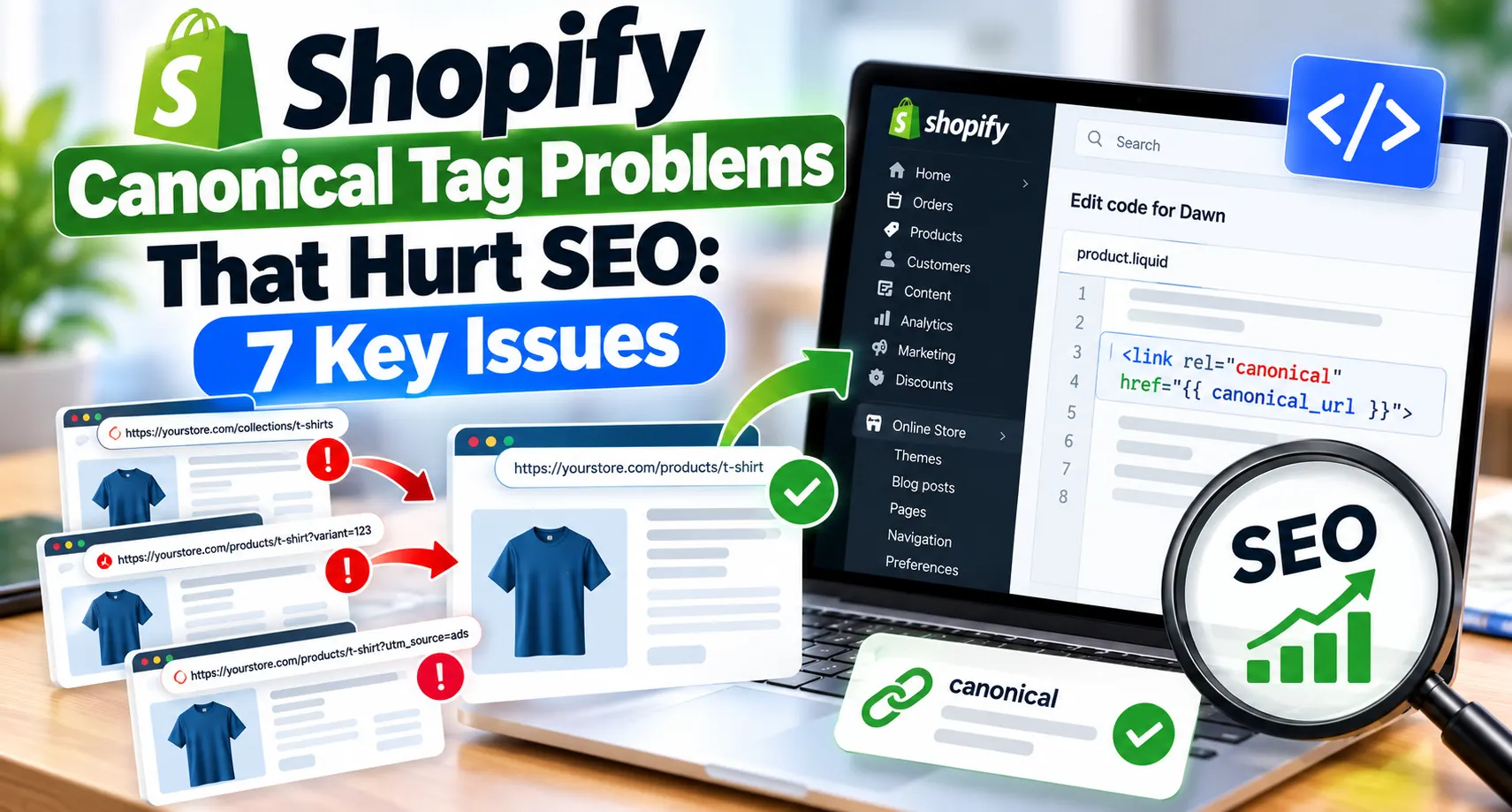
A client came to us last spring with a strange complaint. Their best product ranked. Then it dropped and ranked again. Each time, it sat on a URL they never chose. Google Search Console kept flagging a message they did not understand. It read “Duplicate, Google chose a different canonical than user.”
You have seen a version of this before. The store looks fine from the front. Products load and orders come in. Under the surface, the same product sits at three or four addresses. Google keeps guessing which one counts.
At Brand’s Bro, we fix technical SEO for Shopify stores. One of our clients had thousands of flagged pages from one issue. The owner had added a canonical tag and stopped there. We opened the theme and found the real cause in twenty minutes.
Our team rebuilt the internal links and cleaned the sitemap. We also removed a duplicate tag an app had injected. Three months later, most of the flagged pages had cleared. The product held one stable URL in search.
This guide covers the Shopify canonical tag problems we find most often. The goal is to fix them with proper canonicalization to resolve duplicate content.
What Is a Canonical Tag in Shopify?
A canonical tag names the main version of a page for search engines. It sits in the page head and reads rel=”canonical”. Search engines use it to group duplicate pages under one preferred address.
Shopify builds this tag for you through a Liquid object named canonical_url. Most Theme Store themes already output the tag on every page. The Shopify theme docs confirm you can set a canonical with that object.
Here is the part most owners miss. A canonical tag is a signal, not a command. Google reads it beside your links, sitemap, and redirects. Then it makes its own choice about the page. When those signals disagree, Google may ignore your tag.
So a store can carry a correct canonical tag and still fight duplicates. The tag alone does not settle the question for Google. It only casts one vote in a larger count. The rest of this guide shows where those competing votes hide.
How Do Canonical Tags Work in Shopify?
Shopify outputs the canonical_url object inside the theme head. You will find it in theme.liquid on most themes. For a product, that object returns the clean address at /products/handle. It strips any URL parameters before it prints. That default handles the most common duplicate cases with no manual work.
The object changes based on the page a visitor views. On a product, it returns the product URL. A collection page returns the collection URL. An article page returns the blog URL. This context is why one short snippet works across a whole theme.
Trouble starts when something overwrites or contradicts that default. A theme edit can change it. An app can change it. A translation tool can change it too. Once a second signal enters the head, the store sends mixed messages. Google then has to break the tie on its own.
Below are the 7 problems we test first during a review. We ranked them by how often they cause real ranking loss. The early ones affect almost every catalog we open. Later ones hit stores that run apps or filters or regions.
7 Shopify Canonical Tag Problems to Check on Your Store
These seven checks cover the canonical issues we see most on audits. Each one names a different source of duplicate or conflicting URLs. Working through them in order gives the fastest cleanup. The first two solve the bulk of most problems.
1. Duplicate Product URLs From Collection Paths
The most common Shopify canonical problem comes from products inside collections. Shopify can serve one product at two addresses. Those are /products/red-shirt and /collections/sale/products/red-shirt. Both addresses render the identical page.
Shopify sets the canonical on both to the clean /products/ version. That part works out of the box in most themes. The problem sits in your own theme links. Your grid often links to the collection path when a shopper clicks. So your navigation builds the duplicate for you.
Those internal links matter more than most owners expect. Many stores link to collection product URLs across the whole site. Google then reads the links as a vote against your tag. The tag says one thing while the links say another. Google tends to trust a pattern of links over one attribute.
The culprit is a small Liquid filter. It is named within: collection or within: current_collection. The filter rewrites each product link to include the collection name. Once you remove that filter, every product link resolves to the clean handle.
You can spot the issue inside Google Search Console. The Page Indexing report shows a status column worth reading. Collection URLs often carry the “Alternate page with proper canonical tag” label. A high count there points straight at this filter. Fixing the links clears most of the report over a few weeks.
2. Variant URLs and Product Options
Shopify adds a parameter when a shopper picks a variant. It looks like ?variant=123456 in the address bar. This creates a fresh URL for every size and color. A product with ten variants can produce ten extra addresses.
Shopify strips these parameters from the canonical by default. So all variants point back to the clean product URL. In most stores, this needs no work at all. The check matters because apps and code sometimes break the default.
The page source on a variant URL holds the canonical line. It should still read /products/handle with no parameter attached. A parameter in the canonical means a script rewrote it after load. That kind of break hides from a quick glance at the theme.
Variant SEO gets tricky when you want one color to rank. Some stores split high-demand colors into separate products with unique handles. That choice is fine for search in the right case. But each split product then needs its own self-referencing canonical. It also needs enough unique content to earn a separate listing.
One more variant case trips up new stores. Some themes add a variant parameter to the first color too. So the default product view already carries ?variant= in the URL. Your base product URL should load with no parameter attached. A clean base URL keeps the canonical simple for Google.
3. Filtered and Sorted Collection URLs
Collection filters create a large duplicate problem on many Shopify stores. A color or price filter makes a URL like /collections/shoes?filter.color=blue. Sort options add even more, such as ?sort_by=price-ascending. Each choice spins up another address for the same products.
Google warned in late 2024 about filter systems and crawling. It called them the top source of overcrawling site owners report. A few filters and sort orders can build hundreds of near-identical pages. Each one drinks crawl budget meant for your real pages.
Shopify canonicalizes these filter URLs back to the base collection in most cases. That handles duplicate signals without extra work in most themes. The remaining risk is crawl waste, not duplicate content. Google still visits each filter URL before it reads the canonical.
Google suggests two extra controls for low-value filters. You can point the canonical to the unfiltered collection page. Adding a nofollow attribute to filter links helps too. Both controls need consistent use on every link to that URL. A single followed link keeps the crawler coming back.
4. Tag Pages and Automated Collections
Product tags create browsable URLs that many owners forget about. Each tag can open a path like /collections/all/sale. Another might read /collections/all/gift-ideas from a different tag. These pages often hold thin or repeated content for a searcher.
The /collections/all page compounds the trouble further. It lists your full catalog on one long page. The page can also pair with any tag for more views. On a large store, these tag paths outnumber your real collections.
Our team resolves these overlaps during Shopify audits. A clean result needs Shopify technical SEO work more than a single tag edit. We sort which tag pages hold unique value for search. Pages with real demand stay indexable in the store. The rest carry a noindex rule and drop from the crawl.
The aim is to keep only pages that answer a distinct search. Everything else should canonicalize to a parent page or leave the index. This keeps Google focused on the pages that earn real traffic. Crawl budget then flows to your money pages instead.
5. Pagination on Deep Collection Pages
Large collections split across many pages and add a ?page=2 parameter. Each paginated page holds a different set of products. Yet they share the same title and intro text. That near-duplication can confuse canonical selection in a bad theme.
Shopify sets a self-referencing canonical on paginated pages by default. Page two points to page two, not back to page one. That is the current recommended setup for a reason. Page two holds products that page one does not show.
Problems appear when a theme edit changes this behavior. Some edits force every page to canonicalize to page one. That tells Google the deeper products do not deserve a crawl. Products that only appear on page three can leave the index. Few owners connect the lost listings to a canonical tweak.
The page source on a paginated collection URL shows the tag. Its canonical should match the page you are viewing. It should carry the same page parameter as the address. A mismatch often traces back to an old forum snippet.
6. Shopify Markets, Hreflang, and Canonical Conflicts
Stores that sell across regions add a layer with Shopify Markets. Markets creates localized URLs such as /fr/products/shirt. These sit next to the base /products/shirt address. Each version needs the right canonical and hreflang pairing.
Shopify Markets handles this on its own once you set it up. Each localized URL self-canonicalizes to its own address. Hreflang tags then connect the versions as alternates for search. The Shopify Markets SEO docs describe this built-in behavior in detail.
The conflict shows up when a localized page points elsewhere. Say /fr/products/jacket canonicalizes to the base /products/jacket page. Google reads that as the real signal and ignores the hreflang. The French page then struggles to rank in French results at all.
Translation apps cause most of these breaks in our experience. Tools like Weglot or Langify can inject a second hreflang block. That block sits on top of Shopify’s own tags. A search for hreflang in the source reveals the tags. Two blocks tell you two systems now fight for control.
7. App Overrides and Sitemap Mismatches
SEO and page-builder apps can each add a second canonical tag. Two canonical tags in one head cancel each other out. Google may then honor neither of the two tags. Recommendation widgets also append tracking parameters that spawn new URLs.
Disabling your apps one at a time isolates the source. When the duplicate canonical disappears, you found the app behind it. Then you can reconfigure the app or swap it out. A cleaner tool will respect the Shopify default tag.
The sitemap deserves a separate look of its own. Shopify builds a sitemap that lists only clean canonical URLs. A custom template or a rogue app can break that. It may add collection product URLs that fight your canonical tags.
Your sitemap at yourdomain.com/sitemap.xml lists the product entries. Each product should show as /products/handle and nothing more. Any collection-scoped product URL is a mixed signal to remove. The sitemap should back up the canonical, never argue with it.
Recommendation parameters deserve their own quick check. Widgets often add tags like ?pr_prod_strat to product links. These build extra URLs that Search Console may flag as alternates. The canonical still points to the clean page in most cases. So the main risk here is wasted crawl, not lost rankings.
How the Collection Filter Creates Duplicate Links
The within: collection filter deserves a closer look on its own. It is the single biggest source of duplicate URLs we find. Understanding it helps you check your own theme with confidence.
A product link in Liquid can render two ways. The clean form outputs product.url on its own. A collection form outputs product.url | within: collection instead. That filter adds the current collection to the front of the path.
So one click inside a collection builds a collection-scoped link. The shopper lands on /collections/name/products/handle rather than the clean URL. Every product card in that grid does the same thing. A page of forty products can generate forty duplicate links.
The fix is to drop the filter from the product card snippet. After the edit, each card links to the plain product URL. Your canonical, links, and sitemap then agree on one page. This one change clears a large share of flagged URLs.
Any change should run on a theme copy before you publish. A wrong edit here can break links across the store. Previewing a collection page lets you hover over a product card. The status bar should show a clean /products/ link.
How the Page Indexing Report Names Canonical Issues
Google Search Console reports canonical problems under set status labels. Each label points to a different root cause on your store. Reading them right saves hours of blind testing during a fix.
The Page Indexing report groups your URLs by status. Some statuses are normal and need no action from you. Others flag a real conflict between your tag and Google. The table below decodes the ones tied to canonical work.
Search Console Status | What It Means | Your Move |
|---|---|---|
Alternate page with proper canonical tag | Google honored your canonical | No action if correct |
Duplicate, Google chose different canonical | Google overrode your tag | Align links and sitemap |
Duplicate without user-selected canonical | No canonical tag found | Add a canonical tag |
Crawled, currently not indexed | Thin or low-value page | Improve or noindex it |
The first status is the safe one on the list. It means Google agrees with your canonical choice. Seeing it on collection product URLs is expected behavior. You only act when the count looks far too high.
The second status is the one that costs rankings. It means Google picked a URL you did not declare. This status sends you back to your links and sitemap. The rest of this guide covers each of those fixes.
Why Does Google Choose a Different Canonical?
Google chooses a different canonical when other signals outweigh your tag. The canonical is one input among about forty Google weighs. That set covers internal links, redirects, and the sitemap. When these inputs disagree, Google trusts the broader pattern.
Internal links carry the most weight in this decision. Say most of your links point to a collection product URL. Google reads the links as harder evidence than the tag. This is the most common cause we see on Shopify. The “Google chose different canonical” status almost always starts here.
Two other causes come up often in our audits. The canonical target may return a redirect or an error. Google will not name an unstable URL as the preferred one. The two pages may also differ too much in content. Google then decides each one deserves its own listing.
The status itself is not always a penalty on your store. Many flagged URLs still pull organic traffic to the site. The message often means Google processed your signals and picked a version. Your real fix is to align the signals, not to panic.
A Real Example of a Google-Selected Canonical
A concrete case shows how these signals play out. Picture a store with a popular jacket in three collections. The jacket sits at /products/jacket as its clean URL. It also appears under the sale, outerwear, and new-arrival paths.
The theme links to all three collection paths in its grids. Google crawls the jacket at four different addresses in total. The canonical on each points to the clean product URL. Yet the internal links outvote that tag three to one.
Google reads the link pattern and picks a collection URL. Search Console then shows “Google chose different canonical” on the page. The clean URL loses its ranking to a collection path. That path can shift as the store reorganizes its collections.
We fixed this exact case by dropping the collection filter. Every grid link then pointed at the clean product URL. The vote flipped in favor of the canonical tag. Google moved the ranking back to the clean address within weeks.
How to Audit Shopify Canonical Tags Step by Step
A canonical audit works best as a signal check across the store. One URL in the Search Console URL Inspection tool is the start. Compare the user-declared canonical against the Google-selected canonical. A mismatch there names the exact problem for you.
Here is the order we follow on client stores. It moves from the clearest technical signals to the softer ones. Each step rules out one cause before the next.
- URL inspection first. The canonical target should return a 200 status and no redirect. An unstable target explains many mismatches on its own.
- Internal link audit. A crawl of the store shows where your links point. Inconsistent links are the top cause of overridden canonicals.
- Sitemap review. Each product should appear once as a clean URL. Any collection-scoped product URLs from a template should come out.
- App output scan. A second canonical or an extra hreflang block is the target here. Two systems in one head create silent conflicts.
- Hreflang review. For Markets stores, confirm each locale self-canonicalizes. A page that points abroad loses its home region.
A crawler like Screaming Frog speeds this up on larger catalogs. You point it at your store and let it map the pages. Then filter for pages where the crawled URL differs from the canonical. That export becomes your fix list for the developer.
The cleanup itself often needs complete Shopify development work to correct the head output. It also removes the collection filter from product links. Small stores can handle this in one editing session. Larger catalogs need a developer who tests the change first. A bad edit to theme.liquid can noindex the wrong pages fast.
Canonical Signals at a Glance
This table maps each signal to its job and the common fix. It works as a quick reference during your own audit. Each row points back to a section above for detail.
Signal | What It Tells Google | Common Fix |
|---|---|---|
Canonical tag | The preferred URL for a page | Keep Shopify’s default output |
Internal links | Which URL you value most | Link to /products/ only |
Sitemap | The URLs you want indexed | List clean URLs only |
Redirects | The permanent home of a page | Point old URLs to the canonical |
Hreflang | The region each page serves | Self-canonicalize each locale |
Variant params | A filter on one product | Strip them from the canonical |
The point of the table is agreement across every row. When each row names the same URL, Google has no reason to override you. If one row disagrees, that row is your first suspect.
Which Canonical Fixes to Prioritize First
Not every canonical issue carries the same weight for rankings. Some fixes clear thousands of flagged URLs at once. Others touch a handful of pages and can wait. Sorting them by impact keeps your time on the right work.
Internal links top the priority list on almost every store. They are the signal Google trusts most against your tag. A single link fix can resolve most flagged URLs. So the collection filter edit comes first in our process.
The sitemap sits second on the list of fixes. A clean sitemap removes a whole class of mixed signals. It is a quick change that pays off across the catalog. Most stores only need one template correction here.
App conflicts rank third for most stores we audit. A second canonical tag breaks pages one theme section at a time. The fix takes longer because you test each app in turn. Still, it clears conflicts that no link edit can reach.
Markets and hreflang issues come last unless you sell abroad. A single-region store can skip this check for now. Multi-region stores should move it up the list. One broken locale canonical costs traffic in that market.
Common Shopify Canonical Mistakes
Most canonical problems on Shopify trace back to a few repeat mistakes. These errors create duplicate URLs or mixed signals for Google. Fixing them early keeps small issues from spreading across a catalog.
- Leaving the within: collection filter in product links, which builds duplicate paths.
- Editing theme.liquid to point page two of a collection at page one.
- Installing two SEO apps that each write a canonical into the head.
- Pointing a localized Markets page at the base domain instead of itself.
- Adding collection-scoped product URLs to a custom sitemap template.
- Trusting the source view alone instead of the rendered HTML.
- Copying a canonical snippet from a forum without a test first.
Each mistake sends Google a signal that fights your intended URL. A single one can undo a correct tag on thousands of pages. Working through the list above removes the causes before indexing.
How Brand’s Bro Fixes Shopify Canonical Tag Problems
We treat canonical cleanup as a signal system, not a snippet. Our audits start in Google Search Console with the flagged URLs. We pull every one and sort it by root cause. This tells us whether the problem sits in links or elsewhere. It could also live in the sitemap or an app or theme code.
Our team removes the collection filter from product links first. Every internal link then resolves to the clean product URL. We clean the sitemap and drop any collection-scoped entries. Our team also removes any app that injects a second tag. Each change targets one signal, and we retest after every step.
For Markets stores, we check each localized page in turn. We confirm it self-canonicalizes and carries the correct alternates. Conversion paths get a review during the same pass. A cleaner URL structure supports the Shopify conversion that turns traffic into orders. One cleanup often lifts crawl health and the shopper journey.
After the fixes go live, we track the flagged pages over time. We watch the counts in Search Console until they fall. On the client from the intro, the flags dropped across three months. The product settled on one stable URL and held its ranking.
What to Expect After You Fix Canonical Signals
Canonical fixes do not show results the same day. Google needs to recrawl your pages before it updates the report. This lag confuses owners who expect an instant change.
Recrawl speed depends on your store size and crawl rate. A small store may see updates within a week or two. Large catalogs can take a month or more to settle. The flagged counts fall in steps, not all at once.
You can speed the first check with the URL Inspection tool. A request for indexing on a fixed page prompts a fresh crawl. Then watch whether the Google-selected canonical matches your tag. A match on the sample page is a strong early sign.
Crawl budget also improves once the duplicates drop out. Google spends fewer visits on filter and collection URLs. Those saved visits reach your new products and pages faster. Fresh content then enters the index sooner than before.
You can leave the report open for a few weeks afterward. The “Google chose different canonical” count should trend down. A steady drop confirms the signals now agree across the store. That trend is the real measure of a clean canonical setup.
Frequently Asked Questions (FAQs)
Store owners ask a few common questions after they spot a warning. These answers cover the points that cause the most confusion. Each one keeps the fix short and practical.
Yes, product pages should canonicalize to the clean /products/handle address. Shopify sets this by default, and your links should point there too.
Yes, SEO apps and page builders can add a second canonical tag. Two tags cancel out, so disable apps one at a time to find it.
No, the status is not a penalty, and flagged pages often keep traffic. It means your signals disagree, so aligning links and sitemap resolves it.
Filter URLs should canonicalize back to the base collection page in most cases. You can also add a nofollow attribute to reduce wasted crawling.
No, variant parameters should be stripped out and point to the main product URL. A color earns its own product only when it needs unique content.
The URL Inspection tool in Google Search Console handles a sample page. Compare the user-declared canonical with the Google-selected canonical for a mismatch.
No, each paginated page should self-canonicalize under the current guidance. A canonical to page one can push deeper products out of the index.
Make Every Signal Point the Same Way
Canonical health on Shopify comes down to one idea. Every part of your store should name the same preferred URL. That runs from the tag to the links to the sitemap. When they agree, Google follows your lead. Duplicate warnings then fade on their own over time.
The seven Shopify canonical tag problems above cover what we find most. None of them is hard to fix on its own. The work is in reviewing them together as a set. A single stray signal can undo a correct tag on many pages.
