
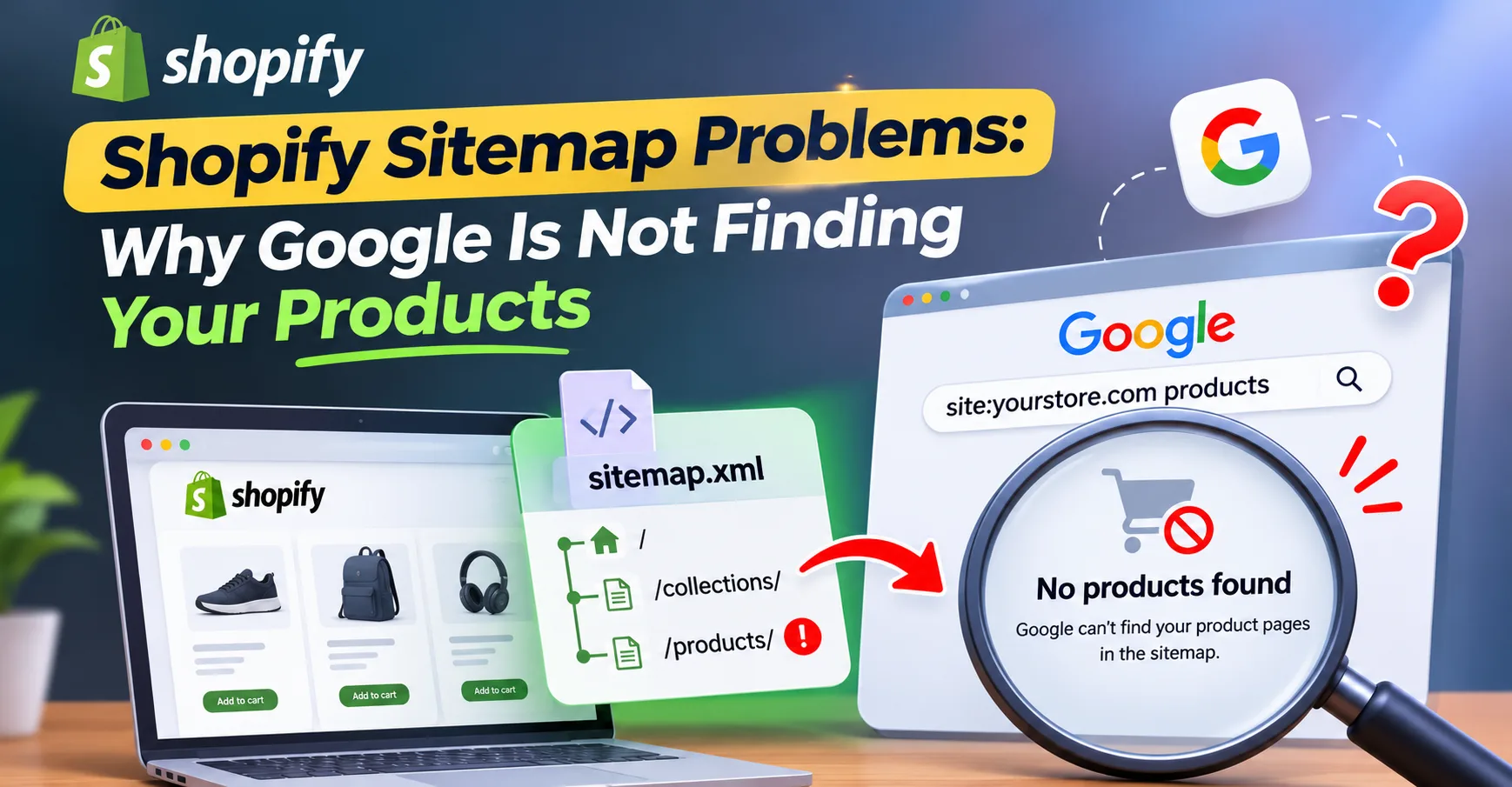
You add 80 new products and wait a month. Then you search Google and find half of them missing. Your first instinct points at the sitemap, like most store owners.
We assumed the same thing for a long time. Then we checked the same issue across a dozen stores and saw the pattern.
That sitemap was almost never the reason. On a stock Shopify store, /sitemap.xml builds and updates on its own. All it does is tell Google your product pages exist.
Discovery is the easy part, and most guides stop right there. So they call a missing product a broken sitemap and tell you to resubmit.
That advice seldom works, because the block sits further down the line. We untangle this exact problem for ecommerce brands across the USA most weeks.
This guide shows you why Google skips your products. It also walks through the Shopify sitemap problems worth checking first. By the end, you will know the real reason your pages stay hidden.
What Does a Shopify Sitemap Do for SEO?
A Shopify sitemap lists your store URLs so Google can find them. Shopify builds the file at /sitemap.xml and keeps it current as you add products. Getting listed means Google can discover the page. It does not mean Google will show it.
Discovery is only the first of four stages. Crawling comes next, when Googlebot fetches the page. Indexing follows, when Google stores the page. Ranking is last, when Google shows it in search.
Your sitemap touches that first stage and nothing after it. A product can sit in a valid sitemap and still never get crawled. Even a crawled page can miss the index. Each stage past discovery has its own blocks. So resubmitting the file changes little on its own.
How Do I Check if My Products Are Indexed?
You check indexing with the URL Inspection tool in Google Search Console. Drop one missing product URL into the bar at the top. The tool reports whether the page is on Google. It also names the page Google treats as the preferred version.
Google’s Page Indexing report gives you the store-wide view. It groups every URL by status, and two statuses matter most. “Discovered, currently not indexed” means Google knows the URL but has not crawled it. That points to weak internal links or a slow server.
“Crawled, currently not indexed” means something quite different. Google fetched the page and chose not to store it. So the problem sits in the content, not the setup. Google read the page and found it too thin. Reading the status first keeps you from fixing the wrong thing.
7 Shopify Sitemap Problems and Indexing Blocks to Check
These seven causes cover most cases where Google ignores a product. We ordered them from the quickest status check to the deeper content work. Most stores trip on one of the first three.
1. The Product Is Not Published to the Online Store
Every product has to be Active before Shopify adds it to the sitemap. It also has to be published to the Online Store channel. Products saved as Draft never enter the file. One set to Active but unpublished gets left out the same way.
This single setting explains most missing products we audit. The control sits on the product page under the sales channel area. Set the status to Active first. Then confirm the Online Store channel shows a published date.
Shopify drops a product from /sitemap.xml whenever either setting is off. Resubmitting the file does nothing here. Shopify only lists what the store itself treats as live. The entry returns once the product goes active and published.
2. The Product Is Set to Unlisted
Shopify added an Unlisted status that hides a product from search. Its direct URL keeps working, which is the point. Any unlisted product leaves your sitemap and Google search. It also drops from collection pages and storefront search.
Owners pick Unlisted for a product they share by link only. Trouble starts when someone sets it during a bulk edit. That product still looks fine in the admin. Shopify shows it as available, so nothing hints at the block.
Open the product and read the status field near the top. One marked Unlisted has to move back to Active. Google can only find it once the status flips. Your sitemap entry returns on the next update.
3. A Hidden Metafield Is Blocking the Page
Shopify supports a metafield called seo.hidden that pulls a product from search. Set to 1, it strips the product from the sitemap and search engines. It also removes the product from storefront search. On top of that, it stamps the page with a noindex and nofollow tag.
Where this value comes from is the part that catches people out. Many SEO apps write the seo.hidden metafield on their own. We send every store to Shopify SEO specialists for a theme review. The product still looks active on your storefront while it hides from Google.
The same check takes a minute on your own. Open the product and scroll to the Metafields section. Clear any SEO Hidden field set to 1.
4. An Accidental Noindex Tag on the Page
A noindex tag tells Google to leave a page out of results. It works even after Google crawls the page. Shopify does not add this to products on its own. Theme edits and SEO apps are the two usual sources.
The result is complete removal from search. Google crawls the page and reads the noindex instruction. Then it drops the URL from the index. Your product can sit in a perfect sitemap and never appear.
View the live product page source and search for the word noindex. A healthy product page carries an index instruction instead. Removing the noindex at its source clears the block. Google indexes the page again on the next crawl.
5. Duplicate Collection URLs Split the Signal
Shopify serves each product at two addresses by default. One is the clean /products/handle path. Another runs through /collections/name/products/handle. Both load the same page, so Google sees a duplicate product URL.
Shopify sets the canonical tag on both to the clean /products/ URL. That part works as it should. The conflict starts when your theme links to the collection path. Those internal links tell Google the collection URL matters more.
Google then picks its own canonical and may index the wrong path. Search Console reports a canonical that differs from the one you declared. Switching your theme links to the clean product URL settles the signal.
6. Google Picked a Different Canonical
A canonical tag names the page version you want Google to index. Google reads that tag as a suggestion rather than a rule. When your other signals point elsewhere, Google overrides the tag. It then picks its own version instead.
Near-identical products set this off more than anything else. We rely on product page optimization to keep each variant distinct. Stores that list each color as a separate product repeat the same text. Google folds those pages into one and leaves the rest out.
The right fix depends on how the store is built. Unique descriptions give Google a reason to keep pages apart. Internal links that point at one URL settle the rest.
7. The Page Is Thin or Crawled and Skipped
A product page with two lines of text seldom earns an index spot. Search Console marks these pages as crawled but not indexed. Google fetched the page and judged it too thin. Then it moved past.
Copied supplier text lands a page in the same place. Your description matches a hundred other stores, so Google skips yours. Resubmitting the URL changes nothing here.
Original copy and real photos give the page a reason to rank. Details like size and material help as well. A new store waits longer here too, since Google crawls it slower. Internal links from collections pull the page in sooner.
How to Find the Right Cause in Order?
The quickest path starts with one product URL in the URL Inspection tool. Its status points straight at the cause. Guessing wastes days the tool would save in seconds.
We follow the same order on every store audit. Each step rules out one stage before the next.
- Product status first. Confirm the product shows Active and a published Online Store channel.
- Sitemap presence. Open /sitemap.xml and search the products file for the handle.
- URL Inspection. Paste the product URL into Search Console and read the exact status.
- Page source scan. Search the live page code for noindex or a wrong canonical.
- Content review. Weigh whether the description is unique enough to index.
A missing sitemap entry almost always points to a status or hidden-flag issue. When crawl budget blocks discovery, our ecommerce team builds the links that help. An entry that sits in the sitemap yet never indexes points to content.
Most owners skip straight to resubmitting the sitemap. So a missing product drags on for months. The audit itself takes about ten minutes once you follow the order. Reading the status turns a month of waiting into a one-session fix.
Shopify Indexing Status Decoder
This table turns each Search Console status into its cause and next move. We keep a version open during every store audit. Each row maps back to one of the seven causes above.
Search Console Status | What It Means | Your Next Move |
URL is on Google | Indexed | Work on rankings, not indexing |
Discovered, not indexed | Known, not crawled | Add internal links, check server speed |
Crawled, not indexed | Crawled, judged thin | Rewrite the product description |
Duplicate, Google chose canonical | Signals disagree | Fix theme links and canonical |
Excluded by noindex tag | Blocked on purpose or error | Remove the noindex from theme or app |
Not in sitemap at all | Hidden or unpublished | Check status, Unlisted, seo.hidden |
Whatever status you read decides the whole fix. Chasing the wrong row sends you after a problem you do not have. That single mismatch is why so many stores lose weeks.
How We Fix Shopify Indexing for Store Owners
We treat indexing as a four-stage pipeline, not a sitemap toggle. Every audit starts in the Search Console, where we sort products by status. That sort shows whether the block sits in discovery or crawling.
Our team then clears the Shopify-side flags that hide products. We confirm publication status and review Unlisted settings. Any seo.hidden metafield an app wrote comes out too. Each fix targets one stage, and we recheck the URL after.
Content is the stage most technical audits give up on. That is where we keep going instead. We rewrite thin descriptions and split near-duplicate products apart. On the client from the intro, those pages indexed within six weeks.
Over the past ten years, we have helped more than 350 brands grow. Our audits have run on stores with five products and fifteen thousand. The pattern holds every time. A clean sitemap only matters once the pages behind it earn a spot.
Common Shopify Sitemap Mistakes to Avoid
Most indexing trouble on Shopify traces back to a few repeat mistakes. These errors keep products out of Google for months without a sign. Spotting them early saves a full season of lost traffic.
- Blaming the sitemap when the product status is the block.
- Leaving a product as Draft and expecting Google to find it.
- Running an SEO app that writes seo.hidden without telling you.
- Linking product grids through the collection path, not /products/.
- Publishing copied supplier text on every product page.
- Listing each color as a separate product with matching text.
- Resubmitting the sitemap instead of reading the Search Console status.
Each mistake sends Google a signal that keeps your product out. One of them alone can hide dozens of products at once. Reading the status reports first stops the wrong fix.
Frequently Asked Questions (FAQs)
Store owners ask some common questions once products go missing. These answers cover the points that cause the most confusion. Each one keeps the fix short and clear.
Google often finds the URL but skips the product over a hidden flag. The sitemap is seldom the real cause on a stock Shopify store.
Open the Sitemaps report in Google Search Console and add sitemap.xml. Shopify builds the file on its own, yet it never submits it for you.
A sitemap entry only means Google can discover the URL, not index it. The block is often a noindex tag or a canonical conflict.
Yes, a noindex tag keeps the page out of results after crawling it. Theme edits and SEO apps add this tag most often on Shopify.
Google says crawling can take days to weeks, with no promise of indexing. A new store with low authority tends to wait longer.
The seo.hidden metafield removes a product from your sitemap when set to 1. It also applies a noindex and nofollow tag to the page.
Your Sitemap Lists the Page, Not the Reason
A sitemap does one job well, which is telling Google your pages exist. It cannot crawl those pages, nor index or rank them. So a missing product is almost never a sitemap fault. Reading the Search Console status points you to the stage that broke.
These Shopify sitemap problems and indexing blocks each have a clean fix. None of them is hard once you know the stuck stage. The order you check in matters more than any single change.
A store that reads the status before touching the sitemap wins back time. Clean product settings and pages worth indexing keep Google moving. That habit keeps a growing store visible as its catalog grows.
