
Ever wanted to erase an embarrassing Amazon purchase? You’re not alone! Every day, people search “how to delete order history on Amazon”, but here’s the truth: Amazon doesn’t allow full deletion.
Instead, your Amazon account keeps every order safely stored for returns, support, and legal reasons. The only real option is to Archive Order, which hides it from view but doesn’t erase it.
In this guide, you’ll learn exactly how archiving works and how to manage your browsing history. You’ll also learn how to protect your privacy using Amazon’s real features.
What Your Amazon Order History Really Is

Think of your Amazon Account as a giant digital notebook that never forgets. Every time you hit that “Buy Now” button, Amazon quietly creates an Order Record that links straight to your account. Over time, these records line up like pins on a giant timeline – your complete shopping story.
Now imagine that timeline covered in colorful sticky notes. Each note is one order – you can cover it (hide or archive it), but you can’t tear it off completely. Amazon keeps them for good reasons:
- Help with returns and refunds
- Generate smart recommendations based on your habits
- Keep official invoices for legal protection.
Behind the scenes, Amazon’s algorithms study your orders to understand patterns of what you buy, when you buy, and what you might want next. That’s how your feed magically shows products you didn’t even know you wanted!
You can’t erase these records, but you can change their visibility. In simple terms, Amazon Account performs Archive Action, which updates visibility Status = “archived”.
You’re not deleting your history – but just deciding which pages to keep open and which to fold away.
Why You Might Want to Delete Your Amazon Orders

There are plenty of human reasons you might want to hide your Amazon purchases. Each of these reasons connects to a specific user intent (that’s how search engines understand why you’re searching). Here’s how it breaks down:
- Surprise Gift Hiding
You’ve bought a birthday or holiday gift for someone who shares your account – but you don’t want to spoil the surprise! - Sensitive or Personal Purchases
Maybe it’s something private – health-related, personal, or just something you’d rather keep to yourself. - Shared Account Privacy
If you share your Amazon Account with family or roommates, your Order History becomes public within your circle. Hiding an order gives you back control. - Digital Minimalis
Some people prefer a clean, decluttered digital space with fewer records, fewer reminders, more simplicity.
The Truth: You Can’t Delete Orders, But Only Archive or Hide Them
Here’s the truth: Amazon doesn’t let you delete orders at all. The Amazon interface simply doesn’t support a Deletion Action for your purchases.
Why? Because every order is linked to your Amazon Account for key reasons like returns, customer service, and legal record-keeping.
Imagine this: say you bought a new camera last year. If Amazon lets you delete that order, you’d lose the invoice you might need for a warranty.
In that case, you couldn’t return it if it broke, and support couldn’t verify you ever owned it. That’s why Amazon doesn’t erase history; it archives.
Instead, you get the smarter move: the Archive Action. When you archive an order, you’re not deleting it from Amazon’s system.
You’re just hiding it from your main “Your Orders” list. Think of it like sliding a file into a private drawer: it’s safe, tucked away, but still there when you need it.
Here’s the clear breakdown:
Action | Visibility | Data Retention | Reversible? |
Delete | Gone forever | ❌No | ❌No |
Archive | Hidden from view | ✅Yes | ✅Yes |
Why Amazon Keeps Your Orders (Data Retention Explained)
Ever wondered why Amazon holds onto your order history like a digital treasure chest? It’s not because they want to snoop – it’s because they have to.
Every order you make becomes an Order Record linked to your Amazon account. This record isn’t just for shopping nostalgia; it’s tied to important systems like returns, taxes, fraud prevention, and compliance.
In EAV terms: Amazon Account → stores → Order Record → reason = “customer support / legal compliance”.
That means Amazon keeps your data so it can verify purchases, process refunds, and protect you from fraud. If they deleted it, you’d lose receipts, warranty proof, and even refund rights.
Imagine this: you buy a laptop today, and a year later, it stops working. Without that order record, Amazon couldn’t confirm that you ever bought. That means you will not get any refund, repair, or help.
Behind the scenes, these records also help Amazon meet Legal requirements like tax auditing laws and consumer rights regulations. It’s part of their Amazon Policy for accountability and transparency.
Privacy vs. Practicality
It might sound comforting to “delete everything,” but complete erasure would actually make your shopping experience chaotic.
Your order history powers smart recommendations, proof of purchase, and smooth customer service. So, instead of deleting, Amazon uses Archive Action to hide your history from view while safely keeping it on file.
In short, your order data is the invisible backbone of your online shopping rights. So it balances your privacy and convenience one archived order at a time.
How to Archive an Amazon Order (Desktop)
Archiving an order is super easy – just like tucking a note into a secret drawer. Here’s exactly how to do it step by step:
- Go to “Accounts & Lists” → “Your Orders.”
This is where your Amazon Account connects to every Order you’ve ever made. - Find the order you want to hide.
Scroll through your Order History until you spot the one you’d rather keep private. - Click “Archive Order.”
You’ll find this button near the bottom-left of that order’s details section. - Confirm the action.
Amazon will ask if you’re sure – click Yes. - Done!
That order is now safely moved to Archived Orders, hidden from your main list but still retrievable anytime.
“Deleting Amazon order history is not always straightforward, but privacy control starts with knowing the right account options.
With 11 years of Amazon service experience, we help users and businesses manage account settings clearly, safely, and professionally.”
How to Hide Amazon Order (Mobile App)

Want to hide an order right from your phone? That’s easy! The Amazon App makes archiving quick, clean, and private. Here’s how to do it:
- Open the Amazon App → Tap “Your Orders”: This connects your Amazon Account with all your past Orders in one place.
- Find the order you want to hide: Scroll until you see it – that’s your target record in the Order History.
- Tap the three-dot menu (⋮) → Choose “Archive Order”: This triggers the Archive Action, changing its visibility from “default” to “archived.”
- Confirm the archive: One tap and poof! – It’s hidden from your main order list.
- View it anytime under “Account → Archived Orders”: Nothing’s lost -just neatly tucked away.
You can archive up to 100 orders per account. Think of it as a private shelf inside your digital shopping closet. It helps keep the history organized, invisible, and easy to reach when you need it.
Pro Tip
How to View or Restore Archived Orders
So, you’ve hidden a few orders, now where did they go? Don’t worry, your archived orders are never gone; they’re just waiting quietly behind the scenes. Here’s how to find them again:
- Go to “Your Account → Ordering & Shopping Preferences → Archived Orders.”
This is where your Amazon Account stores every Order that’s been marked as archived. - View your hidden orders anytime.
They’ll appear in a special list, separate from your normal order history. - Want to unarchive one?
Simply contact Amazon Support, or just view the order directly; it stays accessible.
Every time you archive, Amazon changes your order’s visibility Status from “default” to “archived.” That’s the magic switch! It doesn’t delete your data – just tells the system, “Hey, keep this out of sight.”
Hide Your Browsing History (Related Privacy Feature)
Here’s something most people don’t realize: your Browsing History is totally separate from your Order History.
Every time you click or view a product, Amazon quietly saves that activity under your Amazon Account as a Browsing History Item. This helps Amazon show you better recommendations, but it also means your past clicks can reveal a lot about you.
Here’s how to clear or hide them fast:
- Go to “Browsing History.”
- Click “Manage History.”
- Choose “Remove” for specific items or “Turn Off Browsing History” completely.
Once you do this, your BrowsingHistoryItem → removed=true – it means Amazon won’t show it in your feed or use it to shape suggestions.
Why it matters: Cleaning your browsing history helps you keep surprises secret and stop awkward recommendations. You’re not deleting your account data – just fine-tuning what Amazon remembers and displays.
Advanced Privacy Tips for Shared Amazon Accounts

If you share your Amazon account with family, roommates, or friends, privacy can be tricky. Luckily, Amazon gives you built-in tools to stay secure and keep surprises hidden.
Here’s how to lock things down like a pro:
- Enable Two-Factor Authentication
This adds an extra safety step when signing in. Even if someone knows your password, they’ll need a verification code sent to your phone. - Create Amazon Household Profiles
This feature lets everyone in the home shop with their own profile. You get privacy, personalized recommendations, and separate order histories. - Avoid Shared Logins
Never share one email and password across multiple people. Each person should have their own Amazon Account tied to their Household group. - Sign Out on Shared Devices
Especially on tablets or smart TVs! One open session can expose your entire Order History and Browsing History in seconds.
Behind the Scenes: How Amazon’s System Handles Your Data

Have you ever wondered what really happens when you hit that “Archive Order” button?
Spoiler: Amazon isn’t shredding your data – it’s simply updating a field inside its massive digital brain.
Every time you archive an order, Amazon doesn’t delete it. Instead, it changes one small property in its database. It’s just like flipping a light switch from “on” to “off.”
In tech terms, that looks something like this:
OrderRecord → hasAttribute → (“archived”).
That means your order still exists, but its visibility status changes. It’s no longer shown in your “Your Orders” list. But it still lives securely in Amazon’s data warehouse – ready to be restored, verified, or referenced for support.
This simple adjustment helps keep your account data consistent. It also gives you the control to hide things from view.
Why Is the “Archive Order” Option Missing on Amazon?
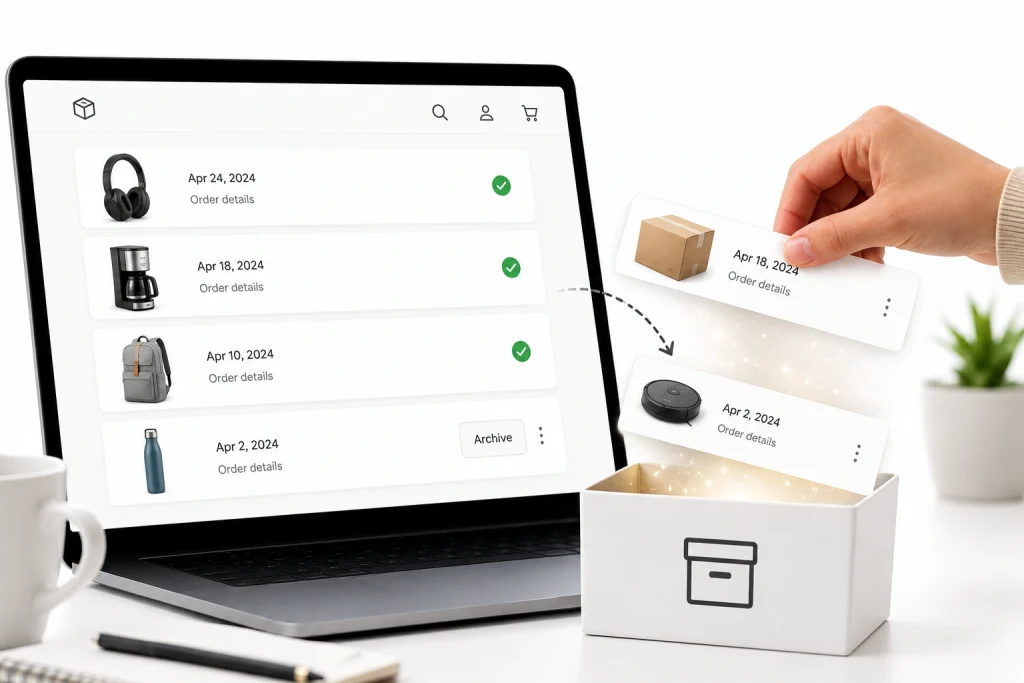
The “Archive Order” option may be missing because you are using the Amazon mobile app, viewing the wrong order section, or accessing an interface where the feature is not displayed. Amazon’s archive feature removes an order from the default order-history view, but it does not delete the purchase from your account. Archived purchases remain accessible from the Archived Orders page.
Start by signing in to Amazon through a desktop web browser rather than the mobile app. Open Returns & Orders, locate the purchase, and check the available order controls. Depending on Amazon’s current page layout, the archive control may appear directly below the order or inside an order-details menu. Make sure you are signed in to the account that originally placed the purchase because orders made through another account will not appear in your current history.
The archive option may also be difficult to find when you are viewing open orders, digital purchases, cancelled orders, subscriptions, or another filtered category. Change the order-history filter to the year in which the purchase was made, open the complete order details, and look for Archive Order again. Amazon regularly changes its website and app layouts, so the location of the control may not be identical for every device or account.
Archiving should not be treated as a strong privacy tool. Anyone who can sign in to your account can still open the Archived Orders section, search for the product, view browsing activity, check payment transactions, or read delivery messages. It is mainly an organizational feature that removes purchases from the standard order list. For genuinely separate purchase histories, using individual accounts through Amazon Family is more effective.
How to Hide Amazon Orders Using Amazon Family
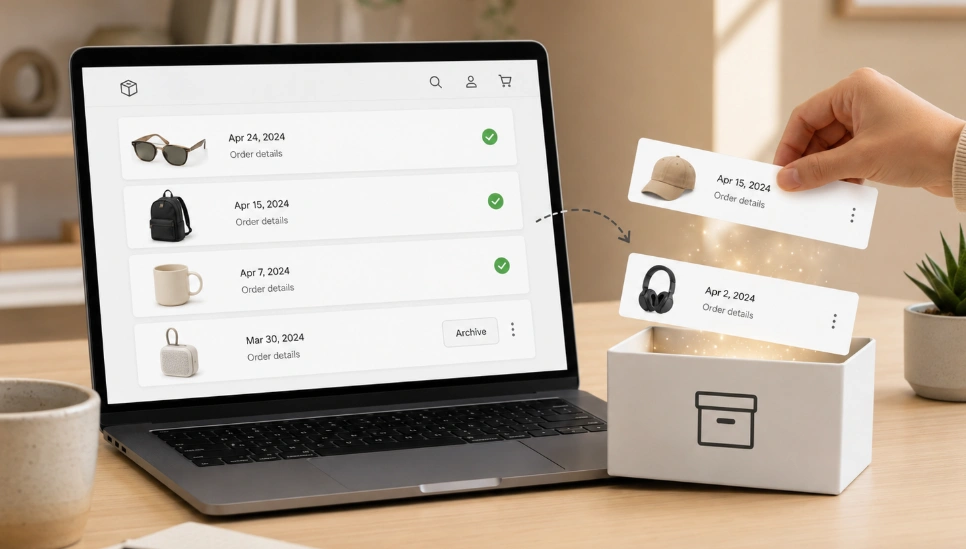
The most reliable way to keep Amazon orders private from another adult is to use separate Amazon accounts connected through Amazon Family. Amazon specifically recommends linked accounts when multiple family members want separate order histories. Each adult signs in using an individual email address and password instead of sharing one Amazon login.
To set it up, open your Amazon account, find Amazon Family, and select Add Adult. You can send an email invitation or complete the account-linking process together. After the invitation is accepted, both adults can use their own Amazon accounts while sharing eligible Prime benefits. Amazon currently allows Prime benefits to be shared with another adult through Amazon Family.
Once the accounts are linked, place private purchases only while signed in to your personal account. The other adult will not see those orders in their own standard order history. However, Amazon Family does not move or hide purchases that were previously placed through a shared account. Existing orders remain connected to the account used during checkout, so they may need to be archived separately.
There is an important limitation: Amazon may require linked adults to agree to share payment methods for verification and certain shared benefits or digital content. Separate order histories therefore do not guarantee complete financial secrecy if both adults can access the same card account, bank statement, email inbox, delivery address, or physical packages. For better privacy, use separate login details, disable shared-device access, review saved payment methods, and avoid leaving the Amazon account signed in on a communal computer.
How to Stop Alexa and Amazon Notifications from Revealing Purchases
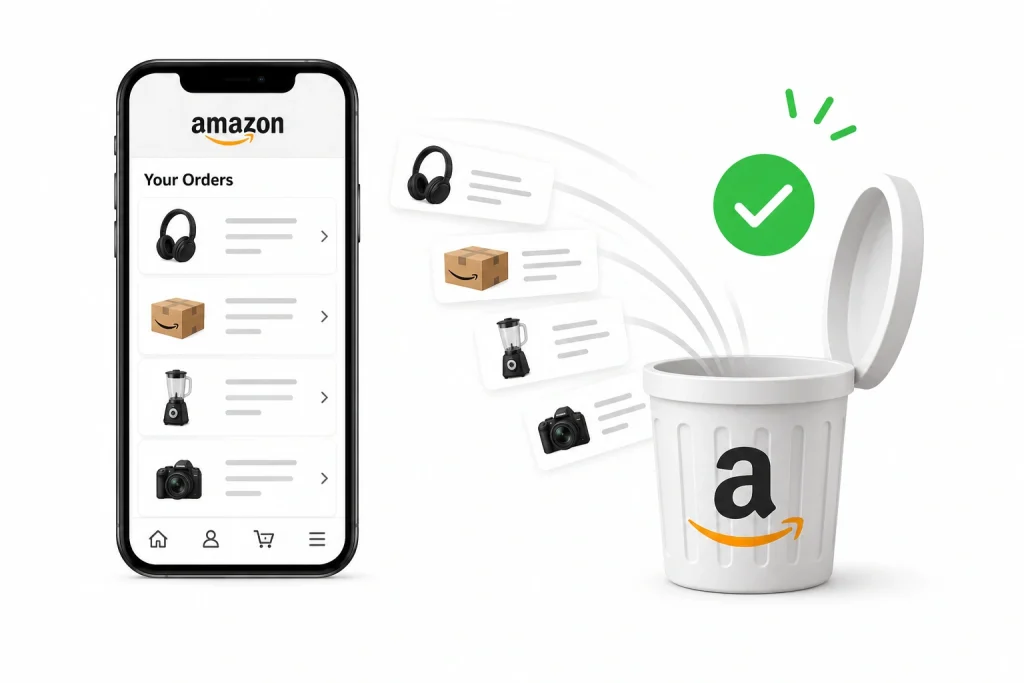
To stop Alexa from announcing product names, open the Alexa app, select More, choose Settings, tap Notifications, and open Amazon Shopping. Find the section labelled Say or Show Item Titles and turn off the options that allow Alexa to reveal product names in shopping or delivery notifications.
Amazon also provides a surprise setting designed to prevent Alexa from spoiling gifts. The “Don’t spoil my surprises” option hides eligible gift-purchase details for a limited period and may already be enabled by default. Review this setting before birthdays, holidays, or other occasions rather than assuming every product title will automatically remain hidden.
For stronger privacy, turn off shopping notifications completely. In the Alexa app, go to More > Settings > Notifications, choose Amazon Shopping or another relevant service, and disable delivery, return, order-update, and recommendation alerts. Alexa also allows notifications to be controlled for individual Echo devices. You can disable announcements on a shared device or temporarily activate Do Not Disturb, although this may block other announcements as well.
Do not forget the Amazon Shopping app and text-message alerts. In the Amazon app, open the person icon, select the gear icon, go to Notifications, and review Account and shipping alerts. You can also disable Amazon notifications through your phone’s operating-system settings. Shipment text updates can be managed through the communication settings in Your Account or turned off for a specific package from its tracking page.
Even after disabling notifications, a purchase may still be exposed through confirmation emails, shared calendars, card statements, package-tracking apps, browser history, recommendations, or a labelled box arriving at the door. The safest approach is to combine separate Amazon Family accounts with private email access, restricted device notifications, secure payment methods, and delivery to an Amazon Locker or another trusted address when available.
Frequently Asked Questions (FAQs)
You’re not the only one curious about how Amazon handles your order history! Here are the most common questions people ask and the answers to them.
Nope, not fully. The Amazon interface doesn’t support a Deletion Action for orders. You can only perform an Archive Action, which hides the order from your main list without deleting it.
When you archive, Amazon changes the order’s visibility Status from “default” to “archived.” It disappears from your regular “Your Orders” view but still lives safely in your account under Archived Orders for support or future reference.
Yes, if they can log into your Amazon Account, they can still view archived orders. That’s why privacy steps like 2FA (Authentication Factor) and separate Amazon Household profiles are so important.
Yes, you can. Go to Browsing History → Manage History → Remove or Turn Off. When you remove an item, it disappears from your history and won’t affect your recommendations anymore.
You can archive up to 100 orders per account. Each archived order stays hidden but accessible. It’s like a digital “storage box” inside your Amazon Account → has Order.
Yes, you can. The easiest way is to use Amazon Household. It lets you create separate profiles under one Prime membership, so each person’s order history stays private.
Grow Your Amazon Business With Brand’s Bro
Scaling an Amazon business isn’t as easy as it used to be. The Ad costs are rising, algorithms keep changing, and managing everything alone is nearly impossible.
That’s where Brands Bro comes in – your Amazon Business Growth Acceleration Agency.
We’re a team of Amazon growth specialists with ad managers, product listing optimizers, copywriters, and supply & logistics experts. A team behind your brand, working together to help your brand grow faster, smoother, and smarter.
So if you’re serious about growing your store, and building a profitable brand that lasts-


