
404 errors and broken links may look like small technical issues, but they can quietly damage your Shopify store’s SEO, user experience, and sales. When customers click a product, collection, blog, or campaign link and land on a dead page, trust drops fast. Google also sees repeated broken paths as a sign of poor site maintenance.
At Brand’s Bro, we have spent over 11 years helping Shopify and ecommerce brands fix technical SEO issues, recover lost traffic, and improve store performance. Our team has worked with 350+ Shopify businesses across the USA, Canada, the UK, and Australia, including brands in fashion, beauty, home goods, electronics, lifestyle, and health-focused ecommerce.
We have seen Shopify stores lose rankings and revenue because old product URLs, deleted collections, changed blog links, app-generated pages, and failed redirects were never cleaned up. In one Shopify home improvement project, the store had hundreds of broken URLs after a product migration. After fixing 404 pages, setting proper redirects, cleaning internal links, and updating sitemap structure, organic traffic increased by 158% within 90 days, and product-page clicks improved by 61%.
For a fashion Shopify brand, we repaired broken collection links, redirected discontinued product pages, and fixed crawl errors found in Google Search Console. As a result, crawl efficiency improved, bounce rate dropped by 26%, and monthly organic revenue grew by 117% after the technical cleanup.
Fixing 404 errors is not just about redirecting every broken link to the homepage. That is lazy and often wrong. The right approach is to identify why the page broke, choose the most relevant redirect destination, update internal links, check backlinks, and monitor Search Console regularly.
In this guide, we’ll explain how to fix 404 errors and broken links on Shopify, including URL audits, redirect setup, internal link cleanup, deleted product handling, Search Console checks, sitemap updates, and common technical mistakes to avoid.
If your Shopify store has broken links, crawl errors, or traffic drops after changes, Brand’s Bro can audit your store, fix the technical issues, and build a cleaner SEO structure that protects your rankings and revenue. You can book a meeting with us today.
What Are 404 Errors on Shopify?
We need to define our main entity here. A 404 error is a message from a computer server. It tells a web browser that the page does not exist. The browser asks for a page. The server searches for it. The server cannot find it. So, it sends back a 404 code.
In the world of Shopify, this usually means a product is missing. It might also mean a collection page was deleted. For a shopper, it looks like a dead end. For a search engine like Google, it is a sign of poor maintenance.
We need to look at the different types of these errors. Not all 404 errors are the same. There are two main attributes you must know.
Hard 404 vs. Soft 404: The Critical Distinction
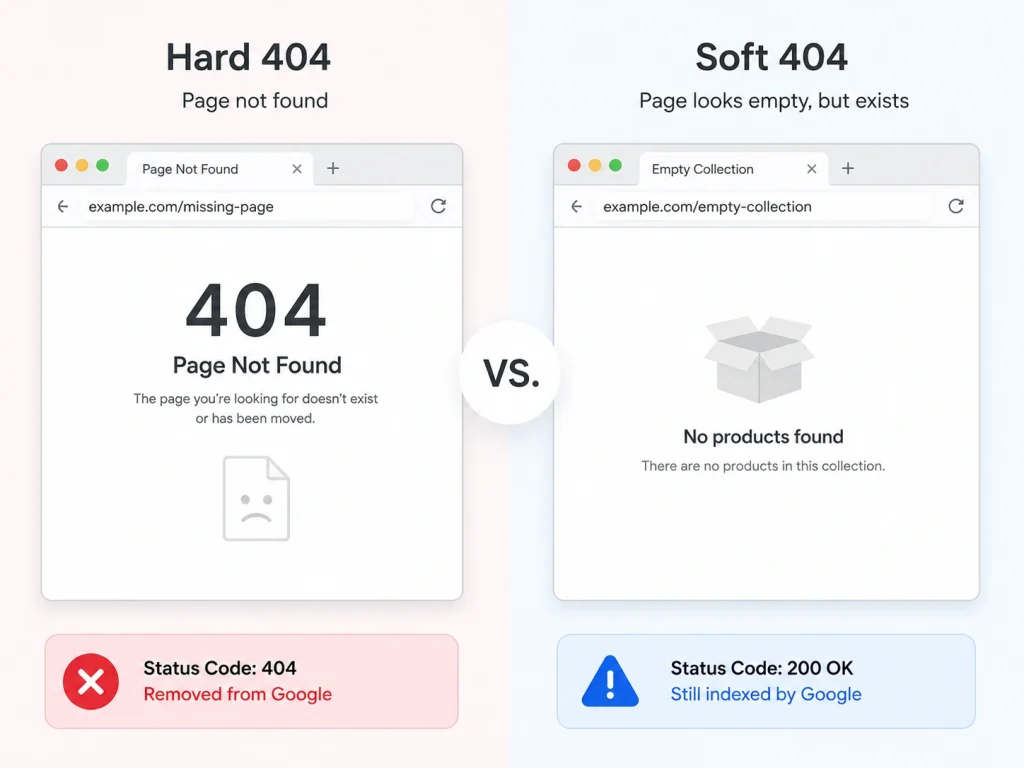
A “Hard 404” is the standard error. The server clearly says the page is gone. It returns a specific status code. This code is 404. Google sees this code and drops the page from its index. This is actually a normal thing. The web changes often.
A “Soft 404” is much trickier. This happens when a page looks empty to the user. Imagine a collection page with no products. It might say “No products found” on the screen. However, the server tells Google the page is fine. It sends a “200 OK” status code.
This confuses Google. The bot thinks the page is real. But the page has no value. This wastes your Crawl Budget. Google keeps coming back to an empty room. You want to avoid this. You want Google to spend time on your best products.
Why 404 Errors Happen on Shopify?
You might wonder why this happens. You did not break the site on purpose. There are usually three main causes. We call these the root causes.
- Inventory Syncs:
Store owners often delete old products. They think the item is sold out forever. So they click delete. This removes the page. But the old link still exists on Google. When someone clicks that old Google link, they get an error. - Handle Changes:
A “handle” is the end part of your URL. For example, /products/red-shirt. Maybe you want to change it to /products/red-t-shirt. If you do this without a redirect, the old link breaks. The old address does not forward to the new address. - Theme Migrations:
When migrating to Shopify from platforms like WordPress, old links may not match Shopify’s new URL structure. If these links are not properly redirected, it results in broken links and a flood of 404 errors.
The SEO Impact: Why Broken Links Destroy Rankings
We know these errors are annoying. But the damage goes deeper than annoyance. It hurts your ability to rank on Google. Search engines work on trust and efficiency. Broken links hurt both of these things.
We need to look at two major SEO concepts. These are Link Equity and Crawl Budget.
The "Black Hole" of Link Equity
Think of Link Equity like water in a pipe. People also call this “link juice.” When another website links to you, they send water through the pipe. This water gives your page power. It helps the page rank higher.
Now imagine that pipe leads to a 404 page. The water pours out onto the ground. It is wasted. The value from that link disappears. It does not help your site at all. This is why fixing links is vital.
You must catch that water. You do this with a 301 redirect. This is like a patch for the pipe. It sends the water to a new page. If you do not fix this, you lose authority. Your competitors will rank higher than you.
Wasting Crawl Budget
Google uses a bot to scan the internet. This bot is often called a spider or crawler. It visits your website to find new content. But the bot has a limit. It cannot stay on your site forever. This limit is called the Crawl Budget.
If the bot hits many dead ends, it gets stuck. It spends its limited time on broken pages. This means it has less time for your new pages. Your new products might not get indexed. This delays your sales.
You want the bot to move fast. It should slide from page to page easily. A clean site structure helps the bot understand your store.
How to Identify 404 Errors on Your Shopify Store
You cannot fix what you cannot see. You need tools to find these broken links. There are several ways to do this. Some are free. Some require paid tools.
We will start with the most important tool. It is from Google itself.
Using Google Search Console (The Source of Truth)
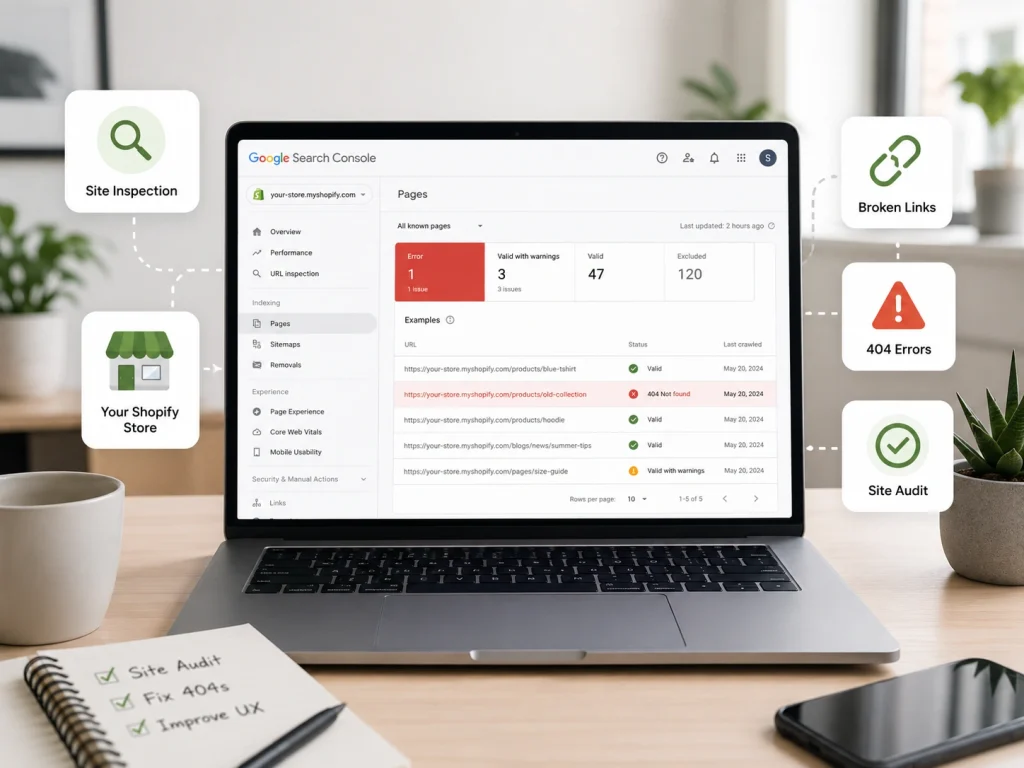
Google Search Console is a free tool. Every store owner should use it. It tells you exactly what Google sees. It creates a Coverage Report for your site.
To find your errors, log in to your account. Look at the menu on the left. Click on “Indexing” or “Pages.” You will see a list of reasons why pages are not indexed. Look for the line that says “Not found (404).”
Click on that line. You will see a list of URLs. These are the specific pages that are broken. You can even filter the list. You should look for “Last Crawled” dates. Focus on the recent dates first. These are current problems.
Analyzing Shopify’s Native "URL Redirects" Log
Shopify also has a built-in tool. It is hidden in the admin panel. It tracks where people are going. It helps you see which redirects are already active.
Go to your Shopify Admin. Click on “Online Store.” Then click on “Navigation.” You will see a small link at the top right. It says “View URL Redirects.” This list shows all the fixes you made in the past.
It does not always show current errors. But it is useful for management. You can see if you made a mistake before. You can search for old paths here.
Identifying Soft 404s in Collection Filters
Soft 404s are harder to find. Search Console might not catch them all. You might need a tool like Screaming Frog. This is a crawler you run on your computer.
Soft 404s often happen on collection pages. A user filters by “Size: XXL.” If there are no XXL items, the page is empty. But the URL exists.
This is bad for user experience. The user sees a blank grid. You need to fix these too. You can use canonical tags to solve this. Or you can adjust your theme settings.
How to Fix 404 Errors and Broken Links on Shopify (Step-by-Step)
Now let’s dive into the technical steps on how to fix 404 errors and broken links on Shopify efficiently. We have found the errors. Now we must repair them.
There are three main ways to do this. We will start with the manual method. This is best for small fixes.
Method 1: The Manual 301 Redirect (For Individual Fixes)
This is the most common method. You use the Shopify admin panel. You do not need to code. You just need to copy and paste.
Ensure that the new page exists and is relevant to the broken URL. For instance, if a specific product page no longer exists, redirect it to a similar or related product page.
Step 1: Go to your Shopify Admin. Click “Online Store” and then “Navigation.”
Step 2: Click “View URL Redirects” at the top right. Then click the green button that says “Create URL redirect.”
Step 3: You will see two boxes. The first box is “Redirect from.” Paste the broken (old) link here. The second box is “Redirect to.” Paste the working (new) link here.
Step 4: Click “Save.” Now test it. Click the old link. It should take you to the new page.
Be careful with loops. A redirect loop is bad. This happens if Page A goes to Page B, and Page B goes back to Page A. The browser will get stuck.
Method 2: Bulk Fixing via CSV Import (For Large Catalogs)
Sometimes you have hundreds of errors. Fixing them one by one takes too long. You need a faster way. You can use a spreadsheet to fix them all at once.
Attribute Focus: The CSV Format.
You need a spreadsheet program like Excel or Google Sheets. Create a new sheet. You need two columns. The header of the first column must be Redirect from. The header of the second column must be Redirect to.
List all your broken links in the first column. List the new destinations in the second column. Ensure you only include the path (e.g., /products/red-shirt) in the CSV file, not the full URL (e.g., brand.com/products/red-shirt).
Download this file as a CSV. Go back to the URL Redirects page in Shopify. Click “Import.” Upload your file. Shopify will create all the redirects for you. This saves hours of work.
Method 3: Handling "Deleted Products" (The 410 Gone Dilemma)
What if you deleted a product on purpose? You are never selling it again. There is no replacement.
In technical SEO, we usually use a “410 Gone” code. This tells Google the page is dead forever. But Shopify does not let you do this easily. It defaults to 404.
So, what should you do? You should redirect the user. But do not send them to the Homepage. That is lazy. It frustrates the user.
Send them to the most relevant collection. If you deleted a specific “Blue Running Shoe,” redirect the link to the “Running Shoes” collection. This keeps the user shopping. It saves the sale.
Advanced: Automating Fixes with Shopify Apps
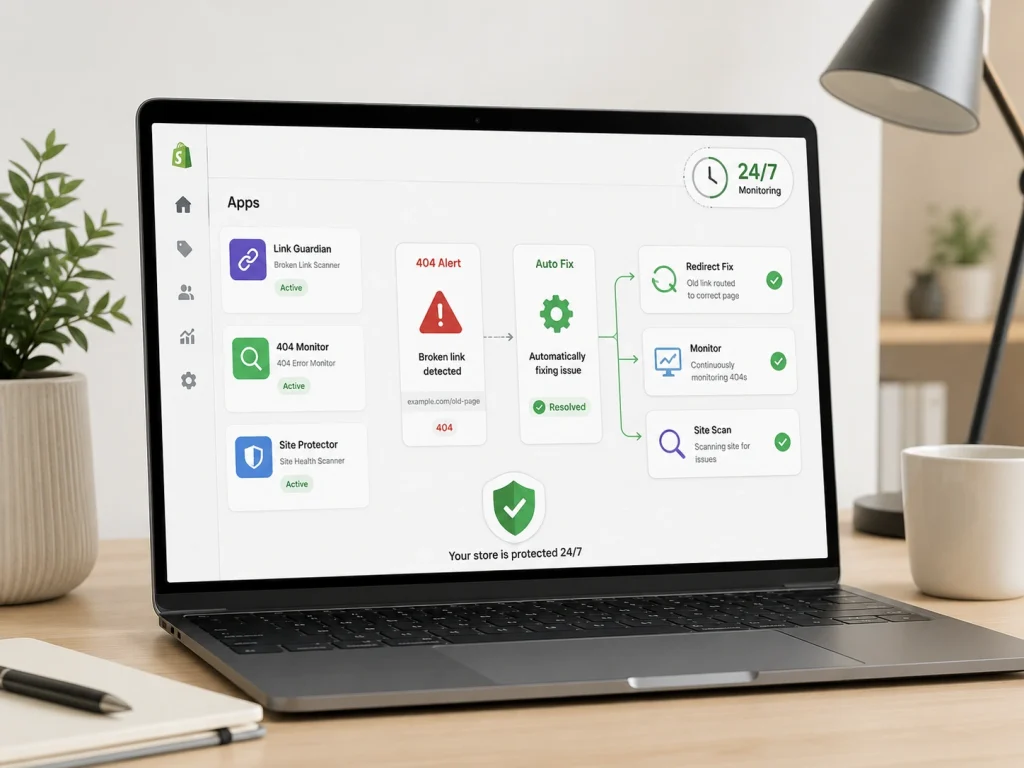
You might want to automate this process. Manual work is slow. There are apps in the Shopify App Store that can help. These tools act like a security guard. They watch for errors 24/7.
Top Tools for Redirect Management
Managing redirects efficiently is crucial for maintaining a smooth user experience and SEO performance. Several tools are available to help streamline this process, whether you’re dealing with small or large-scale websites. Below are some of the top tools and solutions for redirect management.
SC Easy Redirects:
This is a popular app. It used to be called Shop Circle. It allows you to bulk upload redirects easily. It also tracks 404 errors in real-time. It sends you a report. You can fix the error with one click inside the app.
Matrixify:
This tool is for power users. It handles huge amounts of data. If you are moving to a massive store, use this. It can export your whole site structure. You can edit it and import it back.
Sometimes standard apps are not enough. You might have a complex setup. In that case, you might need custom Shopify development solutions. Developers can write scripts to handle specific redirect logic. This ensures no link is left behind.
How to Create a Custom 404 Page (Turning Errors into Sales)
Sometimes an error will happen. You cannot stop every single one. Users make typos. They type the wrong address. You need a safety net.
Your “Page Not Found” page should not be a dead end. It should be a helper. It can guide the user back to your products.
Editing the 404.liquid File
You can change how this page looks. You need to edit your theme code. The file is called 404.liquid.
Do not be scared of the code. You are just adding sections. You can change the text. Instead of “Error,” say “We couldn’t find that, but look at this.”
Liquid Object Tip:
You can use a special code snippet. Use {{ routes.all_products_collection_url }}. This creates a link to your main shop page. It makes it easy for the user to click “Continue Shopping.”
Adding a Search Bar and Best Sellers
A blank page causes users to leave. This increases your Bounce Rate. A high bounce rate is bad for SEO.
Add a search bar or display popular product suggestions on your 404 page to guide users toward products they might be interested in, improving the overall user experience. You should also add a “Best Sellers” collection. Show them your popular items.
If they see a product they like, they might click it. You turn a lost visitor into a customer. This improves your user experience (UX) significantly.
Preventing Future 404 Errors (Maintenance)
Prevention is just as important as knowing how to fix 404 errors and broken links on Shopify. You need a routine. Regular maintenance keeps your store fast and clean.
Here is a simple checklist for you.
- The “Create Redirect” Checkbox: When you change a product handle in Shopify, look at the bottom. There is a small checkbox. It says “Create a URL redirect for…”. Always check this box. Shopify will make the 301 redirect for you automatically.
- Regular Crawls: Do not wait for sales to drop. Scan your site every month. You can use free tools or paid ones. A scheduled audit helps you catch problems early.
- Careful Deletions: Before you delete a product, think. Is there a similar product? If yes, prepare the redirect first. Then delete the item. Connect the old link to the new item immediately.
Shopify URL Redirect Rules and Limitations You Must Know
Shopify URL redirects help send visitors and search engines from an old broken URL to a new working URL. The best use case is a deleted product, changed collection URL, removed blog post, or migrated page.
Shopify redirects only work from broken URLs. If the old URL still loads a valid page, Shopify’s built-in redirect will not work. Shopify also blocks redirects for some fixed or reserved paths, including /cart, /checkout-related paths, /products, /collections, and certain app or service paths.
Store owners should also know the redirect limits. Standard Shopify stores can create up to 100,000 redirects, while Shopify Plus stores can create up to 20,000,000 redirects. Redirect paths must be unique, and Shopify’s API lists a 1,024-character maximum for the old path and 255 characters for the target.
404 Redirect Decision Matrix: Redirect, Restore, Update, or Leave It
Not every 404 page needs a redirect. The right decision depends on search value, user intent, backlinks, and whether a better replacement page exists.
Redirect the 404 URL when the old page has backlinks, traffic, rankings, or a close replacement. For example, redirect a discontinued product to the newer model, the parent collection, or the most relevant category page. This helps users and can send stronger canonical signals to Google.
Restore the page when it was removed by mistake or still satisfies search intent. Update the page when the content is outdated but the topic is still useful. Leave it as a 404 when the page has no value, no replacement, no backlinks, and no real user demand. Redirecting every 404 to the homepage is lazy SEO and often creates poor user experience.
How to Validate 404 Fixes in Google Search Console After Redirects
After fixing Shopify 404 errors, validate them in Google Search Console using the Page Indexing report. Open the affected issue, review sample URLs, test the redirect manually, then click “Validate Fix” only after all known examples are corrected.
Google says validation can fail if even one sampled URL still has the issue. During validation, Google checks sample pages first, then recrawls known affected URLs. Statuses may show Started, Looking good, Passing, Failed, or Passed depending on what Google finds.
Do not panic if Search Console still shows old 404s after the redirect works. Google may not have recrawled the URL yet. Check the last crawl date, inspect individual URLs, request indexing where needed, and monitor the affected count. Validation often takes several days and can take longer on larger sites.
Frequently Asked Questions (FAQs)
Here are the most common questions store owners ask about managing broken links and errors. These answers will help you solve problems quickly and keep your site healthy.
Yes, they can. While a few errors are normal, too many broken links waste your Crawl Budget. This stops Google from indexing your new pages. It also creates a bad user experience, which lowers your site’s trust and authority.
No, this is a bad practice. Google treats mass redirects to the homepage as “Soft 404s.” It confuses the user because they did not ask for the homepage. Always redirect to a relevant product or collection page instead.
Only sometimes. If you change a URL handle in the admin panel and check the box, Shopify creates a redirect. However, if you delete a product or use a CSV import, Shopify does not create a redirect automatically. You must do it manually.
It varies. It can take a few days to a few weeks. You can speed this up by using the “Removals” tool in Google Search Console. This tells Google to stop showing that specific link in search results immediately.
Yes. You do not need to add them one by one. You can create a CSV file with two columns: “Redirect from” and “Redirect to.” Go to Online Store > Navigation > View URL Redirects and click “Import” to upload your list.
Stop Losing Sales: Audit Your Shopify Links Today
Don’t let invisible technical errors drain your hard-earned revenue. A healthy site structure isn’t just about pleasing Google’s bots. It is about keeping your real customers happy. Every broken link is a potential lost sale that goes to your competitor instead.
You now have the exact roadmap to fix this. Mastering how to fix 404 errors and broken links on Shopify ensures your store remains authoritative. It protects your valuable Link Equity from evaporating. It makes the shopping experience smooth, fast, and frustration-free for everyone.
Take action on these steps right now. Open your Google Search Console account immediately. Check your “Not Found” report for red flags. Fix those issues before they hurt your rankings any further. If the technical side feels overwhelming, we are here to help. A clean store is a profitable store. Start your audit today.
