
You wake up and check your phone. Nothing. No sales, no alerts. A product that was doing well is suddenly gone. It doesn’t show up in search, and even the direct link leads nowhere.
For an Amazon seller, it can feel sudden and confusing. One day everything is moving, and the next day it stops. The first reaction is panic, and the question that keeps coming back is, how do I fix a suppressed listing on amazon?
Take a deep breath. Going straight to support isn’t always the fastest way. Often, the answer is already in Seller Central.
Not every quiet period has the same cause, and small issues can have a big effect. Let’s look at what might be wrong and how to fix it.
What Does It Mean to Have a Suppressed Amazon Listing?
Amazon operates on a foundation of customer trust. To maintain that trust, they enforce rigorous quality standards for every product detail page. When a listing fails to meet these standards, Amazon removes it from search results and product pages.
Essentially, it becomes invisible to buyers. Unlike an “Inactive” status. This usually relates to inventory or pricing issues. A suppressed listing is taken down due to a policy violation or a data quality defect. The product still exists in your inventory, but no one can buy it.
Many sellers confuse suppression with a simple ranking drop. They are different. A ranking drop means you are hard to find; suppression means you have been erased. Addressing this issue quickly is vital too. Prolonged suppression can damage your sales history and organic ranking.
Learning how to fix a suppressed listing on amazon starts with realizing that Amazon’s bots have flagged your product for falling short of specific catalog criteria. Fortunately, this status is usually temporary if you know exactly which levers to pull.
Common Reasons Why Amazon Suppresses Product Listings
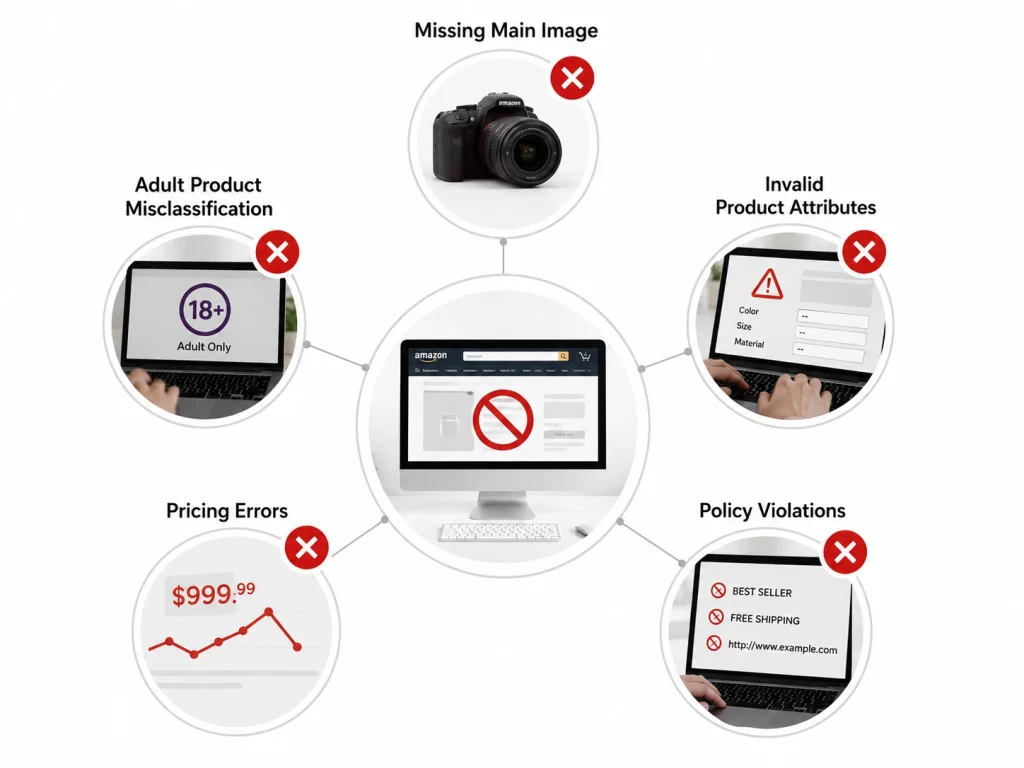
Before you can fix the issue, you must find the root cause. Amazon does not always send a clear email explaining the problem. Sometimes, you are left guessing. However, most suppressions fall into a few distinct categories. Knowing these helps you troubleshoot faster.
- Missing Main Image: This is the number one cause. Amazon requires a pure white background for the main image. If your image has shadows, borders, or props, the bots will suppress it. Also, if the image is too small or pixelated, it fails quality checks.
- Invalid Product Attributes: Your product data must be complete. If you leave fields like “Color,” “Size,” or “Material” blank, the system gets confused. Amazon uses these attributes to filter search results. Missing data creates a poor customer experience.
- Policy Violations: Did you use a phrase like “Best Seller” or “Free Shipping” in your title? These are prohibited. Did you include a URL in your description? That is also a violation. Amazon has strict style guidelines. Breaking them triggers suppression.
- Pricing Errors: If your price is significantly higher or lower than the market average, Amazon might suppress the listing. They do this to protect customers from price gouging or potential errors. It acts as a safety mechanism.
- Adult Product Misclassification: Sometimes, standard products get flagged as “Adult.” This happens if your keywords trigger the adult content filter. Once flagged, the listing is hidden from general search.
Identifying the specific trigger is your first step. You cannot fix what you do not understand. Take a deep breath. Look at your listing with fresh eyes. Compare it against Amazon’s style guide. Usually, the error is staring right at you.
Once you spot it, you can move to the solution.
How to Identify a Suppressed Listing in Seller Central
You know your sales are down. Now you need to confirm the suppression status. Amazon does not always make this obvious. You have to dig into your Seller Central dashboard to find the truth. The interface can be clunky, but the data is there.
Start by navigating to the “Inventory” tab. Select “Manage All Inventory.” This brings up your master list of products. By default, Amazon shows “Active” listings. You need to change this view.
Look for the “Suppressed” filter. It is usually a dropdown menu or a tab at the top of the list. Click it. If you have suppressed listings, they will appear here. If the list is empty, check your “Inactive” listings instead. Sometimes the label is different.
Once you see the list, you need more details. Amazon provides specific reasons for the suppression. You can view this directly in the list view or download a report. The “Listing Quality Dashboard” is also a helpful tool. It highlights issues that need attention.
Here is a quick guide to reading the suppression status:
| Column Name | Description |
|---|---|
|
Status |
Look for the red text saying “Suppressed.” This confirms the issue. |
|
Reason |
The specific cause provided by Amazon (e.g., Image Missing, Attribute Missing). |
|
SKU |
The specific Stock Keeping Unit affected. This helps you locate the item quickly. |
Seeing the red status can be disheartening. But seeing the “Reason” column is a victory. It gives you a roadmap. It tells you exactly where to focus your energy. If the reason is vague, you may need to contact Seller Support.
But in most cases, the dashboard tells you everything you need to know. You have identified the problem. Now you are ready to learn how do i fix a suppressed listing on amazon.
Suppressed Amazon listings can kill visibility, traffic, and sales. BrandsBro helps identify the issue, fix listing errors, improve compliance, and restore product visibility.
If your Amazon listings are suppressed, book a free meeting with us and we’ll review the problem.
How To Fix a Suppressed Listing on Amazon: Step-by-Step Guide
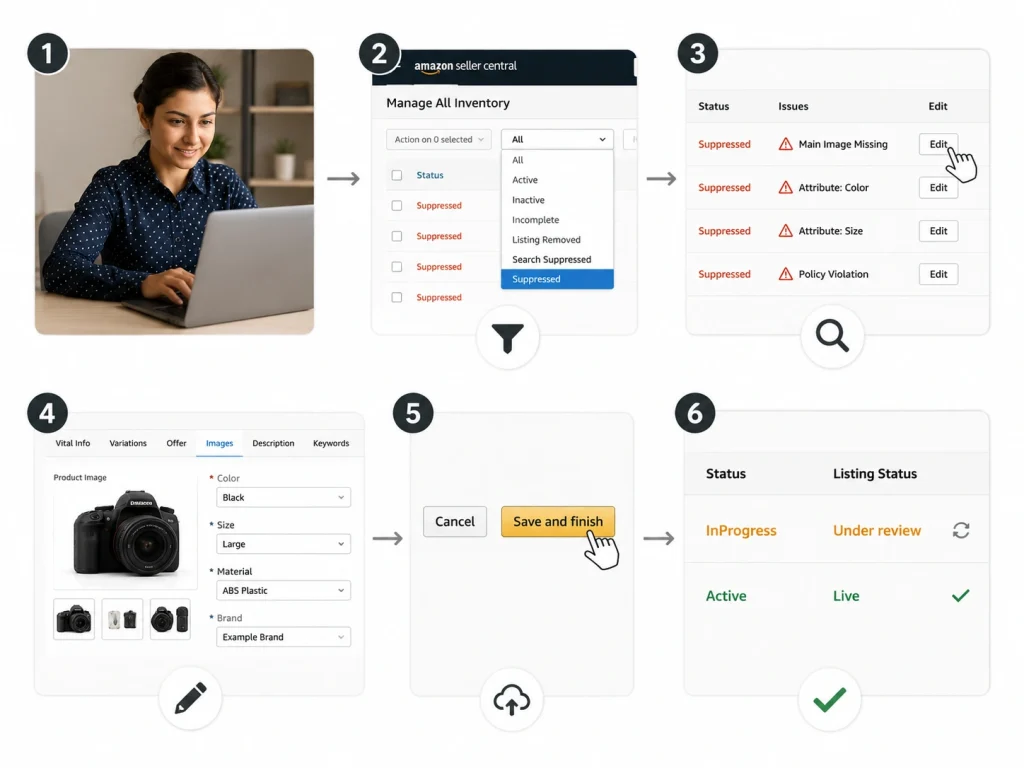
You have found the suppressed SKU. You know the reason. Now it is time to do the work. Fixing a listing is often a simple process of editing and saving. However, you must be precise. One wrong move can send your listing back into review.
Follow these steps carefully to restore your product page.
- Navigate to Inventory: Go to your Seller Central dashboard. Hover over “Inventory” and click “Manage All Inventory.”
- Filter for Suppressions: Use the dropdown menu to select “Suppressed.” This isolates the problem listings.
- Analyze the Alert: Look for the specific error code. It might say “Main Image Missing” or “Attribute: Color.” Click the “Edit” button on the right side of the screen.
- Edit and Resolve: You will enter the standard product editing page. Go directly to the tab mentioned in the error (usually “Images” or “Variations”). Correct the issue immediately. Ensure all mandatory fields are filled. Double-check your work.
- Save and Wait: Click “Save and Finish.” Your listing status will change to “InProgress.” This means Amazon is reviewing your changes.
This process seems simple, but timing matters. Amazon’s review times vary. Sometimes it takes minutes. Sometimes it takes hours. Do not submit the listing multiple times. This can reset the queue. Submit once and wait.
If you have multiple suppressed listings, you can use the “Fix Suppressions” tool in the Listing Quality Dashboard. This allows you to update attributes in bulk. It saves time if you have a large inventory.
Remember, the answer lies in this methodical approach. You are not hacking the system. You are aligning your data with Amazon’s requirements. Once you hit save, the bot re-scans your page. If it likes what it sees, the suppression lifts. Your product goes back to “Active.” You are live again.
Fixing Image Quality and Missing Photo Issues
Image issues are the most frequent culprits for suppression. Amazon is obsessed with the customer visual experience. They want every product page to look professional. If your main image breaks a rule, the bot shuts you down. To resolve these errors quickly, check against these common pitfalls:
- Non-Compliant Background: Your main image must have a pure white background. The RGB values must be 255, 255, 255. It cannot have any shadows. It cannot have props or text overlays. The product must fill 85% of the frame.
- Incorrect Image Size: Amazon requires images to be at least 1000 pixels on the longest side. This enables the zoom function. If your image is too small, suppress the listing. Check your file dimensions. Resize the image if necessary. Then, re-upload it to the “Main Image” field.
- Corrupt File Upload: Sometimes, the image file is corrupt. The upload might have failed halfway through. In this case, the slot appears empty. You must delete the old file and upload a fresh one. Ensure your internet connection is stable during the upload.
After you upload the new image, check the preview. Does it look right? Is it professional? If yes, hit save. The image update usually processes within 15 minutes. But sometimes, you may need to take professional amazon product photography services, to ensure to convert images without breaking the rules.
Correcting Product Details and Attributes
Data is the backbone of Amazon’s catalog. If your attributes are missing or invalid, the algorithm fails to match products with search queries. Consequently, Amazon suppresses the listing to prevent a bad search experience.
Common attribute errors involve “Color,” “Size,” and “Material.” Go to the “Variations” or “More Details” tab in the edit menu. Look for any field with a red asterisk. These are required. Fill them out accurately using your manufacturer specifications.
Sometimes, sellers use custom values instead of Amazon’s standard list. For example, typing “Ocean Blue” instead of selecting “Blue” from the dropdown can cause suppression. Always use the standard Amazon dropdown values first. If you must be specific, use the “Color Map” field for the standard value and the “Color Name” for your custom text.
Fill out every single field available to you, including the “Department” field. Complete data is a signal of a high-quality listing. Once you update these attributes, save the listing. This data hygiene is critical. It solves the suppression and improves your SEO.
For a more hands-off approach to keeping your listings healthy and converting, you might consider professional amazon listing optimization services.
Best Practices to Prevent Future Listing Suppressions

Fixing a suppression is reactive. You want to be proactive. You do not want to play whack-a-mole with your inventory. To build a stable business, you need to prevent these errors before they happen. Prevention is always easier than the cure.
Implement these best practices to keep your listings live and healthy.
- Regular Audits: Do not set it and forget it. Schedule a monthly review of your inventory. Check for missing attributes or broken images. Use the “Listing Quality Dashboard” to spot potential issues before they trigger suppression.
- Keyword Compliance: Be careful with your copy. Do not use promotional text in your title or bullet points. Phrases like “Best Seller,” “Top Rated,” or “Free Shipping” are forbidden. Keep your descriptions factual and benefit-driven. Avoid all caps and excessive punctuation.
- Image Verification: Before you upload a photo, check it twice. Use a pure white background. Check the pixel count. Make sure the product is in focus. Create a checklist for your graphic designer to follow for every single image.
- Monitor Alerts: Keep an eye on your “Account Health” dashboard. Amazon often sends warnings before they suppress a listing. They might flag a “Potential Listing Violation.” Act on these warnings immediately. It is your window of opportunity to fix things quietly. If you are not able to, get any sort of dedicated amazon account support or a VA.
- Stay Updated: Amazon changes its terms of service frequently. They add new prohibited keywords and image standards. Subscribe to seller newsletters or check the Seller Central announcements. Being informed keeps you safe.
How to Use the Fix Your Products Page in Seller Central
The Fix Your Products page in Amazon Seller Central helps sellers find and correct listings that are suppressed, inactive, incomplete, or missing required information. It gives you a central place to review product issues instead of checking each listing manually. For sellers, this page is one of the fastest ways to identify why a product is not appearing properly in Amazon search results.
To use it, log in to Seller Central and go to Inventory > Manage All Inventory or search for Fix Your Products inside Seller Central. Amazon will show products with listing problems and explain what needs to be corrected. Common issues include missing product images, incorrect titles, invalid product details, missing brand information, pricing errors, or policy-related content problems.
Click on the affected product and review the issue details carefully. Then update the required fields, upload compliant images, correct product data, or remove restricted wording if Amazon flags the listing. After saving your changes, Amazon may take a few minutes to several hours to review and refresh the listing status. Check the page again later to confirm whether the suppression has been removed.
What to Do If Your Amazon Listing Is Still Suppressed After Fixing It
If your Amazon listing is still suppressed after fixing the issue, do not keep editing random fields. First, check whether the original problem was actually solved and whether Amazon has updated the listing status. Sometimes suppression remains because Amazon’s system has not refreshed yet, especially after changes to images, titles, variation data, or compliance information.
Next, review the listing from different areas in Seller Central, including Manage All Inventory, Edit Listing, Listing Quality Dashboard, and Account Health. A listing may appear fixed in one section but still have a hidden issue in another. Also check for category-specific requirements, restricted keywords, missing attributes, duplicate ASIN conflicts, or variation errors that may continue to block the listing from going live.
If the listing stays suppressed after 24 hours, open a case with Amazon Seller Support. Include the ASIN, SKU, screenshots of the suppression notice, and a clear explanation of the changes you already made. Ask Amazon to manually review the listing and confirm the exact remaining issue. This avoids wasting time guessing and helps you get a direct answer from Amazon’s internal system.
Frequently Asked Questions (FAQs)
Suppression can be tricky, and sometimes the answers aren’t immediately clear. Here are the most common questions sellers ask on it:
Usually, the process is quick. Once you fix the error and hit save, Amazon’s bots re-scan your listing. This typically takes anywhere from 15 minutes to a few hours. However, during peak seasons or technical glitches, it might take up to 24 hours. If it takes longer, contact Seller Support.
Absolutely. If you have fixed the issue but the listing remains suppressed, open a case with Seller Support. Provide clear evidence that your listing complies with all policies. Screenshots of your edits and the Amazon style guide rules can help speed up the process.
Amazon does not always send emails for every suppression. Often, the notification sits in the “Performance Notifications” section of Seller Central rather than your inbox. This is why regularly checking the “Manage All Inventory” page is essential. You cannot rely solely on email alerts to catch these issues.
Generally, a single suppressed listing does not hurt your Account Health rating. It is a specific issue with that product page, not your overall seller performance. However, if you have dozens of suppressed listings or repeat violations, Amazon may flag your account for a lack of quality control.
Ready to Reclaim Your Sales
A suppressed listing is more than a small problem. It can hurt your income, lower your rank, and cause stress.
But you know the triggers, where to check in Seller Central, and how to fix it fast. While others wait and lose sales, you can act.
Don’t wait. Check your dashboard, fix your listings, meet Amazon’s standards, and get back to selling.
