
You might feel lost trying to learn how to run Google Ads for e-commerce without wasting your budget. Many store owners set up campaigns, but their traffic doesn’t convert, and profits stay low.
The real fix is learning a step-by-step Google Ads ecommerce strategy that brings ROI, not random clicks. Google Ads help drive the right traffic, increase conversions, and fuel growth when campaigns are set up correctly.
This guide shows how to create smart PPC campaigns, track results, and boost customer acquisition with confidence. Each section walks through real e-commerce use cases with tips focused on profit, not just traffic numbers.
What Are Google Ads?
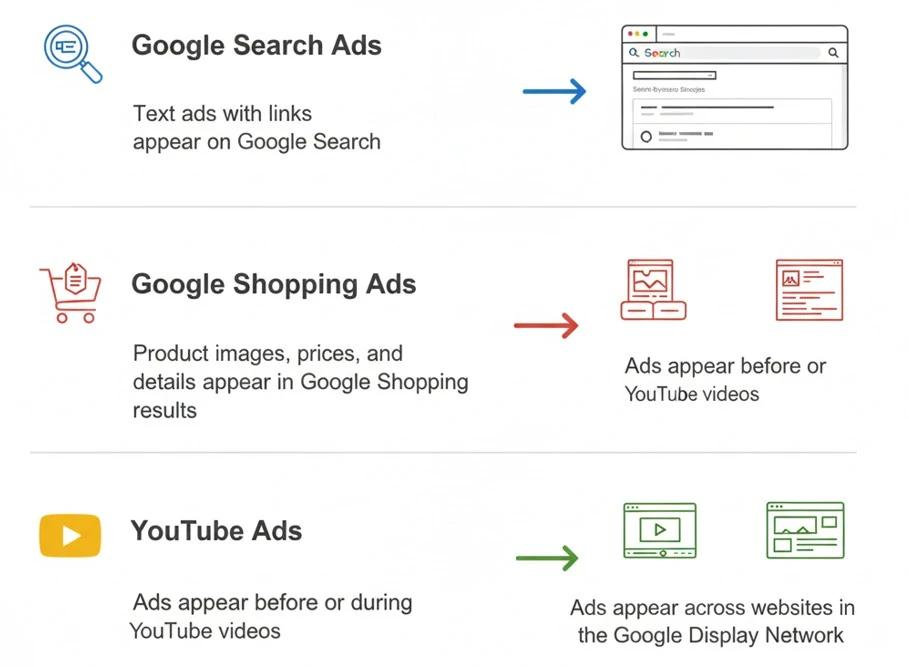
Google Ads is a paid advertising platform by Google that helps businesses show their ads to the right people. When someone searches for a product, service, or topic, Google shows sponsored results alongside the organic ones.
These ads appear in many places:
- On Google Search pages (text ads with links)
- In Google Shopping results (with product images and prices)
- On YouTube videos (before or during content)
- Across websites that use the Google Display Network
How Google Ads Work?
The platform runs like a live auction every time someone searches for something online. You choose keywords that match what your ideal customers might type into Google. Then you set your daily budget and how much you’re willing to pay for each click.
Each ad gets a score based on how relevant it is and how useful the landing page feels. That score, combined with your bid, decides your ad’s position on the page. Higher scores often lead to lower costs. You only pay when someone clicks, not when they just view it.
Benefits for E-commerce Stores
Google Ads helps e-commerce brands show up at the perfect moment when shoppers are ready to buy. Here’s what makes it a powerful growth tool:
- Reach buyers exactly when they’re ready to purchase
- Show products with images and prices using Shopping Ads
- Get instant traffic without waiting for SEO to rank
- Retarget visitors who didn’t buy the first time
- Track every sale to measure your return on ad spend
How to Run Google Ads for Ecommerce (Step-by-Step Overview)
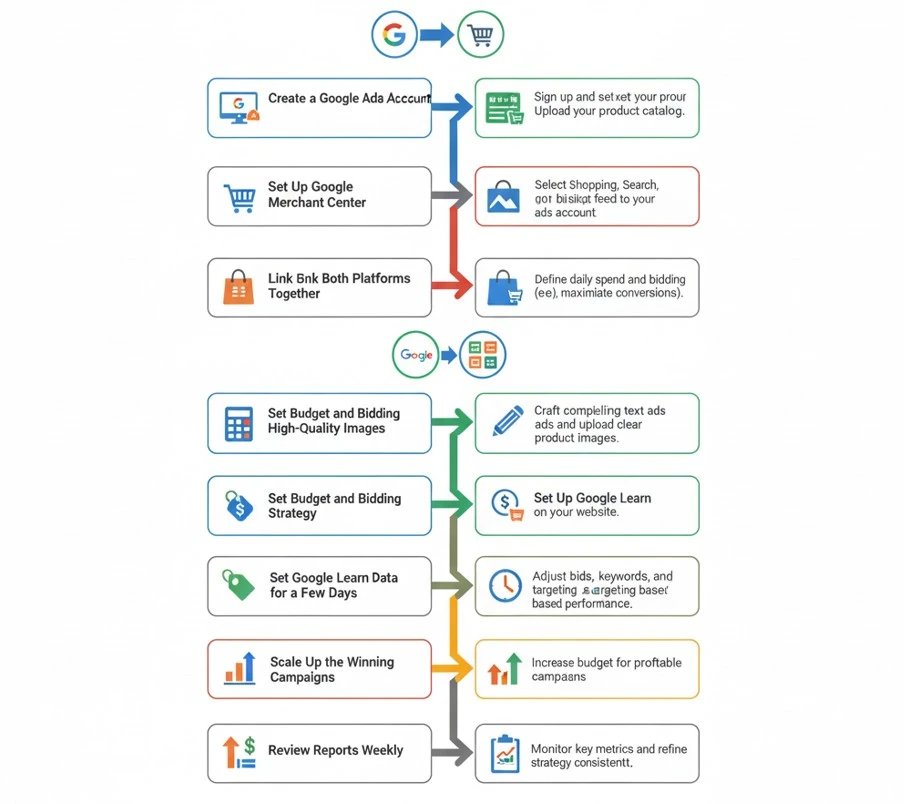
Now that you know what Google Ads can do, it’s time to learn how to run them properly. This step-by-step process helps you set up, launch, and scale your campaigns without wasting your budget.
Each part builds on the last, so your results get stronger over time. Here’s the full roadmap you’ll follow from start to finish:
Step 1: Create a Google Ads Account
Start by opening a Google Ads account using your business email. Use your main business website as the destination. Double-check your time zone and currency settings because you can’t change them later.
Step 2: Set Up Google Merchant Center
For e-commerce products, create a Google Merchant Center account. This is where your product feed lives. Connect it with your store using an app or plugin like Shopify’s Google & YouTube channel.
Step 3: Link Both Platforms Together
Connect your Google Ads account with the Merchant Center. This allows your campaigns to pull products from your live feed. Make sure your feed updates regularly so prices and stock stay accurate.
Step 4: Choose a Campaign Type
Start with Performance Max or Standard Shopping campaigns if you want sales fast. Use Search campaigns for keywords like “buy hiking boots online.” Avoid Display campaigns at the beginning if your budget is tight.
Step 5: Set Budget and Bidding Strategy
Pick a daily budget based on what you can afford. Then choose a bidding goal like “maximize conversions” or “target ROAS.” Keep it simple at first so Google can learn what works for your store.
Step 6: Write Strong Ad Copy and Use High-Quality Images
Use clear, benefit-driven headlines and product titles. Add images that match your website and feel trustworthy. People click when your ad looks real and answers what they want.
Step 7: Set Up Conversion Tracking
Use Google’s conversion tag or import Shopify purchase data through Google Analytics. This helps Google understand which ads bring real sales. You’ll also see which campaigns work and which don’t.
Step 8: Let Google Learn for a Few Days
Don’t panic if results seem slow during the first week. Google uses that time to test and learn. Avoid changing too much in the beginning, or you’ll reset the learning phase.
Step 9: Optimize with Real Data
Once data starts coming in, turn off underperforming keywords or products. Raise bids on items that convert well. Add negative keywords if your ads show for irrelevant searches.
Step 10: Scale Up the Winning Campaigns
After one or two weeks, raise your budget on the campaigns that show strong ROAS. Launch a second campaign to target new segments or test new keyword groups.
Step 11: Review Reports Weekly
Use Google Ads’ built-in reporting or link with Google Analytics to track revenue and traffic. Focus on ROAS, conversion rate, and cost per acquisition to measure growth.
We help ecommerce brands run Google Ads that bring targeted traffic, better product visibility, and more qualified buyers to their store.
From campaign setup to keyword targeting and optimization, we manage your ads to improve performance and reduce wasted budget.
Prepare Your Account Before Launching Ads
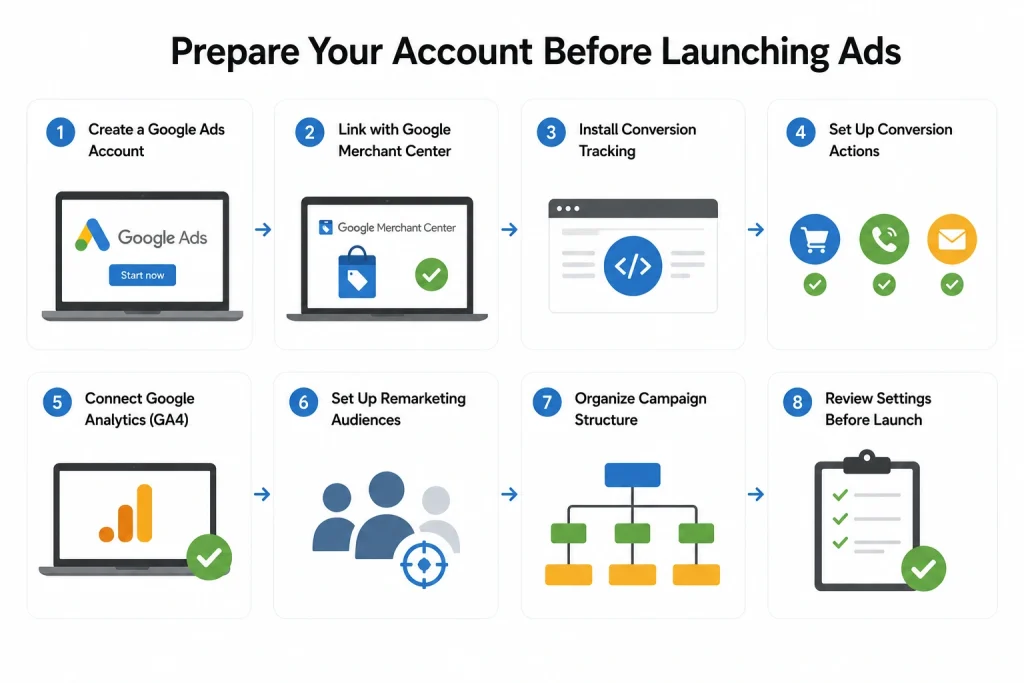
Before running ads, you must prepare your account correctly to avoid wasted spend and tracking problems. A strong foundation helps campaigns perform better and lets Google understand your goals from day one.
These setup steps aren’t optional. They protect your budget, clean your data, and connect your store with Google the right way.
Set Up a Google Ads Account the Right Way
This part might feel basic, but setting up the wrong way causes issues that stop ads from delivering. Fixing them later wastes time and delays results.
- Create your Google Ads account using a work email tied to your business domain
- Double-check your time zone and billing currency before continuing. These can’t be changed later
- Set up your billing details using a verified payment method like a credit card or bank account
- Add your business name and verified website under your account settings
- Invite your team members with proper access roles so they can help manage campaigns and view reports
Tip: Use a separate Gmail or Google Workspace account for your ad campaigns. This keeps business and personal access apart.
Connect Merchant Center and Upload Product Feeds
Google Shopping campaigns won’t run unless your Merchant Center and product feed are properly connected. This part needs accuracy and clean formatting.
- Create a Merchant Center account with the same email used in your Google Ads account
- Claim and verify your domain to show Google you own your e-commerce store
- Use apps or feed plugins like Shopify’s “Google & YouTube” channel for automatic sync
- Upload product feeds using Google Sheets, XML feed links, or scheduled uploads
- Include key attributes like title, price, description, GTIN, condition, and image link
- Match your feed content exactly with your store’s product pages to prevent rejections
Tip: If your product titles or images don’t match your landing page, Google will block them without warning.
Conversion Tracking Installation Process
You can’t grow profitably without knowing what’s working. Conversion tracking tells Google what actions matter to your store.
- Open Google Ads, then go to Tools > Conversions, and create a new action for “Purchase”
- If you use Shopify, import conversions through Google Analytics or use GTM to fire tags
- Add the tracking tag to your order confirmation or thank-you page
- Test the tag using Google’s Tag Assistant or by completing a test checkout
- Enable Enhanced Conversions to track logged-in user data more accurately and improve reporting
- Use GA4 to connect user journeys across ads, pages, and multiple sessions
Tip: Without conversion tracking, Google will keep guessing. That burns the budget and lowers your return.
How to Create and Launch Your First Campaign
Now that your account is ready and tracking is in place, you’re set to launch your first campaign. This is where strategy becomes action. Each step moves you closer to profitable ads that actually convert.
You don’t need to guess or overcomplicate anything. Follow each stage carefully, and you’ll launch with confidence.
Stage 1: Choose the Right Campaign Type
Campaign type decides where your ads show and how they perform.
| Campaign Type | Best Use Case | Format |
|---|---|---|
|
Performance Max
|
Full automation across all networks
|
Shopping, Search, Display, YouTube
|
|
Standard Shopping
|
Product-focused ecommerce ads
|
Product tiles with image and price
|
|
Search Campaign
|
Text ads for branded or niche terms
|
Headlines and descriptions
|
|
Display Campaign
|
Retargeting or awareness building
|
Image banners across blogs/apps
|
Stage 2: Structure Campaigns and Ad Groups
Good structure helps you control spending, measure performance, and group products logically.
Group your campaigns by category (like Shoes, Backpacks, or Summer Gear). Then use ad groups to split them further by brand or collection.
Let’s show an Example Setup below:
Campaign: “Shoes Collection”
- Ad Group 1: Running Shoes
- Ad Group 2: Casual Sneakers
- Ad Group 3: High-Tops
Don’t: Put all products into one campaign with no structure.
Do: Use ad groups to manage products based on how people shop.
Stage 3: Set Budget and Choose Bidding
Start with a budget you can monitor daily. You don’t need to spend big right away to see results. Begin with $20 to $50 per day, depending on your product margins and order value. This helps you collect data without draining your resources too fast.
For Performance Max campaigns, use bidding options like Maximize Conversions or Target ROAS. These allow Google to optimize based on your sales goals. If you’re running manual campaigns like Search, start with Manual CPC to control your costs more directly.
Let your campaign run for at least seven days without making changes. Google uses this time to learn what works and where your ads should show. Once you see steady performance, you can begin scaling slowly.
Only increase your daily budget when results are consistent. Grow in small steps to protect your ROAS and avoid breaking campaign performance.
Stage 4: Write Your Ads and Optimize Listings
Let’s break this down into two parts: Search ads and Shopping ads. Each works differently but should share the same clear message.
Search Ads
Search Ads rely on strong headlines and helpful extensions to catch a buyer’s attention. Start with a copy that highlights real benefits, not just product names. Headlines like “Free Shipping on All Orders” or “Trusted by 20,000+ Happy Customers” build trust fast. You can also add urgency with messages like “Easy Returns. 24/7 Support.”
Use sitelinks to direct shoppers to key pages on your site, such as “Clearance” or “Best Sellers.” These links give more options and improve your click-through rate. Add callouts to show store perks like “Ships from USA” or “30-Day Guarantee.” These little touches create a stronger reason to click.
Shopping Ads
Google automatically pulls text and images from your product feed. You need to keep that feed clean and optimized.
- Write product titles with key details like name, color, and size
- Use high-quality images that match your product page exactly
- Set up promotions in Merchant Center to show discounts or special deals
- Add custom labels to group products by margin, season, or performance
Stage 5: Launch and Let Google Learn
You’re ready. Don’t overthink it, just go live. Hit Publish and double-check your daily budget, campaign goal, and product feed sync.
Let your campaign run untouched for at least 5 to 7 days. This is the learning phase. You may see slow or odd results at first. That’s normal. Google is testing where to show your ads and to whom.
Avoid changing bids, targeting, or structure during this time. Let the system gather data. Keep an eye on CTR, impressions, and early conversions. But don’t panic too soon.
Stage 6: Review, Adjust, and Scale Slowly
Now you begin learning what works. Start by checking which keywords or products get clicks but no conversions. Pause those. Raise bids on your top performers. Add negative keywords to avoid junk traffic.
Let’s give an example, if you’re selling dress shoes, use block terms like “cheap knockoff shoes” or “sneaker deals.”
Use the Search Terms Report to spot new keywords that people actually use. Those insights are gold. Once your ROAS stays consistent for 7+ days, start scaling. Increase your budget slowly by no more than 20% at a time.
Optimize your Google Ads for Better Performance
Once your first campaigns are live, the real work begins with optimization. Ads only start the process. Performance improves when you refine targeting, control search queries, and track the right success metrics.
Here is how you will optimize your google ads:
- Your ads should reach buyers with real intent. Build remarketing lists of past visitors and use similar audiences. Add in-market and affinity audiences to test new groups without wasting budget.
- Block irrelevant searches with negative keywords, like “free” or “cheap.” In Shopping campaigns, set campaign priorities so top-performing products show first. This keeps spending focused where it matters.
- Clicks mean little without results. Focus on CTR for engagement, conversion rate for sales, and ROAS for profit. Review these metrics weekly to catch trends early.
- Make small changes, not sudden shifts. Increase budgets slowly, add negatives in steps, and tweak bids carefully. Controlled adjustments protect performance and give clean data.
Advanced Strategies to Scale and Grow Profitably
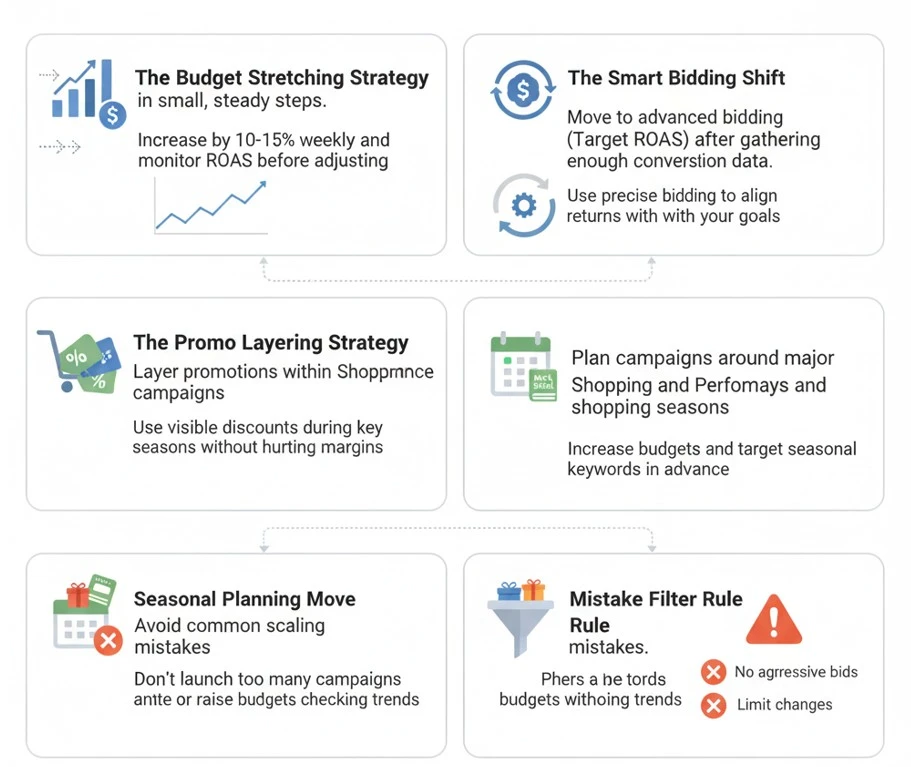
After your campaigns start bringing steady results, the next step is growing without losing profitability. Scaling works best when it’s based on real performance data, not just bigger budgets.
The Budget Stretching Strategy: Increase your daily budget in small, steady steps. Start by adding 10 to 15 percent weekly. Watch how your ROAS responds before adjusting again. Scaling too fast causes campaigns to reset and lose efficiency.
The Smart Bidding Shift: Move to advanced bidding once you have enough conversion data. Use Target ROAS to tell Google exactly how much return you expect from every dollar. Avoid aggressive bidding unless you’re confident in your feed and performance history.
The Promo Layering Strategy: Layer promotions inside Shopping and Performance Max campaigns. Use the Merchant Center to create promo feeds. Run short sales with visible discounts to attract clicks during key shopping seasons. Add urgency without slashing margins.
The Seasonal Planning Move: Plan campaigns around upcoming holidays and sales periods. Raise budgets two weeks before demand rises. Add seasonal keywords and custom labels like “holiday gift” or “back to school.” Track performance daily and adjust bids on top products.
The Mistake Filter Rule: Avoid common scaling traps. Don’t launch too many campaigns at once. Don’t raise budgets without checking ROAS trends. Keep campaign goals tight and avoid editing multiple settings in a single day. Small changes lead to better long-term growth.
How Do You Maintain and Report Long-Term Success?
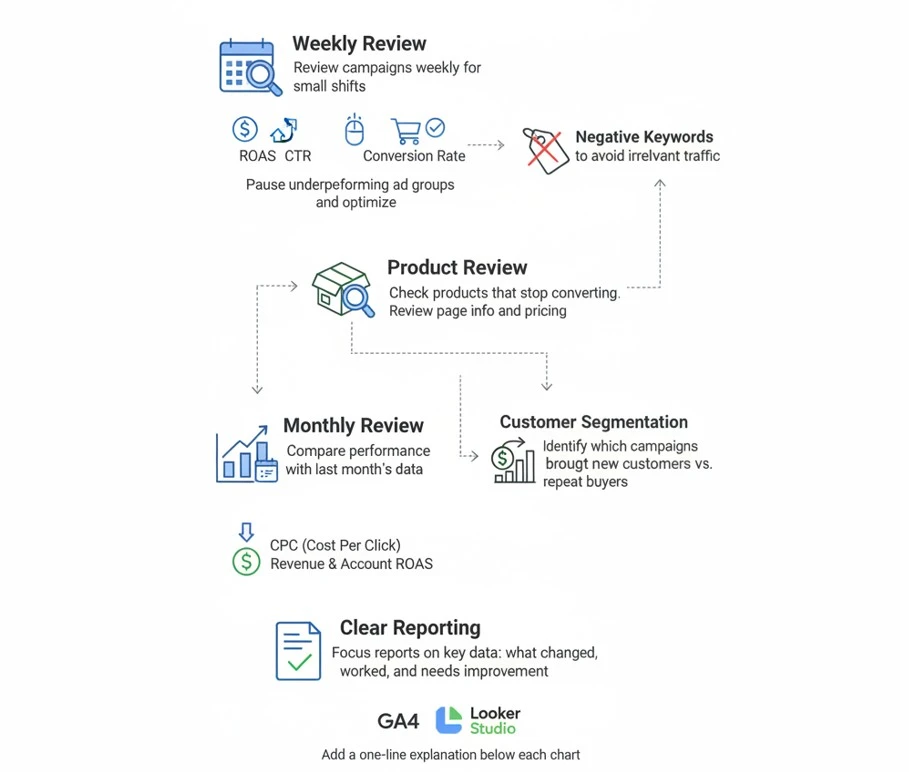
After scaling your campaigns, long-term success depends on what you check, how often, and what you share. Optimization doesn’t stop once ads perform well. It becomes a habit of watching data and responding before problems grow.
Each week, review your campaigns for small shifts. Look at ROAS, CTR, and conversion rate trends. Pause any ad groups that spend heavily without driving results.
Add negative keywords to block irrelevant traffic that costs money. Spot products that stop converting and review the product page for missing info or price changes.
Monthly reviews give you a broader view of what’s working. Compare current data with last month’s performance. Look at changes in average CPC, total revenue, and overall account ROAS.
Identify which campaigns brought new customers and which ones just repeated existing sales. This helps shape your scaling plan for next month.
Clear reporting keeps teams and clients aligned. Avoid stuffing reports with too much data. Focus on three things: what changed, what worked, and what needs fixing.
Use GA4 or Looker Studio to show performance trends instead of just screenshots. Add a one-line summary below each chart to explain what the numbers actually mean.
How to Optimize Your Product Feed Before Running Google Ads
Product feed optimization is the first step before running ecommerce Google Ads because Google Shopping campaigns depend heavily on product data. If your feed has weak titles, missing attributes, poor images, or incorrect pricing, your ads may get fewer clicks, lower visibility, and higher costs.
Start with your product titles. Add the most important keywords naturally, such as brand, product type, size, color, material, model number, or main feature. For example, instead of using “Running Shoes,” use “Nike Men’s Lightweight Running Shoes Black Size 10.” Clear titles help Google understand your product and match it with buyer searches.
You should also improve product descriptions, images, pricing, availability, and product categories. Make sure every product has accurate GTIN, MPN, brand name, shipping details, and return information where applicable. Google rewards clean, complete, and accurate feeds because they create a better shopping experience.
Before launching ads, check for disapproved products inside Google Merchant Center. Fix policy issues, image problems, mismatched prices, missing identifiers, and landing page errors. A clean feed gives your Shopping and Performance Max campaigns a stronger starting point.
Required Merchant Center Settings for Ecommerce Google Ads
Google Merchant Center is where your product data connects with Google Ads. For ecommerce advertising, your Merchant Center account must be properly configured before campaigns go live. Without the right settings, products may not show, or your ads may face approval issues.
The most important settings include business information, website verification, shipping, tax, return policy, and product feed setup. Your website URL must be claimed and verified, and your product prices, availability, and checkout experience must match the information submitted in your feed.
Shipping settings are especially important. Google needs to understand delivery cost, delivery time, country targeting, and service areas. If your shipping information is missing or inaccurate, products can be disapproved or perform poorly because customers see unclear purchase details.
You should also connect Merchant Center with Google Ads. This allows your products to appear in Shopping Ads, Performance Max campaigns, and free listings. After linking both accounts, review diagnostics regularly to catch product errors before they hurt campaign performance.
How to Use Custom Labels for Better Shopping Campaign Control
Custom labels help ecommerce advertisers organize products inside Google Shopping and Performance Max campaigns. They do not appear to customers, but they help you control bidding, segmentation, reporting, and budget allocation more effectively.
You can use custom labels to group products by profit margin, season, price range, bestseller status, clearance items, or stock level. For example, labels like “high_margin,” “bestseller,” “low_stock,” or “holiday_products” help you separate products based on business value, not just product category.
This matters because not every product deserves the same ad budget. High-margin products may deserve stronger bids, while low-margin or slow-moving products may need limited spend. Custom labels make it easier to create smarter campaign structures and avoid wasting budget on weak products.
For better control, keep your custom labels simple and consistent. Do not overcomplicate them with too many categories. Start with labels based on margin, performance, and seasonality. Then use campaign data to adjust bids, budgets, and product groups over time.
Frequently Asked Questions(FAQs)
Even after setting up and scaling campaigns, many store owners still face real-life questions while managing Google Ads. The answers below cover common concerns that weren’t included earlier in this guide but still matter for long-term success.
This often happens when competitors increase bids, budgets shift, or your product feed changes. Check for seasonality impacts, paused keywords, or bid adjustments. Ensuring steady performance means monitoring ROAS, bid trends, and feed health weekly.
Set negative keywords for unwanted terms like “cheap” or “discount” and use campaign priorities to control product exposure. This helps your ads reach buyers ready to pay full price, improving ROAS.
Yes, combining Ads and SEO helps you cover both paid and organic real estate. Ads bring instant visibility, SEO builds long-term trust. Use both to dominate keywords and reinforce your brand to shoppers.
Use data‑driven or time‑decay attribution in GA4 for more accurate insights. These models credit conversions based on real performance or recent activity. They help you understand what campaigns truly drive sales.
Renew ad creatives and promo messaging every 30–45 days. Refresh titles, images, or offers when performance stalls. This keeps your ads fresh, maintains quality score, and prevents ad fatigue.
Google Ads Not Converting? Let Brand’s Bro Take Over
Most eCommerce brands launch campaigns but never understand why results stay flat or profits keep falling. It’s not a traffic issue. It’s a structural issue that blocks Google from working in your favor.
Brand’s Bro fixes that by building campaigns that scale with clean targeting, proper feed setup, and conversion-ready pages. We keep your ads optimized for ROAS, not just clicks. You’ll finally know where your spending goes and how to grow with it.
We manage your campaigns from feed setup to full-funnel optimization. Services include Google Ads Management, eCommerce PPC, Google Ads Audit, and Amazon Ads.


