
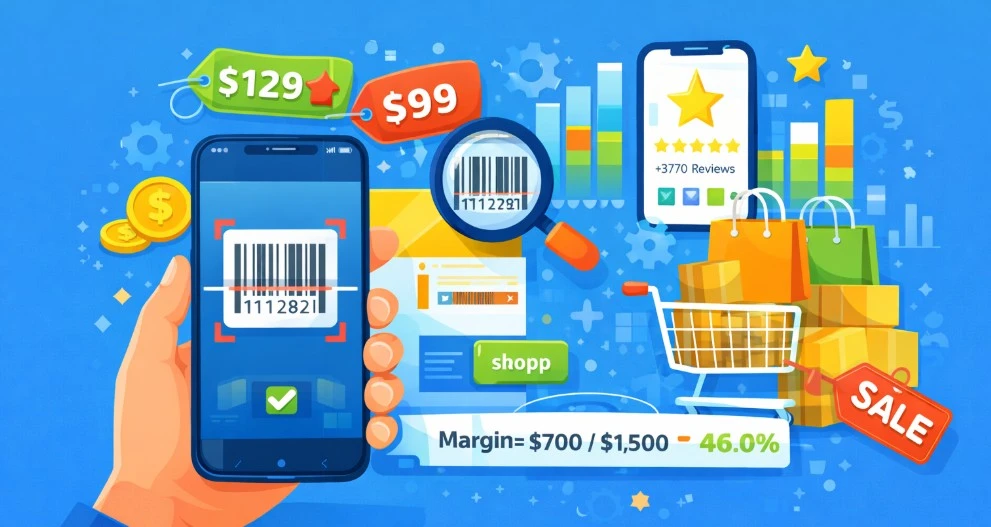
You’re in a store, holding a product, and you don’t feel like guessing. You want to know if it’s cheaper on Amazon, and whether you should buy it right now. That’s why people scan Amazon barcodes.
Scanning barcodes is the fastest way to pull up the exact item without typing a long name. It makes price-checking (and deal-hunting) way easier. But scanning a product can be different from scanning a return QR code, Locker code, or using the Seller app.
In this guide, I’ll show you how to scan Amazon barcode on an iPhone or an Android. You’ll also know what to do if Amazon shows the wrong item (or nothing at all).
What “Amazon Barcode” Usually Means
When people say “Amazon barcode scan,” they usually mean the barcode on a product that helps Amazon find that exact item. Not a special Amazon-only code. Just the normal barcode you’d see on anything in a store.
Most of the time, that barcode is a UPC or EAN (and ISBN for books). Scan it, and Amazon can pull up the product page so you can check the stuff you actually care about. This can be anything from price, reviews, photos, or whether it’s even the same item.
Where people get tripped up is that not every “scannable-looking” code is meant for product search. QR codes are often used for things like returns, Locker pickups, or links to instructions.
If you’re looking at a sticker label slapped on a package, that might be an FNSKU. This is more of a warehouse tracking label for sellers (FBA), not the main product barcode shoppers use.
How To Scan Amazon Barcode on 5 Types of Devices
You can scan amazon barcodes in a few different ways, and the “right” one depends on what you’re doing (shopping, returning, selling, etc.). Here are the 5 most common ways people scan Amazon barcodes:
Amazon Scan Barcode App
This is the “I’m shopping and want the listing right now” method. You scan the product’s barcode, and Amazon pulls up the match so you can check price, reviews, and delivery.
Steps to scan a product barcode in the Amazon app:
- Open the Amazon Shopping app.
- Tap the camera/scan icon in the search bar.
- Select Barcode (if it asks what you want to scan).
- Scan the UPC/EAN/ISBN on the product.
- Open the best match and check price, reviews, and delivery options.
Scan a Product Barcode as a Reseller (Amazon Seller App)
Resellers use the Seller app, not the regular Amazon app, because it’s built for quick “buy or pass” decisions. You scan the UPC and jump straight to the listing flow so you can see what you’re working with.
Steps to scan a product barcode in the Amazon Seller app
- Open the Amazon Seller app.
- Tap Add a Product (or the scan icon).
- Scan the UPC/EAN/ISBN on the item.
- Check the match and make sure it’s the same exact product/pack size.
- Open it to view the offer/pricing screen.
Amazon Return Scan Barcode
Returns use a return QR code or return code, not the product barcode on the box. You pull it up inside your order, then the drop-off place scans it to link the package to your return.
Steps to scan an Amazon return code
- Open the Amazon app and go to Your Orders.
- Tap the order, then choose Return or Replace Items.
- Follow the prompts until Amazon shows the QR code/return code.
- At the drop-off point, show the code on your phone so they can scan it.
Amazon Locker Scan Barcode
Amazon Lockers don’t scan the product barcode. They scan your pickup code (usually a QR code or a short code tied to your order) so the locker knows which door to open.
Steps to scan your Amazon Locker code
- Open the Amazon app and go to Your Orders.
- Tap the order that’s being delivered to a Locker.
- Open the pickup instructions to display the QR code/pickup code.
- Scan the code at the Locker (or type the code on the screen) and grab your package.
Amazon Gift Card Scan Barcode
Gift cards are pretty simple: you’re either scanning a code (if Amazon gives you that option) or just typing the claim code from the back of the card/email. Either way, once it redeems, your balance updates right away.
Steps to redeem an Amazon gift card
- Go to Account, then Gift Card Balance.
- Tap Redeem a gift card.
- Scan the card if that option shows up, or enter the claim code manually.
- Confirm, then check that your gift card balance is updated.
Common Amazon Barcode Scan Problems (and Quick Fixes)
Barcode scanning is usually a 10-second thing… until it isn’t. This section covers the exact issues people hit (missing scan button, wrong matches, won’t scan) and the fastest fixes to get you unstuck.
I Can’t Find the Scan Button
Amazon moves stuff around, so the scanner isn’t always where you expect. Most of the time, it’s either a permission issue, an outdated app, or the scan tool is sitting under Lens/Camera Search instead of a clear “barcode” button.
Quick fixes to get the scan button back
- Turn on camera permissions for the Amazon app that scans barcodes in your phone settings.
- Update the Amazon app (older versions often hide features).
- Look for Lens / Camera Search near the search bar and tap that – barcode scanning is often inside it.
It Scans, but It Shows the Wrong Item
This happens a lot, and it’s usually not your fault. Amazon is guessing based on the barcode, and sometimes the barcode points to a different pack size or a slightly different version than what you’re holding.
Quick fixes to get the right match
- Scan again with better lighting (glare and shadows mess up reads).
- Double-check multipack vs single (the #1 reason scans look “wrong”).
- Type the barcode digits into the Amazon search to confirm the match.
- Search brand + model from the box if the barcode keeps pulling the wrong listing.
It Won’t Scan at All
When the scan completely refuses to work, it’s usually something boring: bad lighting, glare, or the camera can’t focus on the lines. And if the barcode is scratched, wrinkled, or wrapped around a bottle, the app might never catch it.
Quick fixes to make it scan
- Add more light, reduce glare, and step back a bit so the camera can focus.
- Wipe your camera lens (fingerprints ruin scans more than people admit).
- Switch to photo search (Lens) if the barcode is damaged, tiny, or curved.
Return Qr Won’t Load / Won’t Scan
Return codes are basically just a QR image on your screen, so they fail for two boring reasons: your phone can’t load it, or the scanner can’t read it off your display. A couple of quick tweaks usually fix it.
Quick fixes to get the return QR working
- Switch to Wi-Fi (or a stronger signal) and reload the code.
- Turn your screen brightness to max so the scanner can read it.
- If Amazon shows a manual code option, use that instead of scanning.
Locker Won’t Scan
Lockers are picky. If your screen is dim or you’re on the wrong order, the scanner just sits there like it’s never met you before.
Quick fixes to get the Locker code working
- Turn the brightness up and hold your phone steady right in front of the scanner.
- Try manual code entry on the Locker screen if it’s available.
- Double-check you opened the right order and you’re at the right Locker location.
Amazon Gift Return Scan Barcode isn’t Working
Gift cards don’t need perfect scanning to work. If the camera scan is annoying, typing the code is usually faster anyway.
Quick fixes to redeem it
- Enter the claim code manually instead of scanning.
- Don’t share the code with anyone – gift card scams are everywhere, and once the code is used, it’s gone.
Barcode Scanning for Resellers: Quick Checks Before You Buy
Scanning for reselling is a different game from scanning to shop. You’re not just trying to find the item – you’re trying to figure out, fast, whether there’s any profit left after fees, competition, and restrictions.
What To Check Before You List (Fast Checklist)
Before you get excited and start adding inventory, run a quick sanity check. Most “easy flips” fall apart for one of four boring reasons: you’re gated, the condition won’t work, fees eat the margin, or the listing is a price war.
- Approval / restrictions: Can you even sell it on your account, in that category/brand?
- Condition: Are you listing new or used, and does that change the price a lot?
- Fees + shipping / Amazon FBA fees: What you “sell for” isn’t what you keep – fees can wipe out small margins fast.
- Competition: If 20 sellers are already racing to the bottom, you’re not flipping… you’re donating.
How To Make Money Scanning Barcodes for Amazon (Real Talk)
Barcode scanning is just a shortcut to pull up the listing. The money part starts after that, when you look at what you’ll actually keep once Amazon takes its cut, and you deal with shipping, returns, and competition.
- Scanning finds the listing fast – it doesn’t magically make something profitable.
- Profit comes from margin after fees, not the “selling price” you see at first glance.
- Skip restricted or sketchy listings (gated brands, messy matches, weird bundles). They waste time.
- If the margin isn’t obvious, don’t buy it. You’re not running a museum of “maybe it’ll work.”
Frequently Asked Questions (FAQs)
People always have a few quick questions when they start scanning barcodes in the Amazon app. Here are the most common ones, with straight answers so you can keep moving.
Not really. Barcode scanning is primarily a feature of mobile apps (Amazon Shopping app or Amazon Seller app). On a desktop, your best workaround is typing the UPC/EAN into the search bar.
Usually, it’s a pack size or version mismatch (single vs multipack is the big one). Sometimes the barcode is linked to the wrong listing, so double-check the brand, model, size, and count before trusting the result.
UPC/EAN are the normal retail barcodes on products. ASIN is Amazon’s listing ID. FNSKU is an Amazon warehouse label used to track FBA inventory.
No. A return QR code is tied to your return transaction, not to the product itself. A product barcode (UPC/EAN/ISBN) is used to identify the item in the catalog.
Use the Amazon Shopping app if you’re scanning in-store to pull up the exact listing. If you scan a lot, third-party apps like Keepa (price history) and Profit Bandit (quick profit check for sellers) can speed things up.
Need More Amazon Sales? Get a Real Growth Partner.
If your Amazon sales are flat, it’s usually one of three things: the listing isn’t converting, ads are leaking money, or you’re losing the Buy Box. We fix those fast – then scale what’s working.
Want help from an Amazon selling partner who actually moves numbers? Send your ASINs and your target, and we’ll tell you what to fix first.


