

Amazon Dark Mode can make browsing more comfortable, especially at night or during long shopping sessions. But many users do not know where to find it, why it may not appear on every device, or how to enable dark mode through app, browser, or system settings.
At Brand’s Bro, we work with ecommerce brands and Amazon-focused businesses that care about user experience, mobile behavior, and customer convenience. Small interface choices like dark mode may look simple, but they affect how shoppers browse, read, and interact with online platforms.
For Amazon users, dark mode can help reduce screen brightness, improve browsing comfort, and create a cleaner viewing experience. For sellers and ecommerce brands, understanding these user preferences also matters because better shopping comfort can support longer product browsing and smoother customer journeys.
This guide will show you how to set Amazon Dark Mode, what options are available, and what to do if the feature does not appear on your device.
If you want to improve your Amazon customer experience, store strategy, or ecommerce growth plan, Brand’s Bro can help you find the real issues and build a smarter strategy. You can book a meeting with us today.
Does Amazon Really Have Dark Mode?
Dark mode has become a standard feature across many modern apps because it offers a cleaner look and can reduce eye strain in low-light environments. Naturally, many users now search for terms like “how to make Amazon dark mode” or “amazon shopping dark mode” when browsing at night or using their devices for long periods.
The good news is that the Amazon dark mode app experience is available on several Amazon services, but the setup depends on the platform you use. For example, the Amazon shopping app on mobile devices already supports dark mode settings. Many Android users specifically look for “amazon app dark mode android” to learn how to enable the darker interface on their phones.
However, the situation is different on desktop browsers. The official amazon dark mode website feature is still limited because Amazon has not fully added a built-in dark theme for its main shopping website. Many users currently rely on browser extensions or device-level settings to create a dark browsing experience on desktop.
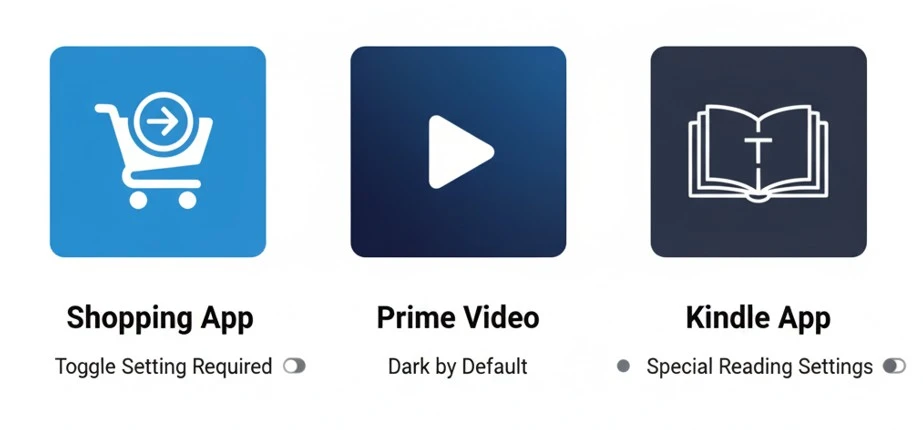
It is also important to understand that Amazon services do not all work the same way. The shopping app, Prime Video, and Kindle app each use different dark mode systems. Prime Video already uses a darker visual style in many areas, while Kindle offers dedicated reading themes designed for comfort during long reading sessions.
Overall, Amazon is gradually expanding dark mode support across its ecosystem. Whether you want amazon shopping dark mode on mobile or are searching for ways to make the amazon dark mode website experience better on desktop, the exact steps depend on the device and Amazon service you use.
How to Set Amazon Dark Mode on iPhone (iOS App)

Getting dark mode on the Amazon app for your iPhone is pretty simple. Most of the time, the app will automatically match your iPhone’s system settings. If your whole phone is in dark mode, the Amazon app should be too.
Here is how to set your iPhone to dark mode, which will also change the Amazon app:
Step-by-Step Instructions:
- Open your iPhone’s Settings. Look for the gray gear icon on your home screen and tap it.
- Go to “Display & Brightness.” You will need to scroll down a little to find this option. Tap on it.
- Choose “Dark.” At the top of the screen, you will see two options: “Light” and “Dark.” Tap on “Dark” to switch your entire phone to dark mode.
Once you do this, open the Amazon app. It should now have a dark background.
Notes on iOS System-Wide Dark Mode:
The great thing about iPhones is that this one setting can change many of your apps to dark mode at once. This is called a system-wide setting. The Amazon app is built to follow this rule, so you do not have to find a separate switch inside the app itself.
Troubleshooting:
- Update your app: If the dark mode is not working, make sure you have the latest version of the Amazon app from the App Store.
- Check your iOS version: This feature works best on newer versions of iOS (iOS 13 and later). If your phone is very old, you might not be able to use dark mode.
- A different way for some iPhones: Some users have found another way to turn on dark mode just for the Amazon app. You can go to Settings > Accessibility > Per-App Settings, add the Amazon app, and then choose “Smart Invert.” This can be a good option if you do not want your whole phone to be in dark mode.
The easiest way is to use your iPhone’s main dark mode setting. It is a simple and quick way to make your late-night shopping easier on your eyes.
BrandsBro helps users set up Amazon Dark Mode guidance with clear, simple steps for a better browsing experience.
Need help with Amazon settings, account setup, or store optimization? Book a free meeting with BrandsBro and get expert support.
How to Set Amazon Dark Mode on Android App
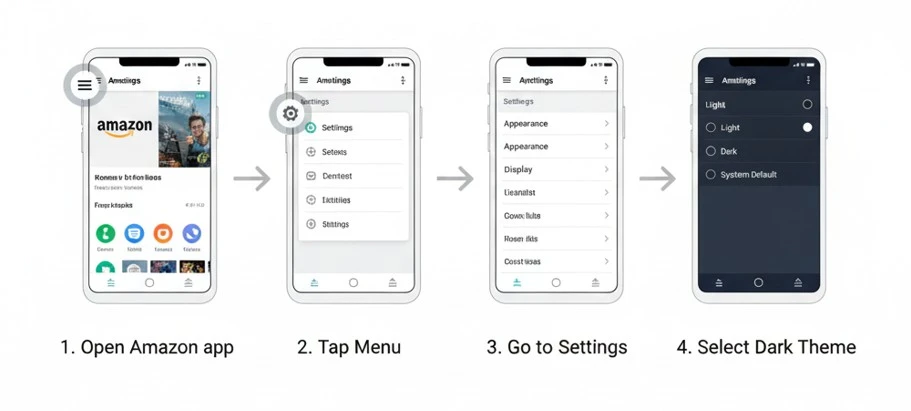
Just like with the iPhone, getting dark mode on the Amazon app for your Android phone is easy. The app is designed to follow your phone’s main settings. If you set your Android phone to dark theme, the Amazon app will usually follow along.
Here is a simple guide to turn on dark mode for the Amazon app on Android:
Step-by-Step Guide:
- Open the Amazon app on your Android phone.
- Tap the menu icon. This is usually three horizontal lines in the corner of the screen.
- Find “Settings.” You will likely need to scroll down the menu to see this. Tap on it.
- Look for “Display” or “Appearance.” Inside settings, you should see an option to change how the app looks.
- Choose the “Dark” theme. You will see options for light and dark themes. Select “Dark” to make the change.
Syncing with Your System's Dark Theme:
For phones with Android 10 or newer, you can set a system-wide dark theme. The Amazon app will then change automatically. To do this, go to your phone’s Settings > Display and turn on the “Dark theme” option.
Troubleshooting:
- Update the app: If you cannot find the dark mode setting, your app might be old. Go to the Google Play Store and update the Amazon app.
- Clear the cache: Sometimes, old data can cause problems. You can try clearing the app’s cache in your phone’s settings under “Apps.”
- Force dark mode: If the setting still does not appear, some Android phones have a “Force dark mode” option in the “Developer options.” This can make apps that do not have a dark mode turn dark.
How to Enable Amazon Dark Mode on the Website (Desktop)
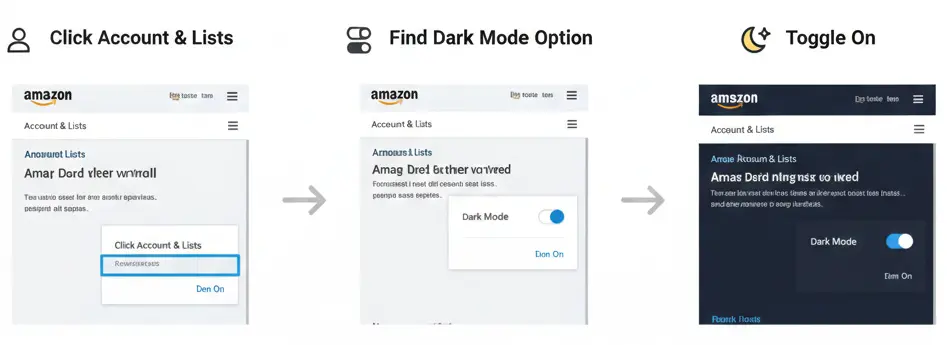
When you are shopping on your computer, you might want a dark mode for the Amazon website. Unfortunately, Amazon does not have an official dark mode for its website yet. But do not worry, there are still ways to get a dark theme.
Here are a few workarounds to make the Amazon website dark on your desktop computer:
1. Browser Extensions:
This is the easiest and most popular way. Browser extensions are small programs you can add to your web browser to give it new features. There are several extensions made specifically for creating a dark mode on websites.
- Dark Reader: This is one of the most well-known extensions. It works on Chrome, Firefox, Safari, and Edge. It does a great job of turning any website dark, including Amazon.
- Midnight Lizard: This is another great option that gives you a lot of control over the colors. You can choose different dark themes to find the one you like best.
- Turn Off the Lights: While this extension is mainly for watching videos, it also has a “Night Mode” feature that can make websites dark.
How to Use an Extension:
- Go to your browser’s extension store (like the Chrome Web Store or Firefox Add-ons).
- Search for the extension you want, for example, “Dark Reader.”
- Click “Add to [Your Browser]” and follow the instructions.
- Once it is installed, go to the Amazon website, and it should automatically be in dark mode.
Extension Comparison:
| Extension | Price | Customization |
|---|---|---|
|
Dark Reader |
Free (donations accepted |
High |
|
Midnight Lizard |
Free |
High |
|
Turn Off the Lights |
Free |
Medium |
2. Browser's Built-In Dark Mode:
Some web browsers, like Google Chrome and Microsoft Edge, have an experimental feature to force dark mode on all websites.
- For Chrome: Type chrome://flags in the address bar, search for “Auto Dark Mode for Web Contents,” and enable it.
- For Edge: The steps are very similar. Type edge://flags and search for the same setting.
This method can sometimes make websites look a little strange because it is not a perfect solution. Pictures might look inverted, or some text might be hard to read.
3. CSS Tweaks for Developers:
If you know a little bit about coding, you can use browser extensions like Stylus to apply your own dark theme using CSS. This gives you the most control but is also the most complicated method.
Each of these methods has its pros and cons. For most people, a browser extension like Dark Reader is the best and simplest choice. It gives you a great dark mode experience on Amazon’s website with just a few clicks.
How Dark Mode Helps Your Battery
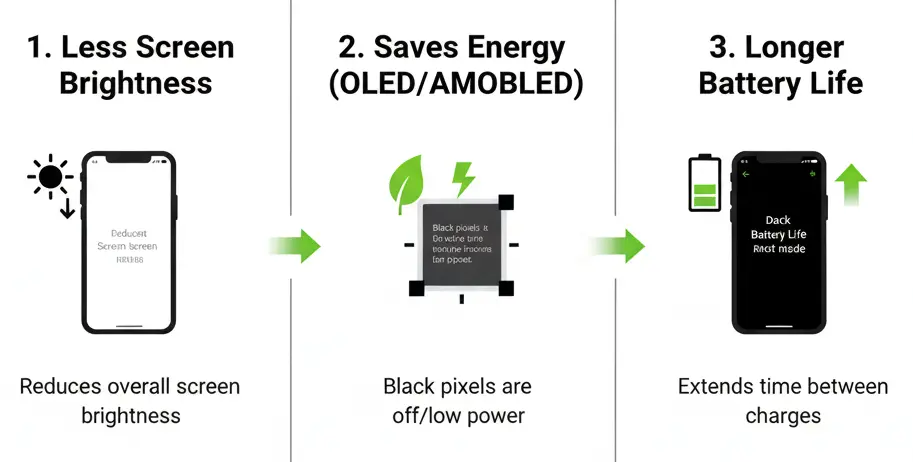
If your phone has an OLED or AMOLED screen, using dark mode can help your battery last longer.
These screens do not use power to show black pixels. Since dark mode has a lot of black, your screen uses less energy. This is a great bonus for shopping on the go.
Using dark mode on your phone isn’t just about style or reducing eye strain — it can also extend your battery life, especially if your device features an OLED or AMOLED screen. Here’s how it works:
Power-Saving Technology: OLED and AMOLED screens light up individual pixels, meaning black pixels are essentially “off” and don’t draw power. When you switch to dark mode, your screen uses less energy because more pixels are black or dark, reducing overall power consumption.
Optimized for Longer Use: If you’re someone who’s always on the go, whether for work or leisure, using dark mode while browsing, shopping, or scrolling through apps can be a game-changer. It helps preserve your battery for longer stretches of use, letting you keep up with your day without constantly needing to recharge.
Battery Efficiency: Depending on your screen brightness and usage patterns, switching to dark mode could give your phone a significant boost in battery longevity, especially during those long, busy days when you’re relying on your device.
Amazon Prime Video vs. Amazon Shopping App
When we talk about “Amazon,” it is important to remember that it is not just one thing. Amazon has many different apps and services, and they do not all look or work the same way.
This is especially true when it comes to dark mode. Let’s compare the Amazon Shopping app, Prime Video, and the Kindle app.
Amazon Prime Video:
If you have ever used Prime Video to watch movies or TV shows, you have probably noticed that it already has a dark look. The Prime Video app and website have a built-in dark interface by default. This is because a dark background is better for watching videos, as it makes the picture stand out and is easier on your eyes in a dark room. You do not need to turn on any special settings to get this dark theme.
Amazon Shopping App:
The Amazon Shopping app is different. Its default look is the bright white theme. To get dark mode, you need to go into the app’s settings and turn it on, or set your phone’s system to dark mode. This gives you the choice to use whichever theme you prefer for shopping.
Amazon Kindle App:
The Kindle app is unique because it has two different dark modes. First, there is a dark mode for the app itself. This changes the menus and your library to a dark theme. You can turn this on in the app’s settings.
Second, and more importantly, there is a dark mode for when you are reading a book. When you are reading, you can tap the “Aa” icon and choose a black background with white text. This is very popular for reading at night because it reduces glare.
Understanding these differences helps you know what to expect from each of Amazon’s services. Prime Video is dark from the start, the Shopping app lets you choose, and the Kindle app gives you dark mode for both browsing your library and reading your books.
Troubleshooting & Limitations
Sometimes, getting dark mode to work on Amazon can be tricky. If you are having trouble, here are some common problems and how to fix them.
When Dark Mode Doesn't Appear:
- Outdated App: The most common reason for dark mode not working is an old version of the Amazon app. Go to the App Store (for iPhone) or Google Play Store (for Android) and check for updates.
- OS Compatibility: Dark mode features often need a newer operating system. For iPhones, you need iOS 13 or later. For Android, you need Android 10 or newer for the best experience.
- Check Your Settings: Double-check that you have enabled dark mode correctly, either in the app’s settings or in your phone’s main display settings.
Region-Based Rollout:
Sometimes, new features like dark mode are released in some countries before others. If you have tried everything and still do not see the option, it might not be available in your region yet. In this case, you may have to wait for a future update.
Extensions Conflicting with Amazon:
If you are using a browser extension for dark mode on the Amazon website, it might sometimes have problems. Amazon’s website is very complex, and updates to the site can break the extension. If this happens, try updating the extension or temporarily disabling it to see if that fixes the issue.
Accessibility Tips:
Dark mode is already a useful accessibility feature, but a few extra adjustments can improve the experience even more. Many users who ask, “does Amazon have dark mode?” are usually looking for a smoother and more comfortable reading experience across devices.
One simple improvement is adjusting the font size in your phone settings. Larger text combined with Amazon dark mode Android or Amazon app dark mode iOS settings can make product descriptions, reviews, and order details much easier to read without eye strain.
You can also enable higher contrast settings on your device. This increases the visibility of light text against dark backgrounds, which is especially helpful if you spend a long time browsing products at night.
If you are wondering, “does Amazon have a dark mode desktop?” the answer depends on your browser, operating system, or extensions you use. Many people search for how to make Amazon dark mode PC because Amazon’s desktop experience does not always provide a built-in dark theme across every page.
Most dark mode problems can usually be fixed by updating your app, browser, or operating system. Technology changes constantly, and keeping your devices updated is still the easiest way to enjoy a stable and smooth dark mode experience on Amazon.
Does the Amazon Shopping App Have a Built-In Dark Mode Setting?
The Amazon Shopping app does not always have a clear built-in dark mode button inside the app settings. For many users, Amazon dark mode depends on the phone’s system display settings instead of a separate Amazon setting. That means if your iPhone or Android phone is set to dark mode, the Amazon app may follow that theme where supported.
On iPhone, users can turn on dark mode from the device settings. Go to Settings > Display & Brightness > Dark. If Amazon supports dark mode on your app version, the app should appear darker after you close and reopen it.
On Android, the process is similar. Go to Settings > Display > Dark theme and turn it on. Some Android phones may apply dark mode better than others because Samsung, Google Pixel, OnePlus, and other devices handle app themes differently.
If you cannot find dark mode inside the Amazon app, do not waste time searching every menu. The better method is to update the Amazon app, enable system dark mode, restart the app, and check again.
Amazon Dark Mode Not Working? Common Reasons and Fixes
Amazon dark mode may not work because your app version is outdated. First, open the App Store or Google Play Store and update the Amazon Shopping app. An older app version may not follow your phone’s system theme properly.
Another common reason is that your phone’s system dark mode is turned off. If Amazon depends on the device theme, the app will stay light unless your iPhone or Android dark mode is enabled. Turn on dark mode from your phone settings, then force close and reopen the Amazon app.
Cache and app glitches can also stop dark mode from working. On Android, clear the Amazon app cache from app settings. On iPhone, you may need to uninstall and reinstall the app if the display issue continues.
Browser extensions can also create problems when using Amazon on desktop. Some dark mode extensions may break product images, checkout buttons, filters, or page contrast. If Amazon looks strange in Chrome, Edge, or Firefox, disable the extension and reload the page.
If dark mode still does not work, the honest answer is simple: Amazon may not support full dark mode on your device, app version, or region yet. In that case, use system dark mode, browser dark mode, or a trusted dark mode extension as a workaround.
Amazon Dark Mode vs Night Shift, Eye Comfort, and Blue Light Filters
Amazon dark mode, Night Shift, Eye Comfort, and blue light filters are not the same thing. Dark mode changes the app or website background from light to dark. Blue light filters change the screen’s color temperature to make it warmer.
Dark mode is useful when you want less bright white light, especially while browsing Amazon at night. It can make product pages, menus, and search results feel easier to view in low-light rooms.
Night Shift on iPhone and Eye Comfort Shield on Samsung phones do not turn Amazon black or dark. Instead, they reduce cool blue tones and make the screen look more yellow or warm. This can be helpful at night, but it is not a replacement for dark mode.
For the best experience, you can use both together. Turn on dark mode to reduce bright backgrounds, then use Night Shift or Eye Comfort to reduce harsh screen color. This combination is better for late-night shopping, reading reviews, and comparing products.
However, dark mode is not always better. In bright daylight, light mode may be easier to read. The best setting depends on your room lighting, screen brightness, and personal comfort.
Amazon dark mode, Night Shift, Eye Comfort, and blue light filters are not the same thing. Dark mode changes the app or website background from light to dark. Blue light filters change the screen’s color temperature to make it warmer.
Dark mode is useful when you want less bright white light, especially while browsing Amazon at night. It can make product pages, menus, and search results feel easier to view in low-light rooms.
Night Shift on iPhone and Eye Comfort Shield on Samsung phones do not turn Amazon black or dark. Instead, they reduce cool blue tones and make the screen look more yellow or warm. This can be helpful at night, but it is not a replacement for dark mode.
For the best experience, you can use both together. Turn on dark mode to reduce bright backgrounds, then use Night Shift or Eye Comfort to reduce harsh screen color. This combination is better for late-night shopping, reading reviews, and comparing products.
However, dark mode is not always better. In bright daylight, light mode may be easier to read. The best setting depends on your room lighting, screen brightness, and personal comfort.
Frequently Asked Questions (FAQs)
Got questions about getting Amazon to go dark? Don’t worry, we’ve got you covered.
Here are the simple, straightforward answers you’re looking for.
No, the official Amazon website does not have a built-in dark mode for PC. However, you can easily get a dark theme by using a free browser extension like Dark Reader or Midnight Lizard. These extensions work with browsers like Chrome, Firefox, and Edge to make the website dark.
Yes, there is! Amazon Prime Video uses a dark interface by default on its app and website. This is to make the viewing experience better, especially in low-light conditions. You do not need to turn on any special settings for it.
There could be a few reasons for this. First, make sure your Amazon app is updated to the latest version. Second, check if your phone’s operating system is up to date, as this feature works best on newer versions of iOS and Android. Finally, remember that the setting might be in your phone’s main display settings, not inside the Amazon app itself, as the app often syncs with your system’s theme.
Yes, it can save battery life, but only if your phone has an OLED or AMOLED screen. These screens turn off pixels to create black, using less power. On standard LCD screens, the battery savings are very small.
First, try updating the app and your phone’s operating system. If that doesn’t work, restarting your phone can solve simple glitches. For website issues, try updating or reinstalling your browser extension.
You cannot schedule it inside the Amazon app itself. However, you can schedule your phone’s system-wide dark mode to turn on at sunset or a specific time, and the Amazon app will change with it automatically.
Yes, it can, but it depends on your phone’s screen. If your phone has an OLED or AMOLED screen, dark mode can save a significant amount of battery. This is because these screens turn off the pixels to create black, which uses less power. If your phone has an LCD screen, the battery savings will be very small.
Final Takeaways
So, there you have it! Getting dark mode on Amazon is possible, but the method changes depending on whether you are using a phone, a computer, or a specific Amazon service.
To recap, the Amazon shopping app for both iPhone and Android has a dark mode that usually follows your phone’s system settings. Prime Video already has a dark look by default, and the Kindle app offers dark mode for both its menus and for reading books. For the Amazon website on your desktop, browser extensions are your best friends.
We encourage you to try out dark mode for a more comfortable shopping and streaming experience. It can reduce eye strain, make your battery last longer, and give your apps a cool, modern look.
If you found this guide helpful, please share it with your friends and family. And be sure to check out our other guides on how to set Amazon dark mode for other popular apps.
