
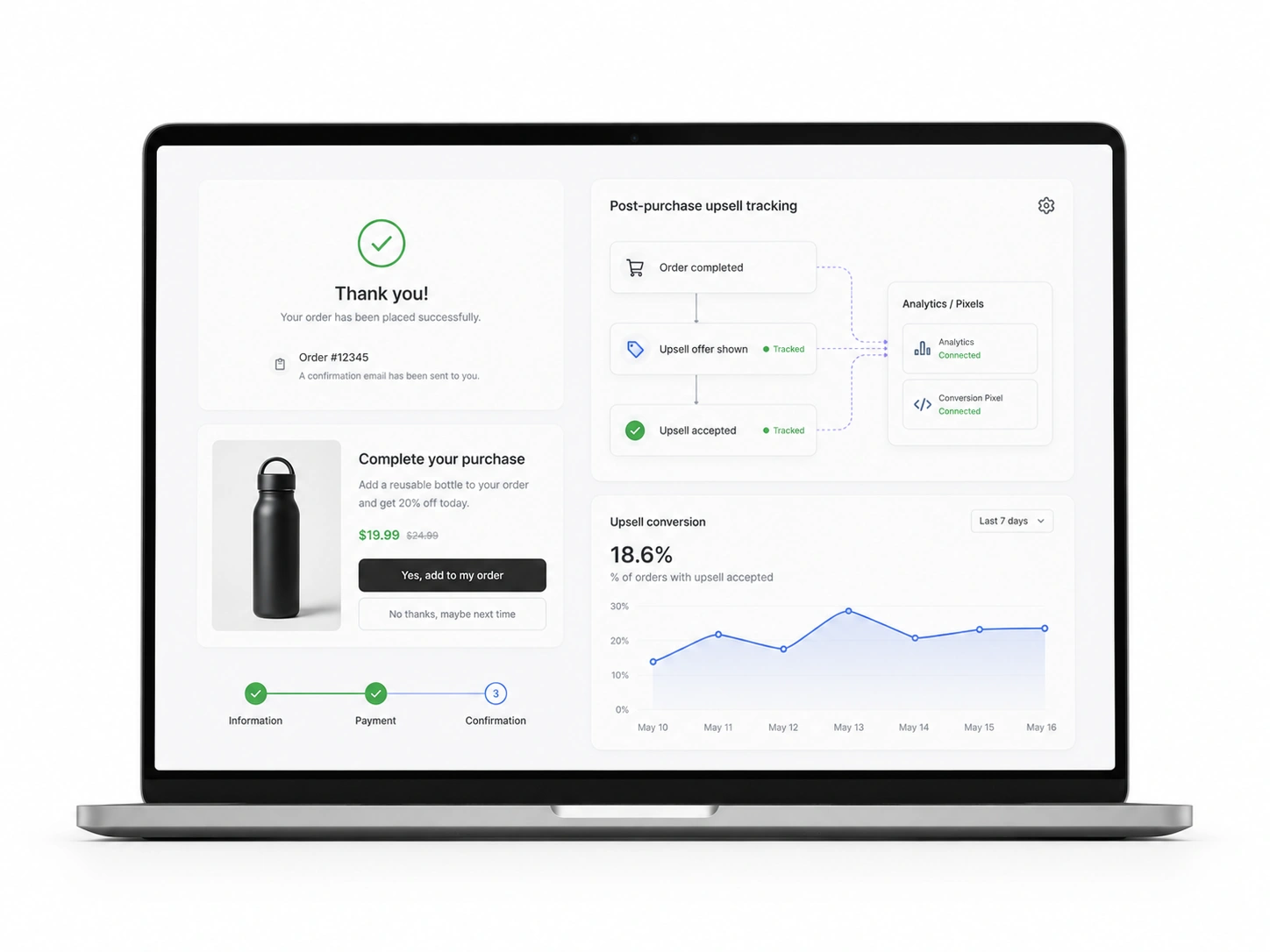
You just launched a new offer for your store. A customer buys a shirt. Right after they pay, you show them a matching pair of socks. This is a great way to grow.
But there is a big problem for many store owners. They do not know if the socks actually sold because of that specific page. They can see the total money. But they cannot see the data in their tracking tools.
This is why you need to learn how to configure post-purchase upsell tracking in Shopify checkout. Without this setup, your data is not clear. You might spend money on ads that do not work. Or you might stop an offer that was actually making you rich.
In this guide, we will walk through the steps to fix this. We will use simple words and clear steps. This will help you master your e-commerce analytics and scale your business.
What is Post-Purchase Upsell Tracking?
Before we start the setup, we should define what this entity is. A post-purchase upsell is an offer that appears after the initial checkout. The customer has already entered their credit card details.
They click one button to add another item to their order. This is often called a one-click upsell. It is very powerful because it does not make the customer fill out their info again.
Tracking this means sending a signal to Google or Facebook. This signal says that this person just bought something else. If you do not send this signal, your reports will look wrong.
You need to understand what Shopify post-purchase upsell is before you can track it. This helps you see how the customer moves through your store. It also helps you see where they might get confused.
Why Shopify Checkout Tracking is Different Now
Shopify has changed how it handles the checkout process. In the past, things were very flexible but often broke. Now, Shopify uses a system called checkout extensibility.
This new system is much safer for the store. But it also means you cannot just paste code anywhere you want. You must follow specific rules.
The tracking happens on two main pages. One is the post-purchase page. This is the page where the extra offer lives. The other is the order status page. This is the final page that says thank you for your order.
The Importance of the Data Layer
A data layer is like a digital notebook. It stores all the facts about a sale. It knows the price, the name of the product, and the order ID.
When a customer accepts an upsell, the notebook gets an update. Your tracking scripts then read this notebook. They take the information and send it to your marketing tools.
If your data layer is broken, your tracking will be broken too. This is the foundation of your e-commerce analytics. It is the only way to ensure your conversion tracking stays accurate.
How To Configure Post Purchase Upsell Tracking in Shopify Checkout: Step-by-Step
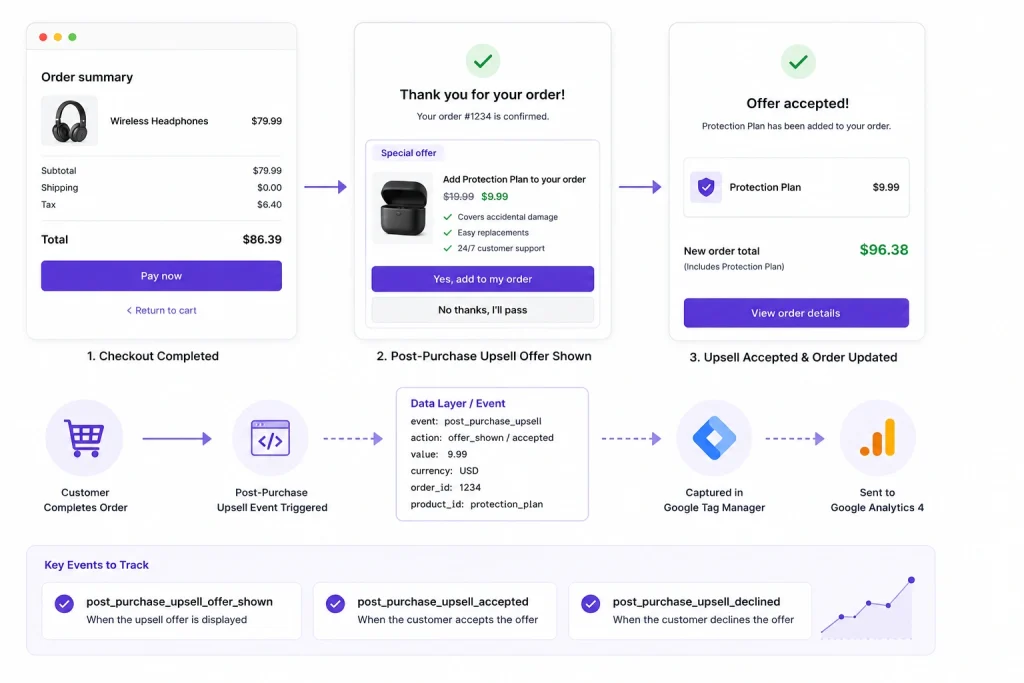
Now we are ready for the technical part. Do not worry. We will keep it simple. Follow these steps to get your tracking ready.
Step 1: Accessing Your Shopify Admin Settings
First, log in to your Shopify store. Look at the menu on the left side. Click on the settings button at the bottom.
Once you are in settings, find the checkout option. This is where all the magic happens for your sales process.
Scroll down until you find the section for additional scripts. This is a big text box. You will put your special tracking codes here.
Step 2: Adding the Script for the Order Status Page
The order status page is the last stop for your customer. You need to put a script here that can talk to your tracking tools.
This script must be able to see the difference between the first sale and the upsell sale. You will need to use a script that looks for the purchase event.
When you configure post-purchase upsell tracking in Shopify checkout, you want to make sure the script runs every time. It should not matter if they took the upsell or not. The script should be smart enough to handle both cases.
Step 3: Setting Up the Post-Purchase Page Trigger
The post-purchase page is a special in-between page. It appears after the customer pays but before the thank you page.
You need a script that triggers specifically on this page. This script tells your tools that an upsell offer was seen.
If the customer clicks accept, the script sends a conversion signal. If they click decline, it sends a different signal or stays quiet. This gives you a clear view of your post-purchase upsell funnel performance.
Now that the basic scripts are in place, we must look at how to make them even better. Accuracy is the most important goal here.
Best Practices for Accurate Conversion Tracking
Many people set up tracking and then forget about it. This is a mistake. You must follow best practices to keep your data clean.
- Use unique transaction IDs for every upsell.
- Make sure you do not count the same sale twice.
- Test your tracking in an incognito browser window.
- Check your reports daily for the first week.
If you ignore these steps, you might see ghost sales. These are sales that show up in your reports but not in your bank account. This can happen if you have post-purchase upsell mistakes in your code.
Avoiding these mistakes will save you a lot of stress. It will also make your digital marketing attribution much more reliable.
Client-Side Tracking versus Server-Side Tracking
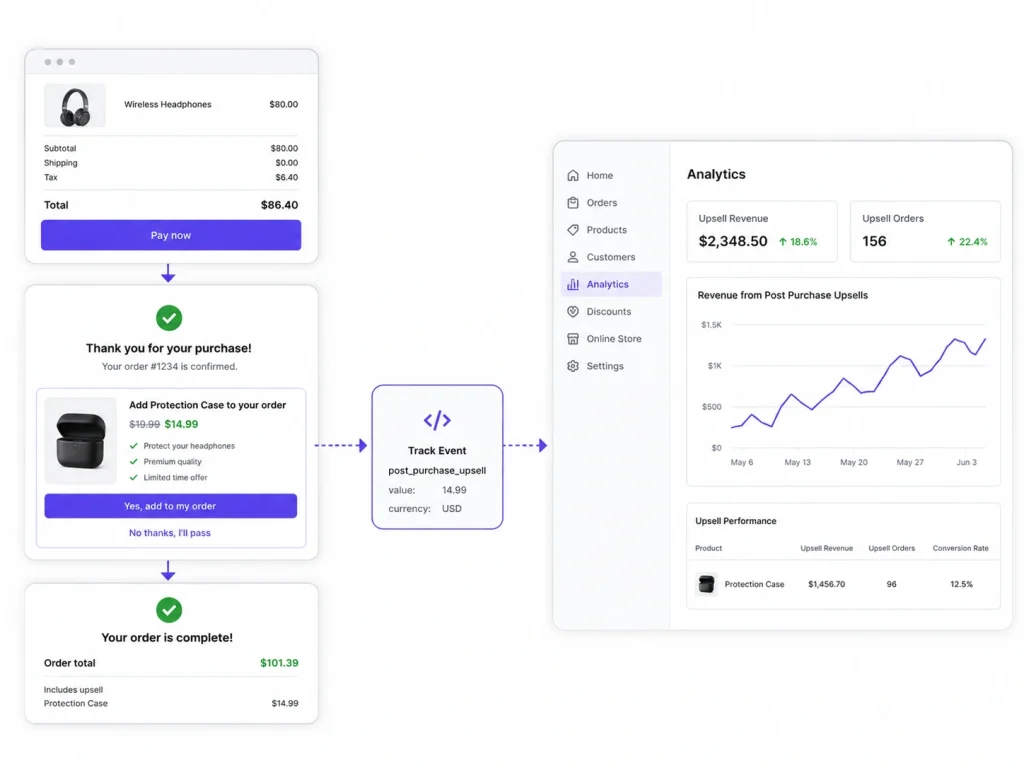
This sounds like a big topic. But it is actually quite simple.
Client-side tracking happens in the customer’s browser. It uses a small piece of code called a pixel. This is easy to set up. But it has a downside.
Many people use ad blockers. These blockers stop the pixel from working. Also, some phones, like iPhones, have high privacy settings. This can block the tracking signals.
Server-side tracking is different. The signal comes directly from your Shopify server. It goes straight to the tracking tool. It does not go through the customer’s browser.
This means it cannot be blocked. It is much more accurate. For most stores, using a mix of both is the best way to go. This is often done using the Facebook Conversion API. For a reliable setup of how to configure post-purchase upsell tracking in Shopify checkout, this is the way to go.
Managing Different Tracking Tools
You likely use more than one tool to track your store. You might use Google Analytics 4. You might also use a Facebook Pixel.
Google Analytics 4 (GA4) Configuration
GA4 is the newest version of Google’s tracking tool. It is very powerful for Shopify stores.
When you configure post-purchase upsell tracking in Shopify checkout, you must send a specific purchase event to GA4.
Make sure you include the item names and prices for the upsell items. This will help GA4 calculate your total revenue correctly. It also helps with your attribution reports.
Facebook and Instagram Tracking
Meta tools use a pixel and an API. You want to make sure the purchase event triggers when the upsell is accepted.
The order status page should be the final trigger. This ensures that even if the customer closes their browser early, the sale is still recorded.
This keeps your ad campaigns smart. The more data they have, the better they can find new customers for you.
Common Problems and How to Fix Them
Even with a good guide, things can go wrong. Here are the most common issues merchants face.
Duplicate Conversions
This is when one sale is counted two times. It usually happens because the tracking script runs twice.
To fix this, your script should check if the order ID has already been tracked. If it has, the script should stop. This keeps your data clean.
Missing Upsell Data
Sometimes the main sale shows up, but the upsell does not. This often happens because the customer leaves the page too fast.
You can fix this by using a GTM web container. This tool helps the scripts load faster. It also makes sure the signal is sent before the page changes.
You should also compare thank-you page upsells vs one-click offers to see which method tracks better for your specific goals. Check your thank-you page settings to ensure that all scripts have time to fire.
Testing Your Setup Like a Professional
You should never trust your tracking until you test it. Testing is the only way to be 100 percent sure.
First, place a real order in your store. Use a test credit card or a discount code that makes the price zero.
Go through the whole process. Accept the upsell offer. Then, wait for the thank you page to load.
Now, look at your Google Analytics real-time report. You should see the events popping up. You should see a purchase event for the first item. Then you should see another event for the upsell.
If the numbers match what you just bought, you are successful. You have learned how to configure post-purchase upsell tracking in Shopify checkout correctly.
Using Debugging Tools
There are free tools you can use in your browser. These are called pixel helpers or tag assistants.
They show you exactly what signals your website is sending. If you see a red light, there is an error. If you see a green light, everything is good.
Using these tools makes you look like an expert. It also helps you find small mistakes that are hard to see in the code.
Upsell Tracking Mastery
Tracking your sales is about more than just numbers. It is about understanding your business.
When you have clear data, you can take bigger risks. You can try new products and new offers. You know that you will be able to see exactly what works.
Proper tracking also helps you understand the value of a one-click upsell. You can see how it changes your profit margins.
By following this guide, you have taken a big step. You have moved from guessing to knowing. This is how the most successful Shopify stores grow.
Frequently Asked Questions (FAQs)
You might still have a few questions about how all of this works. We have gathered the most common questions from Shopify store owners to help you clear up any confusion about your data.
This usually happens because the tracking script is only on the thank-you page. Upsells happen on a separate page before that. You must add scripts specifically for the post-purchase page to capture that data accurately.
No, you do not need Shopify Plus. While Plus has more features, any Shopify plan can use post-purchase offers and track them. You just need to add the correct scripts in your checkout settings to see your results.
You should use a unique transaction ID for every upsell. Your script should also check if an order ID has already been processed. This keeps your data clean and prevents one sale from counting as two separate orders.
The post-purchase page appears immediately after payment but before the final confirmation. The thank you page is the very last step. Tracking must be active on both pages to catch the initial sale and any upsell offers.
Yes, you can. You need to trigger a purchase event when the customer accepts the offer. It is best to use the Conversion API alongside the pixel. This ensures no data is lost to browser ad blockers.
Yes, it is much more reliable. Server-side tracking sends data directly from Shopify to your analytics tool. This bypasses ad blockers and browser privacy settings. These settings often stop traditional pixels from recording the extra upsell conversion.
Start Scaling Your Store with Perfect Tracking Today
Are you ready to stop guessing and start growing? You now have the tools to see every sale clearly. Accurate data is the only way to build a big brand.
Don’t let missing numbers hold your store back anymore. Take a few minutes today to check your scripts. Make sure your checkout is working for you and not against you.
When you know how to configure post-purchase upsell tracking in Shopify checkout, you gain a huge advantage. You can scale your ads with total confidence.
Start tracking your wins right now and watch your profits soar. Your future self will thank you for fixing your data today. Let’s get to work!
