
Payment refusals on a Shopify store are frustrating because they stop sales at the most important moment: checkout. A customer is ready to buy, but the payment fails, gets declined, or never completes. When this happens, many store owners immediately blame Shopify. That is not always accurate.
In most cases, refused payments happen because of payment gateway settings, customer bank issues, unsupported payment methods, incomplete verification, fraud filters, currency mismatches, or problems with the card itself.
The good news is that most Shopify payment problems can be fixed once you understand where the refusal is coming from. Shopify Payments, third-party payment providers, PayPal, digital wallets, and subscription payment tools all work differently.
If one setting is wrong, checkout can break. This guide explains how Shopify Payments works, how to set it up, how to choose a payment provider, and why payments may be refused on your Shopify store.
What Is Shopify Payments?
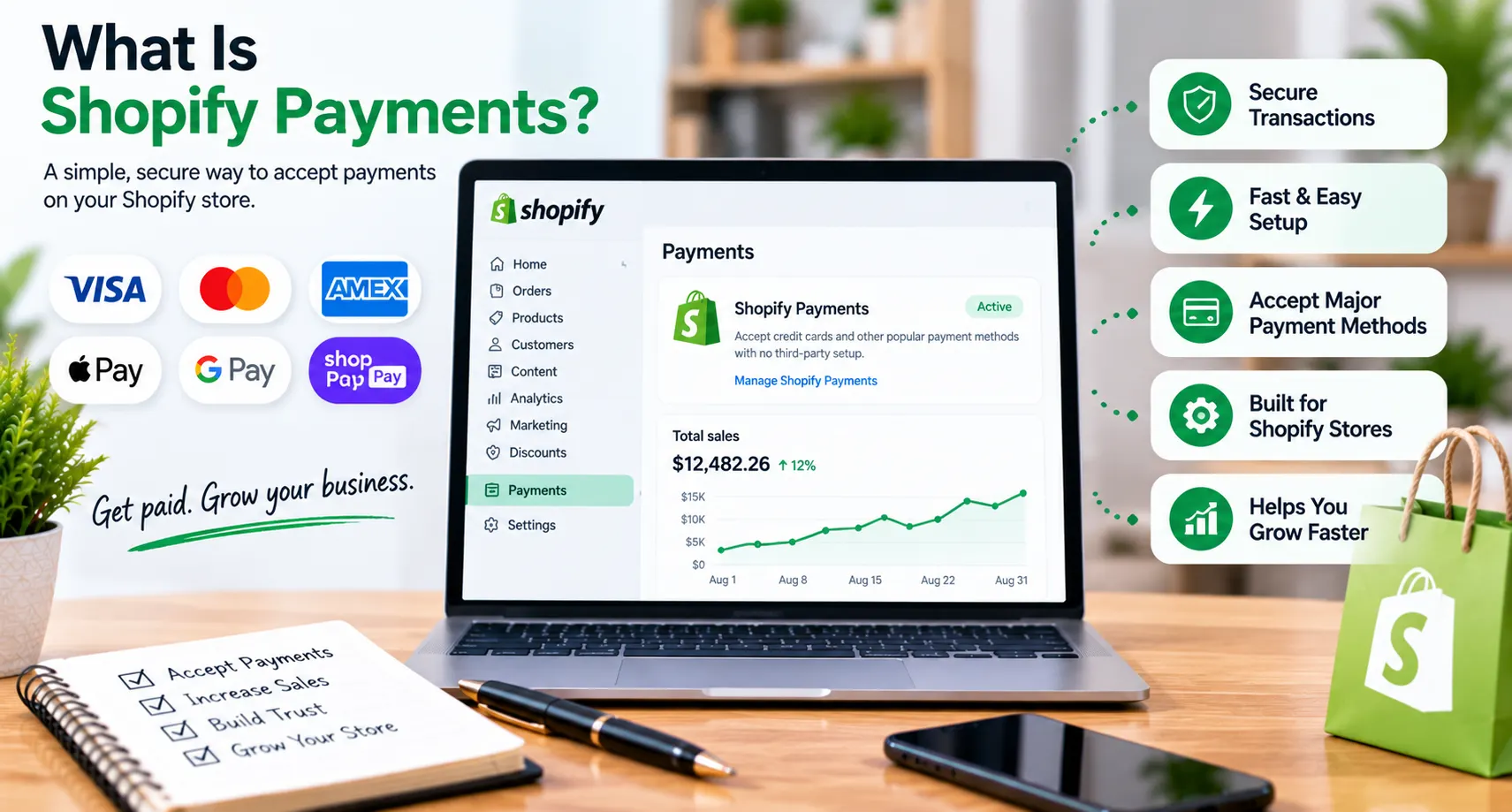
Shopify Payments is Shopify’s built-in payment processing system. It lets store owners accept customer payments without connecting a separate third-party credit card provider or merchant account.
Shopify describes it as the simplest way to accept online payments because it is already connected inside the Shopify admin.
Shopify Payments allows eligible merchants to accept major payment methods directly through their Shopify checkout.
Instead of managing multiple dashboards, login credentials, and separate provider settings, you can manage payments, payouts, chargebacks, and payment status from one place.
Why Shopify Payments Matters?
For many U.S. Shopify stores, Shopify Payments is the easiest starting point because it keeps checkout simple. Customers can pay by card and, depending on your setup, may also see accelerated checkout options such as Shop Pay.
Benefits of Shopify Payments
- Easier setup inside Shopify
- No need for a separate merchant account
- Centralized payment management
- Faster checkout experience
- Built-in payout tracking
- Lower setup complexity for beginners
Shopify Payments is not available in every country or for every business type. Shopify requires merchants to review eligibility, bank account rules, and security requirements before using it.
How Does Shopify Payments Work?
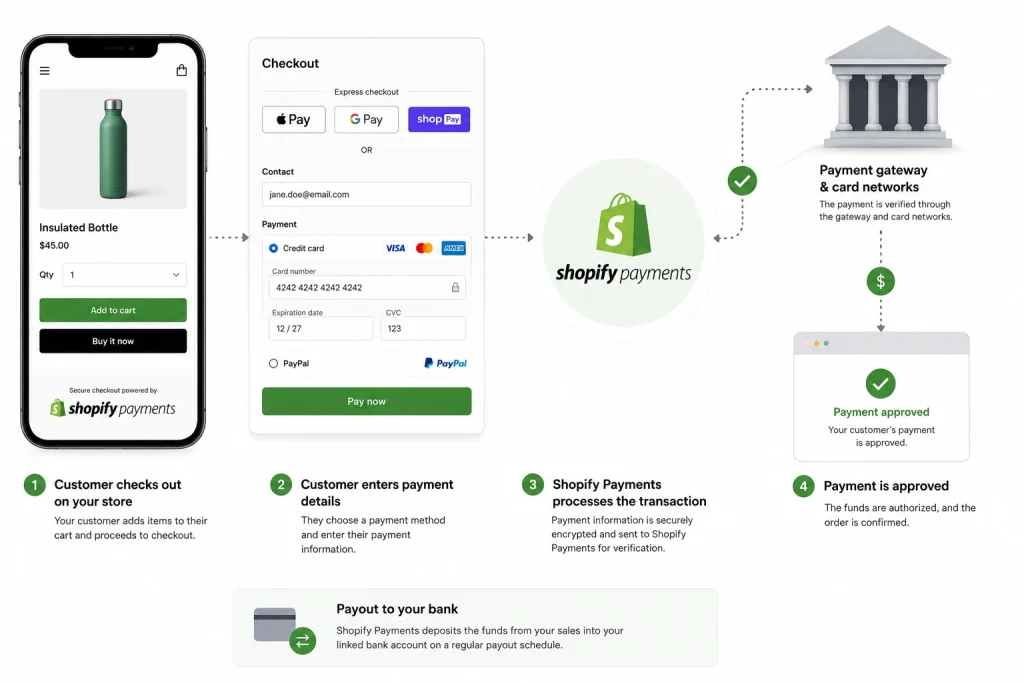
Shopify Payments works by processing customer payments through Shopify’s built-in checkout system, then sending approved funds to the merchant’s connected bank account after processing.
When a customer places an order, Shopify checks the payment details, sends the transaction for authorization, and confirms whether the payment is approved or declined.
If the payment is approved, the order is created and the payment appears inside your Shopify admin. Later, Shopify sends the payout to your bank account based on your payout schedule.
The Basic Payment Flow
Here is the simple version:
- The customer adds products to the cart.
- Customer enters payment details at checkout.
- Shopify Payments checks and processes the transaction.
- The bank or card network approves or declines the payment.
- Approved payments appear in your Shopify admin.
- Funds are sent to your bank account through payouts.
What Happens When a Payment Fails?
A payment can fail before the order is completed. This may happen because the customer’s bank declines the charge, the card information is wrong, the billing address does not match, or fraud protection blocks the transaction.
Why this Matters for Store Owners
You should not treat every declined payment as a Shopify bug. Sometimes Shopify is only showing the result from the customer’s bank, card network, or payment provider.
Your job is to identify whether the issue is on your store setup, your provider settings, or the customer’s payment method.
How to Set Up Shopify Payments?
You can set up Shopify Payments from your Shopify admin by going to Settings > Payments, then completing the Shopify Payments account setup.
Shopify also requires eligible stores to review bank account rules, business information, and security requirements before activation.
Setting up Shopify Payments is not hard, but you need to enter accurate information. Do not rush this part. Wrong business details, mismatched bank information, or incomplete verification can delay payouts or cause account review problems.
Step-by-step Setup Process
- Log in to your Shopify admin.
- Go to Settings.
- Click Payments.
- Find Shopify Payments.
- Click Complete account setup or the available setup button.
- Enter your business details.
- Add personal verification information if required.
- Connect your bank account.
- Set up two-step authentication if required.
- Review and submit your information.
Information you May Need
- Legal business name
- Business address
- Tax details
- Bank account details
- Store owner information
- Product or service category
- Personal identity verification
Setup Mistake to Avoid
Do not enter fake, incomplete, or mismatched information. If your business name, bank account, or tax details do not match, Shopify may pause verification or hold payouts until the issue is fixed.
Why Are My Payments Being Refused on My Shopify Store?
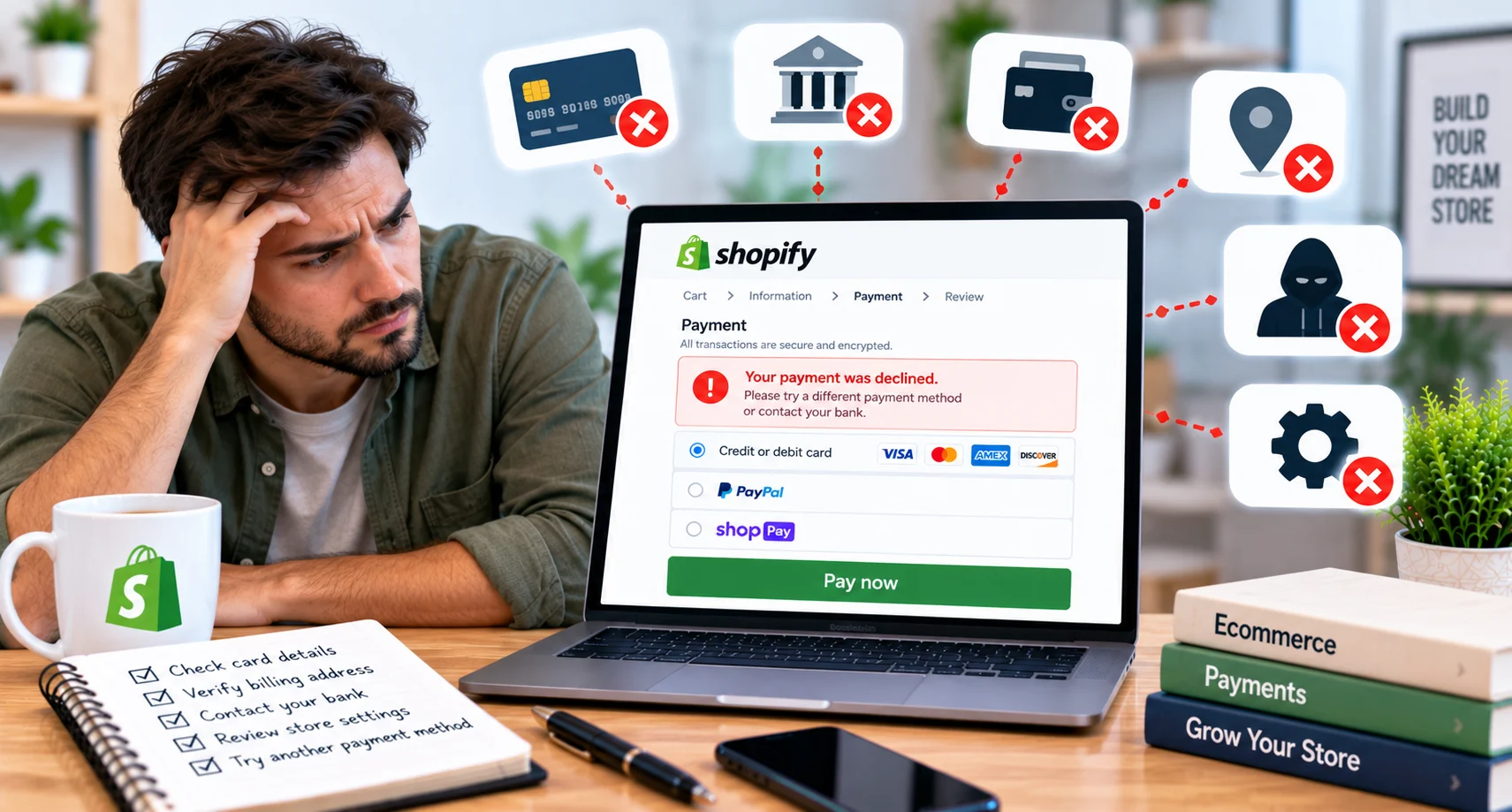
Payments are usually refused because the customer’s bank rejects the charge, the payment gateway is misconfigured, Shopify Payments verification is incomplete, fraud filters are triggered, or the payment method is not supported for that transaction.
This is the core issue most store owners care about. A refused payment does not always mean your Shopify store is broken. It means the payment could not be authorized, captured, or completed. The real cause depends on where the refusal happened.
Common Refusal Points
A payment may be refused by:
- The customer’s card issuer
- The payment gateway
- Shopify Payments
- A third-party payment provider
- Fraud analysis tools
- The customer’s digital wallet
- Subscription payment rules
- Currency or location restrictions
A customer may enter the wrong CVV. Their bank may block the purchase because it looks unusual. Your payment provider may not support the customer’s country.
Your Shopify Payments account may still need verification. A subscription order may fail because the selected gateway does not support recurring billing.
What you Should Check First
Start with your Shopify admin. Go to the order timeline, abandoned checkout details, or payment section and look for any error message.
If the error says the card was declined, the customer may need to contact their bank. If the error points to provider settings, your payment setup needs fixing.
Guessing is a waste of time. You need to read the actual payment error, check your gateway settings, and test checkout yourself. Most payment refusal problems are fixable, but only if you stop treating every decline as the same problem.
How to Activate Shopify Payments?
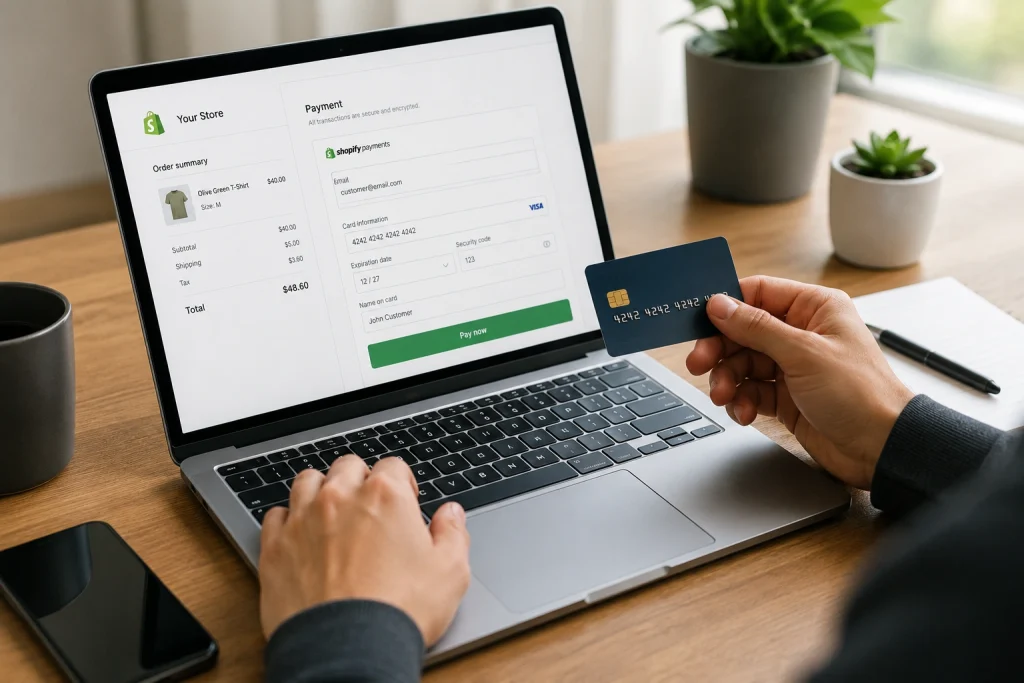
You activate Shopify Payments from the Payments page in your Shopify admin. After activation, eligible stores can accept credit cards and other supported payment methods while managing payments directly in Shopify.
Activation is the point where Shopify Payments becomes available at checkout. However, activation does not always mean your account is fully clear forever. Shopify may still request additional verification, especially if your business details need review.
Activation Steps
- Open your Shopify admin.
- Go to Shopify theme Settings > Payments.
- Select Shopify Payments.
- Click Activate or Complete account setup.
- Enter all required business and personal details.
- Add your bank account.
- Complete security requirements.
- Save and submit the setup.
After Activation
Once Shopify Payments is active, test your checkout. Make sure payment options appear correctly. Check your store currency, tax setup, shipping zones, and checkout settings. A payment provider can be active, but checkout can still fail if another setting is wrong.
Activation Checklist
Before going live, confirm:
- Your bank account is correct
- Your business details are accurate
- Your store currency is correct
- Checkout is not in test mode
- Required verification is complete
- Payment icons appear properly
- Customers can complete checkout
Pro Tip:
Do a real test order if possible. It is better to find problems before customers do.
How to Select a Shopify Payment Provider?
Choose a Shopify payment provider based on your country, customer location, fees, checkout experience, accepted payment methods, fraud protection, subscription support, and payout reliability.
Shopify supports Shopify Payments and many third-party payment providers. If you are not using Shopify Payments, Shopify says you can choose from over 100 credit card payment providers.
These may be direct providers, where customers stay in your store, or external providers, where customers complete payment on a separate hosted checkout page.
What to Compare Before Choosing
Do not pick a provider just because someone on YouTube said it is “best.” That is lazy and risky. Your best provider depends on your business model.
Compare these points:
- Is the provider available in your country?
- Does it support your store currency?
- Does it accept your customers’ preferred payment methods?
- Are the fees reasonable?
- Does it support chargeback management?
- Does it work well with subscriptions?
- Does it keep customers on your checkout page?
- How fast are payouts?
- Is support reliable?
Direct vs. External Providers
A direct provider usually creates a smoother checkout because customers pay on your store. An external provider may redirect customers to another page, which can create friction. That does not make external providers bad, but you should know the tradeoff.
Which Shopify Payment Provider Should You Use?
Most eligible U.S. Shopify stores should start with Shopify Payments because it is built into Shopify and easier to manage.
Use a third-party provider only when Shopify Payments is unavailable, unsupported for your business, or missing payment methods your customers need.
For a typical U.S. ecommerce store selling standard products, Shopify Payments is usually the practical choice.
It reduces setup headaches and keeps your payment management inside Shopify. That matters when you are trying to run a store, handle orders, and fix checkout issues quickly.
When Shopify Payments Makes Sense
Use Shopify Payments if:
- Your country and business type are eligible
- You want a simple setup
- You want fewer third-party tools
- You want centralized reporting
- You want Shop Pay support
- You want a smoother Shopify checkout experience
When a Third-party Provider Makes Sense
Use a third-party provider if:
- Shopify Payments is not available in your country
- Your business type is not supported
- You need a local payment method
- You already have a merchant account
- You need advanced payment features
- Your customers prefer a specific payment option
Good Provider Choices by Situation
For most U.S. stores, start with Shopify Payments and add PayPal or other customer-friendly payment methods if needed.
For international stores, check which providers support your target market. For subscription stores, confirm recurring payment compatibility before you commit.
Do not overload checkout with every payment method possible. Too many options can confuse customers. Offer the methods your buyers actually use.
Can Shopify Handle Recurring Payments?
Yes, Shopify can support recurring payments, but you need a subscription app and a supported payment gateway.
Shopify’s app subscription documentation says subscription information becomes available in the admin when a subscription app is installed, and stores must use supported gateways for subscription products.
Recurring payments are used for subscriptions, memberships, replenishment products, monthly boxes, and repeat billing. Shopify can support these models, but recurring billing is not the same as a simple one-time product purchase.
What You Need for Recurring Payments
To sell subscriptions on Shopify, you usually need:
- A subscription app
- A compatible payment gateway
- Clear subscription terms
- Product settings for recurring purchase options
- Customer billing permission
- A process for failed recurring payments
Supported Gateway Matters
Not every payment method works well for recurring billing. Some wallets, local payment options, or manual methods may not support future automatic charges.
Shopify notes that stores using subscription products must use supported payment gateways, and local payment methods may have limits for subscription purchases.
Why Recurring Payments Fail
Recurring payments often fail because cards expire, banks decline the charge, customers cancel cards, or the gateway does not support automatic updates.
Shopify Payments may support automatic card updates in some cases, which can reduce failed subscription payments.
If subscriptions are part of your business model, choose your payment provider carefully from day one.
Common Reasons Payments Are Being Refused
Shopify payments are commonly refused because of card declines, incorrect gateway setup, incomplete verification, unsupported payment methods, fraud filters, currency issues, or subscription payment conflicts.
Payment refusals are not random. There is usually a specific reason behind them. Your job is to narrow it down.
Most Common Causes
- Incorrect card details: Wrong card number, CVV, expiration date, or billing ZIP code.
- Bank decline: The customer’s bank blocks the charge.
- Insufficient funds: The card does not have enough available balance.
- Fraud filter triggered: The order looks risky based on location, billing mismatch, or behavior.
- Gateway misconfiguration: Provider credentials, settings, or activation are wrong.
- Incomplete Shopify Payments verification: Your account may need more business details.
- Unsupported country or currency: The provider may not support that transaction.
- Checkout test mode: Payments may fail if test settings are not handled correctly.
- Subscription gateway issue: The selected gateway may not support recurring payments.
Incorrect Payment Gateway Configuration
This one deserves special attention. If your payment provider is not activated correctly, customers may not be able to pay at all.
For additional payment methods, Shopify says merchants can activate options from Settings > Payments, search by method or provider, enter credentials, and activate the provider.
Check your provider login, API credentials, account status, payment method availability, and checkout visibility.
How to Fix Refused Payments on Your Shopify Store?
To fix refused payments on Shopify, check the payment error message, review your gateway setup, confirm Shopify Payments verification, test checkout, and make sure your provider supports your customer’s country, currency, and payment method.
When payments are being refused, do not randomly change settings. That can make the problem worse. Instead, follow a clear troubleshooting process. Start by checking the exact error message in your Shopify admin.
Then review whether the problem came from the customer’s bank, your payment gateway, Shopify Payments, fraud settings, or checkout configuration.
Step-by-step Troubleshooting Checklist
Check the order timeline or abandoned checkout details
Confirm Shopify Payments is active
Make sure your account verification is complete
Review third-party gateway credentials
Check whether test mode is turned on
Confirm your store currency is supported
Test checkout using another payment method
Ask the customer to contact their bank if the card was declined
Check fraud filter settings
Contact Shopify Support or your payment provider if the issue continues
When to Contact Shopify Support?
Contact Shopify Support if your Shopify Payments account is active but payments still fail without a clear reason. Contact your third-party provider if the refusal is coming from an external gateway like PayPal, Stripe, Authorize.net, or another processor.
Do not wait for dozens of failed orders before fixing payment issues. Every failed checkout means lost revenue.
How to Find the Exact Payment Decline Reason in Shopify
To identify a Shopify payment decline reason, open Shopify Admin, select Orders, and review the affected order’s timeline. For failed checkouts without an order, check the customer’s abandoned checkout history.
Shopify displays the payment information received from the customer’s bank, including available error messages or decline details. However, banks often return a generic decline without explaining the exact cause.
Record the transaction time, payment method, error message, and affected device. If Shopify provides limited information, ask the customer to contact their bank or contact your payment provider through Settings > Payments.
Shopify Payment Decline Codes and What They Mean
Common Shopify payment decline messages include insufficient funds, expired card, incorrect CVC, invalid card number, lost or stolen card, and processing error. Each message requires a different response.
For example, insufficient funds means the available balance cannot cover the order total. An incorrect CVC or expired card requires the customer to re-enter updated card information.
A generic “card declined” message usually means the issuing bank rejected the transaction without providing a detailed reason. Shopify Payments test mode can simulate these errors and help merchants verify their checkout configuration.
Is the Payment Problem Affecting One Customer or Every Customer?
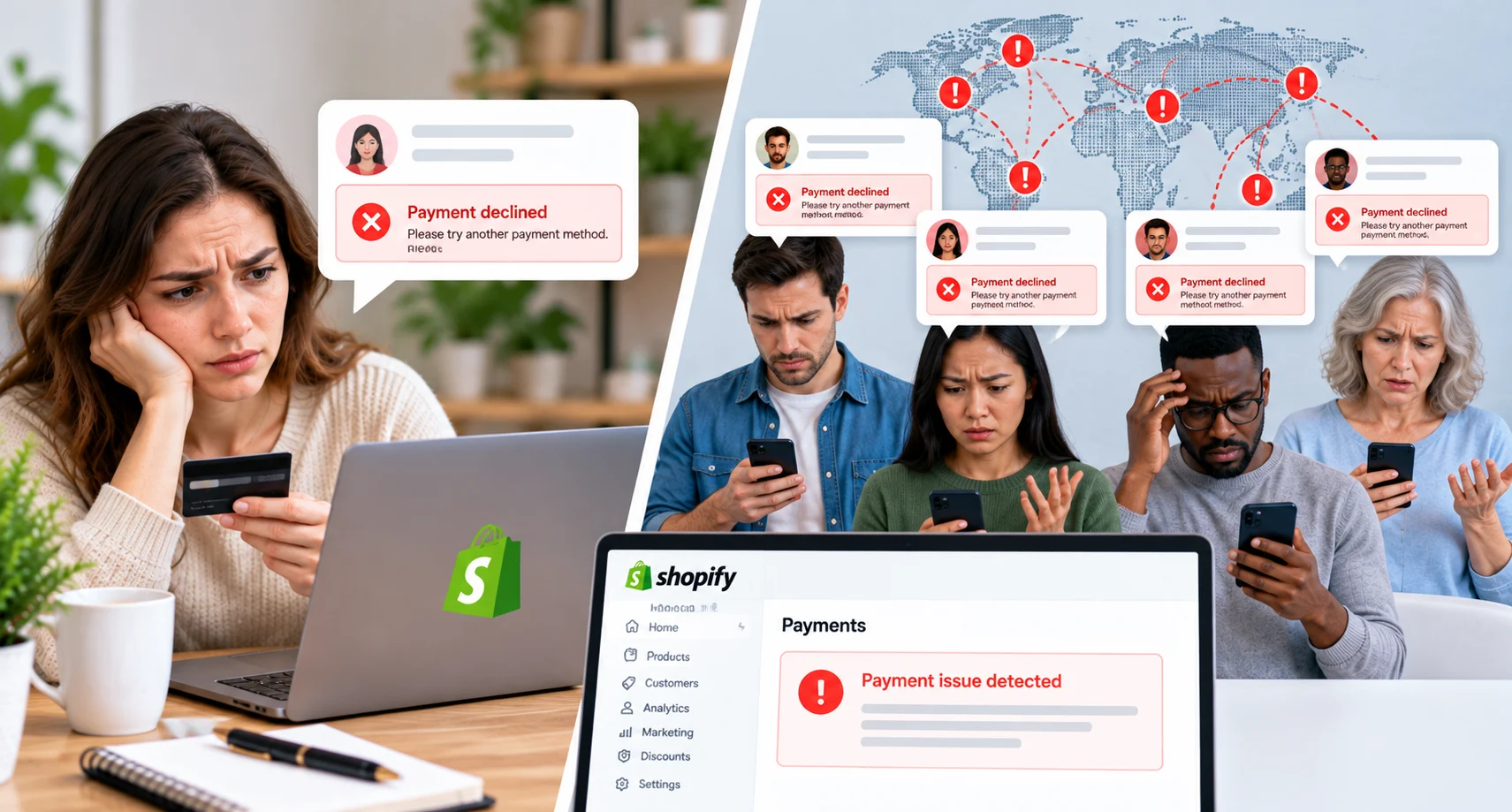
First, determine whether the payment failure affects one customer, one card type, one country, or all customers. A single failed card usually indicates a customer-side banking issue.
Multiple declines across different customers may indicate an incorrect payment configuration, test mode, an account hold, gateway connection problems, or a temporary payment-provider outage.
Test the checkout using another device, browser, card type, and payment method. Also review Shopify’s status page and payment settings. If every payment fails, contact Shopify Support or your third-party gateway immediately.
Frequently Asked Questions (FAQs)
Here are quick answers to the most common Shopify payment refusal questions. Use these answers to troubleshoot faster before contacting support.
Why is Shopify declining my customer’s payment?
Shopify may not be the one declining it. Often, the customer’s bank, card issuer, payment provider, or fraud filter refuses the transaction. Check the payment error message in your Shopify admin first.
Why is Shopify Payments not available in my store?
Shopify Payments is only available in supported countries and regions, and some business types may not qualify. You may also need to complete account security and verification requirements.
Can I use PayPal with Shopify Payments?
Yes, many Shopify stores use Shopify Payments along with PayPal or other additional payment methods. Just make sure each method is activated correctly in your payment settings.
Why are subscription payments failing?
Subscription payments can fail because of expired cards, bank declines, unsupported gateways, or payment methods that do not support recurring billing. Use a supported subscription gateway and monitor failed billing attempts.
Should I use Shopify Payments or a third-party provider?
Use Shopify Payments if you are eligible and want the simplest setup. Use a third-party provider if Shopify Payments is unavailable, your business needs local methods, or your customers prefer another payment option.
Conclusion
Refused Shopify payments usually come from setup errors, bank declines, verification issues, unsupported methods, or fraud checks.
Start by checking your payment settings and error messages. For most eligible U.S. stores, Shopify Payments is the simplest option, but the right provider depends on your customers, country, and business model.
