
You stare at your Shopify dashboard. Hundreds of products. Zero organization. Customers land on your site, get overwhelmed, and bounce.
Sound familiar?
Here’s the truth: unorganized stores don’t sell. They confuse. They frustrate. Plus, they bleed money.
But a well-structured Collection Page? That’s where the magic happens. It’s where browsers become buyers. Where chaos becomes clarity. This is where your revenue finally starts climbing.
Today, let’s go through exactly how to build Collection Pages that work. No fluff. No theory. Just step-by-step instructions from someone who’s helped hundreds of store owners turn product dumps into profit machines.
What is a Shopify Collection Page?
A Collection Page groups related products together. Think of it as a digital aisle in your store. Instead of dumping everything in one pile, you create logical homes for your inventory.
Your customers don’t want to keep hunting. They want to browse. A Collection Page lets them do exactly that.
Here’s what happens when you get this right:
- Shoppers find what they want instantly
- Average order value increases because customers discover complementary items
- Your Online Store looks professional and trustworthy
- SEO improves because Google understands your site structure
A Collection Page isn’t just an organization. It’s a strategy. It’s psychology. It’s sales.
What You Need Ready Before Creating a Collection
Don’t jump into your Shopify Admin yet. Preparation prevents problems. Here’s your pre-flight checklist.
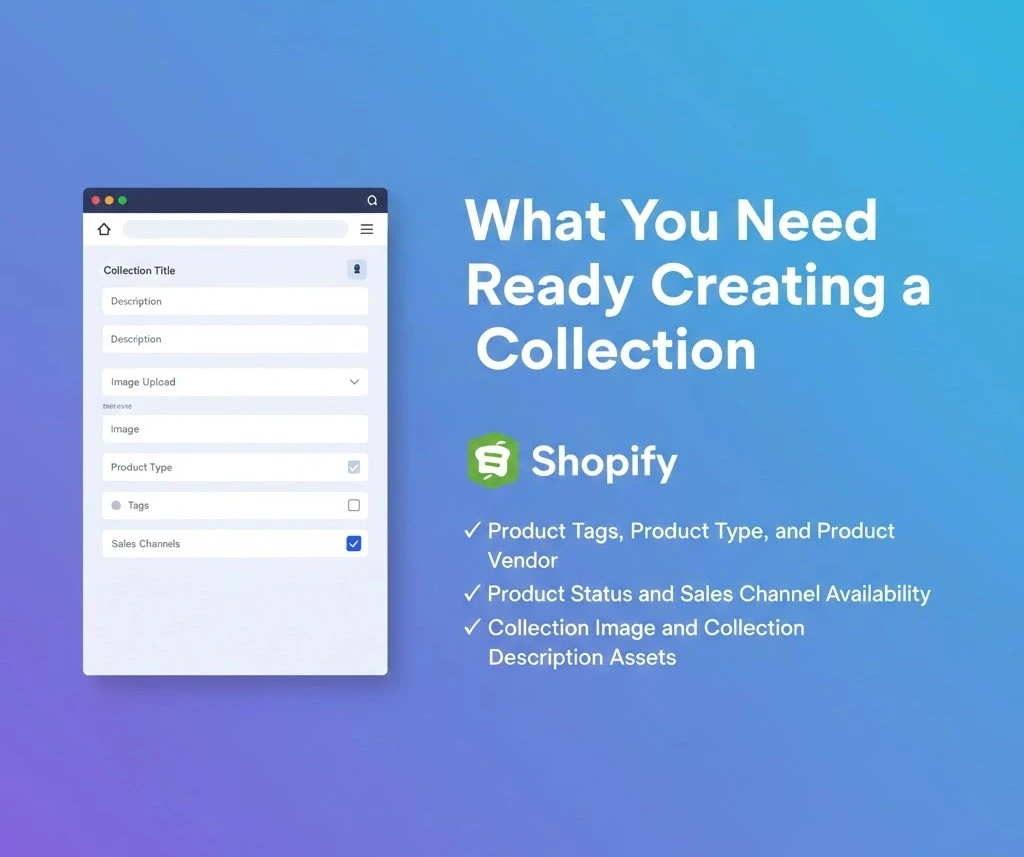
Product Tags, Product Type, and Product Vendor
These three fields power your Automated Collection rules later. Get them right now.
Product Tags are your secret weapon. They’re flexible, searchable, and invisible to customers. Use them to mark seasonal items, sale products, or featured pieces. A tag like “summer-2024” beats “On Sale” every time.
Product Type categorizes your catalog at the highest level. Dresses. Electronics. Home Goods. Pick broad buckets that make sense to shoppers, not just to you.
Product Vendor tracks your suppliers. Crucial for Automated Collections, that is, if you want brand-specific pages.
Product Status and Sales Channel Availability
Every product needs the right Product Status. Active products sell. Draft products hide. Archived products disappear from everywhere except your records.
Check your Sales Channel Availability too. If a product isn’t available on your Online Store, it won’t appear in collections either. Double-check this to avoid issues.
Collection Image and Collection Description Assets
Your Collection Image appears at the top of the page. It sets the mood. It tells stories. It converts browsers into believers.
Your Collection Description does heavy SEO lifting. It guides customers. It answers questions before they’re asked.
Gather these assets before you start building. You’ll move faster. You’ll make fewer mistakes.
Wanna know more? Check out our complete Shopify SEO checklist. Nothing will get missed out after this.
Choose the Right Shopify Collection Page Type
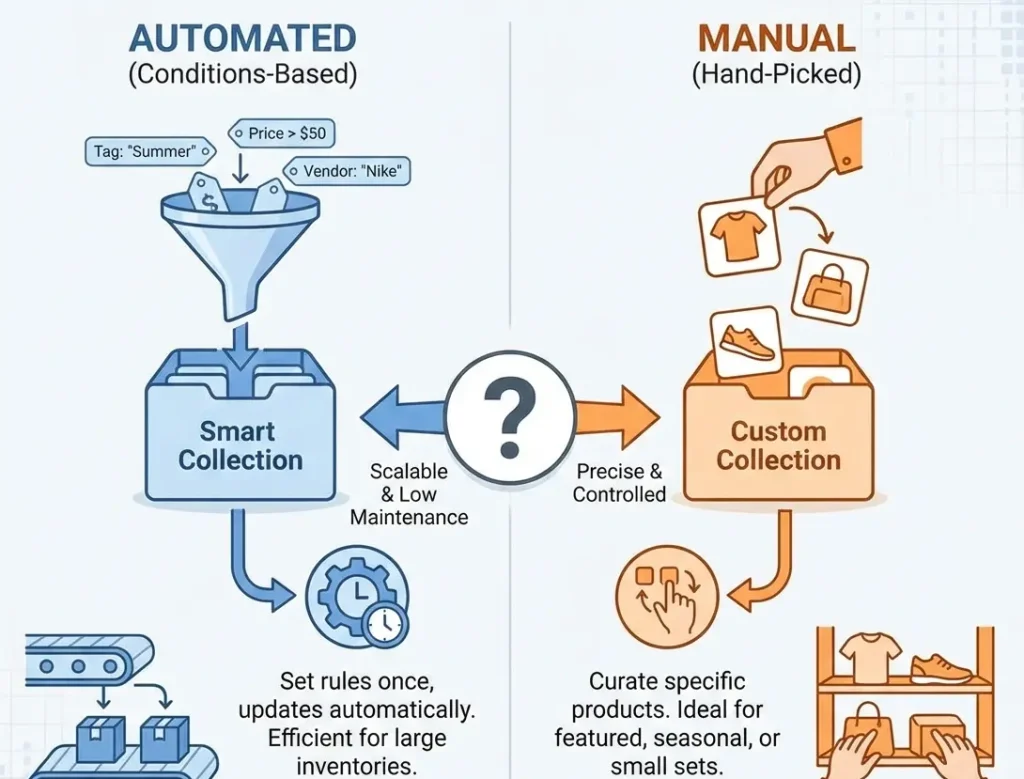
Shopify gives you two options. Choose wrong, and you’ll create work for yourself.
Manual Collection
You hand-pick every product. One by one. Drag and drop to set order. Total control. Total effort.
When Manual Collection Makes Sense
Use the manual when:
- You curate small, specific groups (under 50 products)
- Product order matters deeply (best-sellers first, seasonal highlights)
- You run frequent flash sales or limited collections
- Your inventory rarely changes
The downside? Maintenance. Every new product needs manual addition. Every sold-out item needs manual removal. If you have thousands of SKUs, this becomes a part-time job.
Automated Collection
Set rules. Let Shopify do the work. Products appear automatically when they match your conditions. They disappear when they don’t.
This is where smart store owners win the market.
Condition Fields Used in Automated Collection
Shopify offers powerful filtering options:
- Product Tags – The most flexible field. Create rules like “tag contains ‘waterproof'” or “tag equals ‘new-arrival'”.
- Product Title – Catch specific naming patterns. “Title contains ‘Limited Edition'” groups special releases instantly.
- Product Type – Separate dresses from shoes, laptops from tablets.
- Product Vendor – Build brand shops automatically. All Nike products. All Apple accessories.
- Price – Create budget collections. “Price is less than $50” builds your “Under $50” page instantly.
- Compare-at Price – Identify sale items automatically when Compare-at Price is greater than Price.
- Inventory and Availability – Hide out-of-stock items. Show only what’s ready to ship.
Condition Logic Options
Two ways to combine conditions:
All Conditions – Every rule must match. Product needs tag “summer” AND price under $50. Narrow, precise, controlled.
Any Condition – Any rule can match. Product has tag “summer” OR tag “sale”. Broad, inclusive, expansive.
Choose All Conditions for tight curation. Choose Any Condition for discovery-focused browsing.
We helped a client add a Shopify collection page with better structure, clearer product presentation, and a cleaner shopping experience.
BrandsBro improved the layout to make the storefront look more professional, trustworthy, and easier for customers to browse.
Create a Collection Page in Shopify Admin
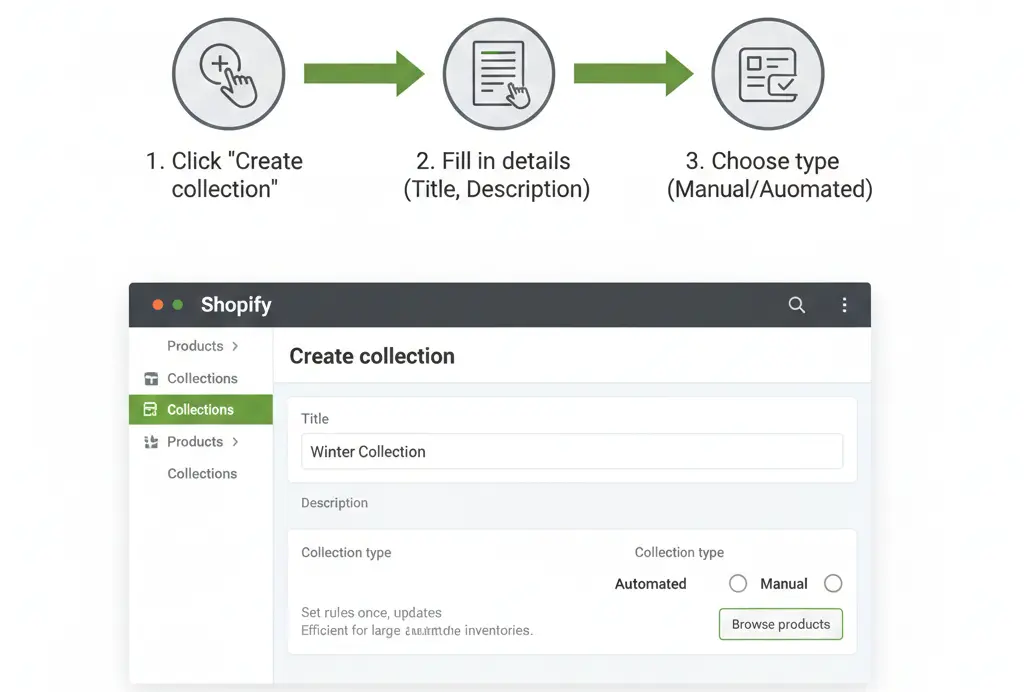
Time to build. Follow these steps exactly.
Navigate to Collections
Open your Shopify Admin. Click Products in the left sidebar. Select Collections. Click the blue “Create collection” button.
Enter Core Details
Four fields demand your attention:
- Collection Title – Clear beats clever. “Women’s Running Shoes” outperforms “Fleet-Footed Female Footwear.” Include your target keyword naturally.
- Collection Description – 200-300 words works best. Describe what shoppers will find. Include benefits, not just features. End with a soft call-to-action.
- Collection Image and Alt Text – Upload a 1200×800 pixel image minimum. Fill in the Alt Text field. Describe the image for screen readers and SEO. “Women wearing blue running shoes on mountain trail” beats “shoe image.”
- Collection Availability and Sales Channels – Check Online Store under Sales Channels. Uncheck it if you’re not ready to publish. Set Collection Status to Active when you’re live.
Add Products to the Collection
Two paths diverge here.
1. Manual Collection Product Selection
Click “Browse” to open your product catalog. Select items one by one. Use the search bar to find specific products faster.
After selection, drag products to reorder them. Your top row gets the most attention. Put winners there.
Set Product Order by clicking the six-dot handle beside each product. Drag. Drop. Done.
2. Automated Collection Rule Setup
Click “Add condition.” Select your field. Choose your operator (equals, contains, starts with). Enter your value.
Add multiple conditions. Choose All Conditions or Any Condition based on your strategy.
Always click “Preview” to Validate Matching Products. Check that the right items appear. Check that wrong items don’t. Fix your conditions until it’s perfect.
Save and Preview the Collection Page URL
Click Save. Shopify generates your Collection Handle automatically from your title. “Women’s Running Shoes” becomes /collections/womens-running-shoes.
Your full URL Path looks like: yourstore.com/collections/womens-running-shoes
Click “View” to see your live page. Check that Online Store Visibility works. If you see a 404, check your Sales Channel Availability settings.
Remember: Understand changing your Shopify URL structure before finalizing your collection handles.
Add the Collection Page to Your Store Navigation
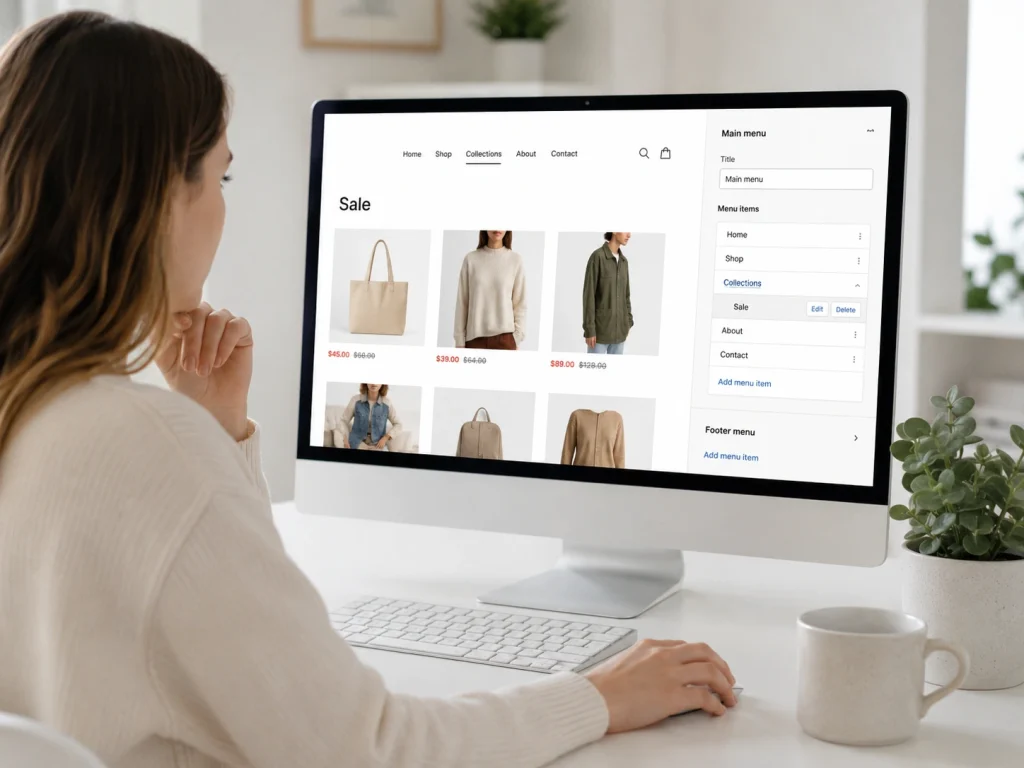
Hidden collections don’t sell. Make them findable.
Navigate to Online Store → Navigation
In your Shopify Admin, click Online Store. Select Navigation. You’ll see your menu lists.
Add Menu Links to the Collection Page
Click “Add menu item.” Name it something customers understand. “Sale” beats “Discounted Inventory.”
Click “Link.” Select “Collections.” Choose your collection from the dropdown.
Main Menu Link – Your primary navigation. Limited real estate. Reserve for top categories and money-makers.
Footer Menu Link – Secondary navigation. Perfect for niche collections, seasonal pages, or detailed category breakdowns.
Test Navigation on Desktop and Mobile
Open your Online Store. Click your new link. Does it work?
Now grab your phone. Check mobile. Thumb-friendly? Fast-loading? Clear at small sizes?
Fix issues now. Mobile traffic dominates e-commerce. Ignore it at your peril.
Customize the Collection Page Layout in the Theme Editor
Turns out, default settings rarely win. Customize for conversion.
Choose or Create a Collection Template
Your theme comes with options.
Default Collection Template – The standard layout. Safe. Boring. Functional.
Alternate Collection Template – Variations your theme developer built. Different layouts. Different possibilities.
Assign a Template to a Specific Collection by editing the collection, scrolling to “Theme template,” and selecting from the dropdown.
Some themes let you create custom templates. Worth exploring if you have unique needs.
Configure Collection Page Sections
Modern Shopify themes use sections. Drag. Drop. Customize. No coding required.
Collection Banner
Your page header. Make it count.
- Show Collection Title – Usually yes. Exceptions exist for visual-first brands.
- Show Collection Image – Almost always yes. Sets context. Creates emotion. Builds trust.
- Show Collection Description – Yes for SEO. Yes for context. Keep it above the fold or expandable.
Product Grid
Where products live. Critical decisions here.
Grid Columns and Mobile Layout – Four columns on desktop looks crowded on phones. Most themes auto-adjust, but verify. Two columns on mobile usually wins.
Product Card Settings – Show prices? Show ratings? Show “Add to Cart” buttons? Test what converts for your audience.
Sorting
Control how products appear.
Default Sort – Manual, Best Selling, Price, Date. Choose based on collection goals. New arrivals? Sort by date. Clearance? Sort by price low-to-high.
Customer Sort Options – Let shoppers choose. Give them power. Reduce friction.
Filters
Essential for large collections. Enable what matters:
- Availability Filter – Let customers hide out-of-stock items. Reduces frustration.
- Price Filter – Budget shoppers love this. Implement range sliders when possible.
- Product Type Filter – Helps when collections contain mixed categories.
- Product Vendor Filter – Brand-loyal customers use this constantly.
- Product Tag Filter – Flexible but can overwhelm. Use sparingly.
Pagination
Control browsing flow.
Page Size – 24-48 products per page balances load speed with browsing convenience.
Pagination Style – Traditional numbered pages or infinite scroll. Test both. Infinite scroll increases engagement. Numbered pages improves SEO tracking.
Set Collection Page SEO Settings
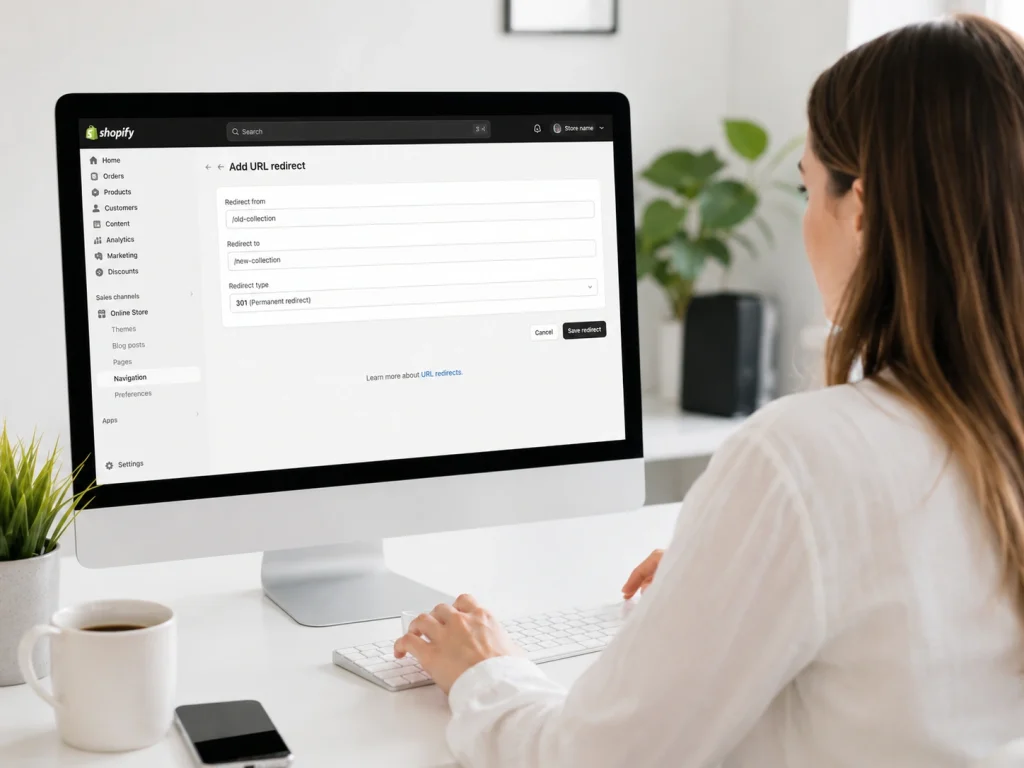
Organic traffic is free traffic. Optimize for it.
Edit the Collection Handle and Manage Redirects
Your Collection Handle appears in your URL. Keep it short. Keep it descriptive. Include your target keyword.
Changed your handle? Set up URL Redirects immediately. In Shopify Admin, go to Online Store → Navigation → URL Redirects. Map old URLs to new ones. Preserve your link equity. Prevent 404 errors.
Edit Search Engine Listing
Scroll to “Search engine listing preview” in your collection editor.
Meta Title – 50-60 characters. Include your primary keyword near the front. “Women’s Running Shoes | Free Shipping | YourStore” works.
Meta Description – 150-160 characters. Active voice. Clear benefit. Soft CTA. “Shop women’s running shoes for every terrain. Free returns. Expert advice. Find your perfect pair today.”
On-Page SEO Elements on the Collection Template
Structure matters to Google.
H1 Placement – One per page. Usually your collection title. Make it descriptive.
Intro Content Placement – Brief description above products. Expandable long-form content below. Best of both worlds.
Internal Links to Related Collections – “You might also like: Trail Running Shoes | Road Running Shoes | Running Accessories.” Keeps shoppers engaged. Spreads link equity.
Duplicate and Thin Content Risks on Collection Pages
Google penalizes laziness. So, make sure you avoid it.
Collection Description Uniqueness – Never copy-paste descriptions between collections. Write unique copy for every page. 200+ words minimum.
Pagination and Canonical URL Behavior – Shopify handles this well, but verify. Page 2 of your collection should canonicalize to page 1. Check your theme documentation.
Is your case too complex? For those optimization needs, consider professional Shopify SEO support to maximize your collection visibility.
Troubleshoot Common Collection Page Problems
Something broken? Here’s your fix-it guide.
Collection Page Not Showing in the Online Store
Three usual suspects:
Online Store Sales Channel Not Enabled – Edit your collection. Scroll to Sales Channels. Check the box.
Menu Link Missing – Navigation settings. Verify the link exists. Verify it’s not hidden.
Collection Status or Availability Not Set – Draft collections don’t appear. Set Collection Status to Active.
Automated Collection Not Pulling the Right Products
Logic errors kill automation.
Product Data Does Not Match Conditions – Check your products. Is the tag actually “summer” or did you type “Summer”? Case sensitivity matters in some themes.
“All” vs “Any” Logic Misconfigured – All Conditions require every rule. Any Condition requires just one. Verify your choice matches your intent.
Tag Typos and Case Differences – “New-Arrival” ≠ “new-arrival” ≠ “New Arrival.” Standardize your tagging system. Document it. Enforce it.
Manual Collection Product Order Not Saving
Two common causes:
Sort Setting Not Set to Manual – In your collection, check “Sort” dropdown. Must say “Manually” or drag-and-drop won’t stick.
Product Order Not Saved After Changes – Click “Save” after reordering. Obvious, but overlooked when you’re moving fast.
Collection Page Layout Looks Wrong
Visual disasters have simple fixes. Here’s what to do:
Wrong Template Assigned – Edit collection. Check “Theme template” dropdown. Select correctly.
Section Settings Not Matching the Intended Layout – Open Theme Editor. Navigate to your collection. Adjust section settings. Preview changes. Save when satisfied.
Collection URL Issues After Renaming
Broken links hurt SEO and user experience.
Handle Changed Without Redirect – Set up URL Redirects immediately after any handle change. Map old to new. Don’t lose traffic.
Broken Internal Links in Navigation – Rename your collection? Update your Navigation menus. Links don’t auto-update.
Heavy collection of images can slow load times. Learn about improving your Shopify store speed to maintain performance.
Improve the Collection Page After Publishing

Launch is just the beginning. Optimize continuously.
Build a Collection Structure That Scales
Think beyond today. Build for growth.
You have to stay ahead of current ecommerce trends too. This ensures your collection strategy remains competitive.
Category Collections – Your main navigation. Broad buckets. “Women,” “Men,” “Home,” “Sale.”
Brand Collections – Vendor-specific pages. Great for SEO. Great for brand-loyal customers. Build them automatically with Automated Collections.
Use-Case Collections – “Wedding Guest Dresses.” “Home Office Setup.” “Marathon Training Gear.” These convert browsers into buyers because they solve specific problems.
Add Supporting Content That Helps Shoppers Decide
Reduce hesitation. Increase confidence.
FAQ Block – “What size should I order?” “What’s your return policy?” “How long does shipping take?” Answer before they ask.
Short Buying Guide Block – “How to Choose Trail Running Shoes.” Position your expertise. Build trust. Guide decisions.
Collection Page Merchandising Tweaks
Small changes, big results.
Feature Best-Sellers First – Social proof sells. Put proven winners in prime positions. Use Manual Collection for this control.
Pin Seasonal Products in Manual Collections – Holidays approach? Drag seasonal items to the top. Remove them when the season passes. Total flexibility.
Shopify Collection Page vs Product Page: What’s the Difference?
A Shopify collection page is used to group multiple related products in one place. For example, a “Men’s Shoes” collection page can show sneakers, boots, sandals, and formal shoes together.
A product page focuses on one specific item. It includes product images, price, variants, description, reviews, shipping details, and the add-to-cart button.
The main difference is search intent. A collection page helps shoppers compare options, while a product page helps them decide whether to buy one item.
For SEO, collection pages usually target broader keywords like “best running shoes,” while product pages target specific product names, models, or buying terms.
Common Shopify Collection Page Problems and Fixes
One common Shopify collection page problem is poor product organization. If products are not sorted properly, shoppers may leave quickly. Fix this by using clear filters, tags, and logical product categories.
Another issue is thin content. Many Shopify collection pages only show products without helpful text. Add a short SEO-friendly intro, buying guidance, and FAQs to improve relevance.
Slow loading is also a major problem. Large product images, too many apps, and heavy themes can hurt performance. Compress images, remove unused apps, and use a lightweight theme.
A final issue is weak internal linking. Collection pages should link to related collections, best-selling products, and helpful blog posts. This helps users navigate and helps search engines understand your store structure.
How to Create a Shopify Collection List Page That Displays All Collections
A Shopify collection list page displays your published collections in one location, helping customers browse product categories easily. Most Shopify themes include a built-in collections list template, typically accessible through the /collections URL.
Go to Online Store > Themes > Customize, open the page selector, and choose Collections list. Customize the heading, image ratio, columns, and spacing. Ensure every collection is available on the Online Store and has a descriptive title and featured image. Add the page to your navigation through Content > Menus so customers can find it.
How to Add a Featured Collection or Collection List to the Shopify Homepage
To add collections to your Shopify homepage, go to Online Store > Themes > Customize and select the homepage. Click Add section, then choose Featured collection to display products from one collection or Collection list to showcase multiple categories.
Select the required collections and customize the heading, layout, number of products, image settings, and “View all” link. Place popular, seasonal, or high-converting collections near the top of the homepage to make important products easier to discover.
How to Add Filters to a Shopify Collection Page
Shopify collection filters allow shoppers to narrow products by availability, price, product type, vendor, tags, options, or metafields. Open the Shopify Search & Discovery app, select Filters, click Add filter, choose a filter source, and save.
Next, open the theme editor, select a collection template, and enable filtering inside the Product grid section. Filters appear only when your theme supports storefront filtering and relevant filter values exist within the collection.
Frequently Asked Questions (FAQs)
Most stores get collections running quickly, but these common concerns still appear. Here are direct answers.
A collection page groups related products—like “Summer Sale” or “New Arrivals”—into browsable categories, helping customers find items faster while boosting your store’s SEO through organized content.
Go to Products → Collections → Create collection, add a title and description, choose Manual (hand-picked) or Automated (rule-based), set your conditions or select products, upload an image, and click Save.
Use Manual for curated displays like featured collections where you control exact product order. Choose Automated for large inventories that self-update based on rules like tags, price ranges, or stock status.
Navigate to Online Store → Navigation, select your Main menu, click Add menu item, name it, link it to your collection under Collections, and save.
Yes. Use your theme’s built-in editor (Themes → Customize) to adjust layouts and grids, or install apps like PageFly for drag-and-drop customization without coding.
Your Next Step
You now know exactly how to build Collection Pages that organize, convert, and scale.
But knowledge without action is just potential.
Open your Shopify Admin. Create one collection today. Just one. Apply what you learned. See the results.
Then build another. And another.
Your store transforms one Collection Page at a time. Your revenue grows one organized aisle at a time. Your customers thank you one smooth shopping experience at a time.
Start now. Your future self, and your bank account will thank you.
